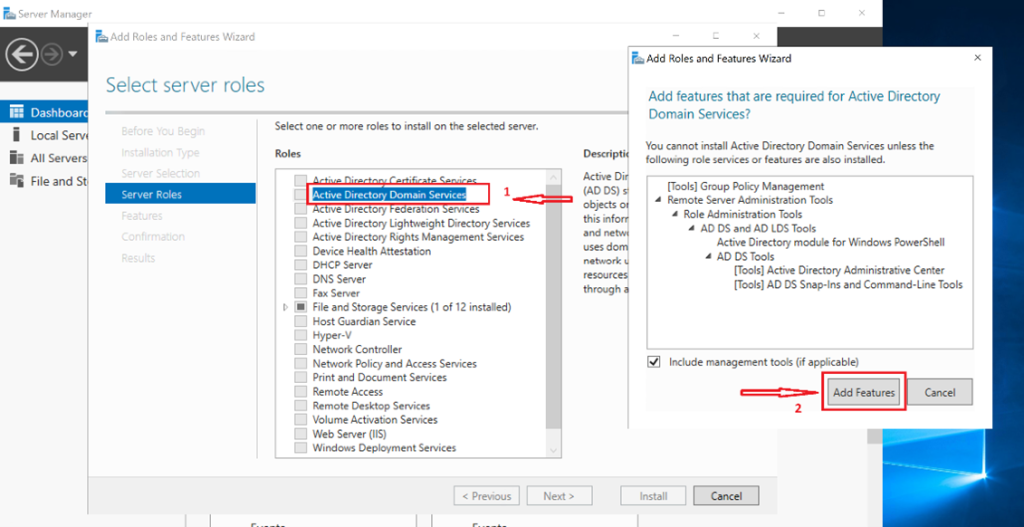
As part of building a realistic domain-based environment, this lab demonstrates how to create a client computer and join it to an existing Active Directory Domain Services (AD DS) domain hosted on Windows Server 2019, using Hyper-V.
A domain environment is incomplete without client machines. Joining a client computer allows you to validate authentication, Group Policy processing, and centralized identity management, just as in real enterprise networks.
Lab Prerequisites
Before starting this lab, ensure the following are already configured:
-
A functioning Domain Controller running Windows Server 2019
-
AD DS and DNS installed and operational
-
Hyper-V virtual networking configured
-
Domain administrator credentials available
Lab Objective
To deploy a Windows client virtual machine, configure networking correctly, and join the client to the Active Directory domain.
Step-by-Step Lab Tasks
Step 1: Create the Client Virtual Machine
-
Create a new virtual machine in Hyper-V
-
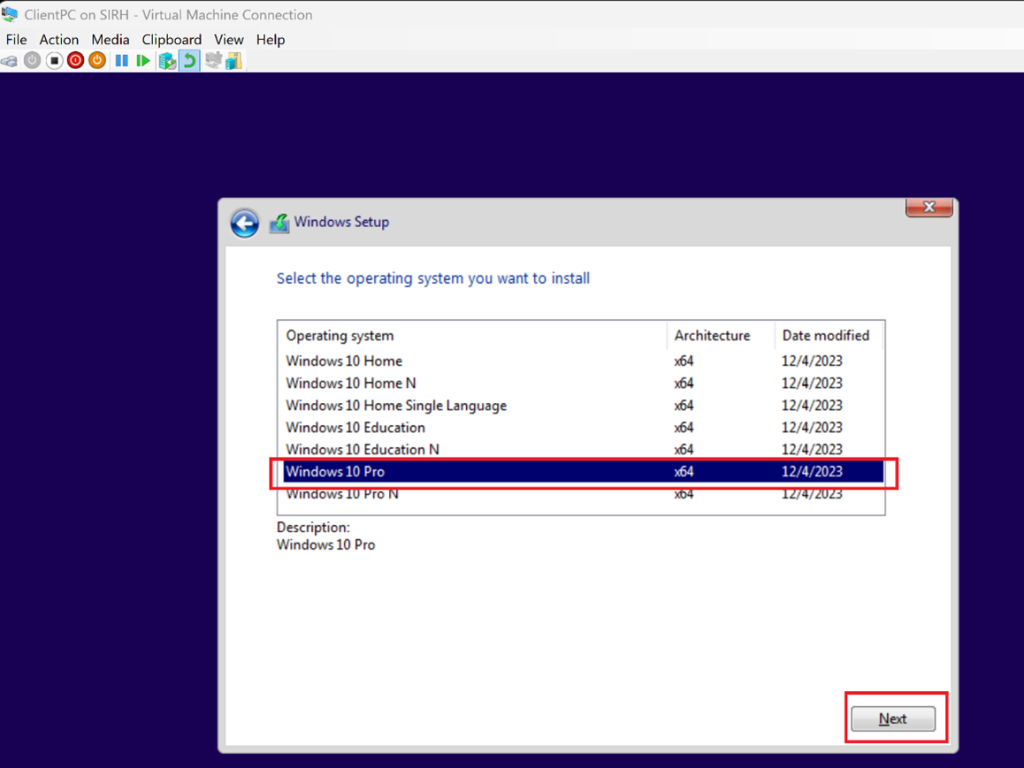
Install Windows 10 (Pro or Enterprise edition)
-
Assign the VM to the same virtual switch used by the Domain Controller
💡 Domain join requires network connectivity to the DC.
In Hyper-V Manager: Right-click on your host → New → Virtual Machine → Name your VM (e.g., “ClientPC”) → Choose Generation 2

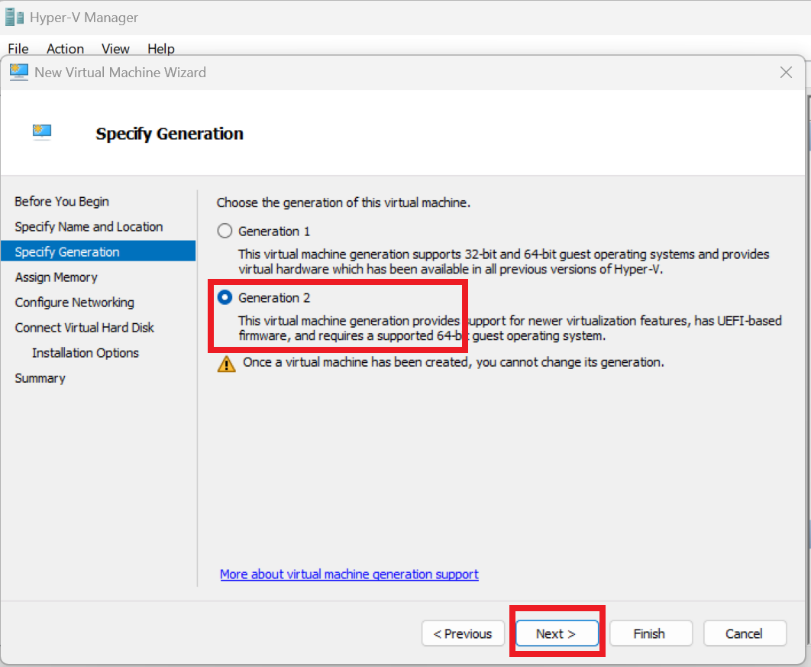
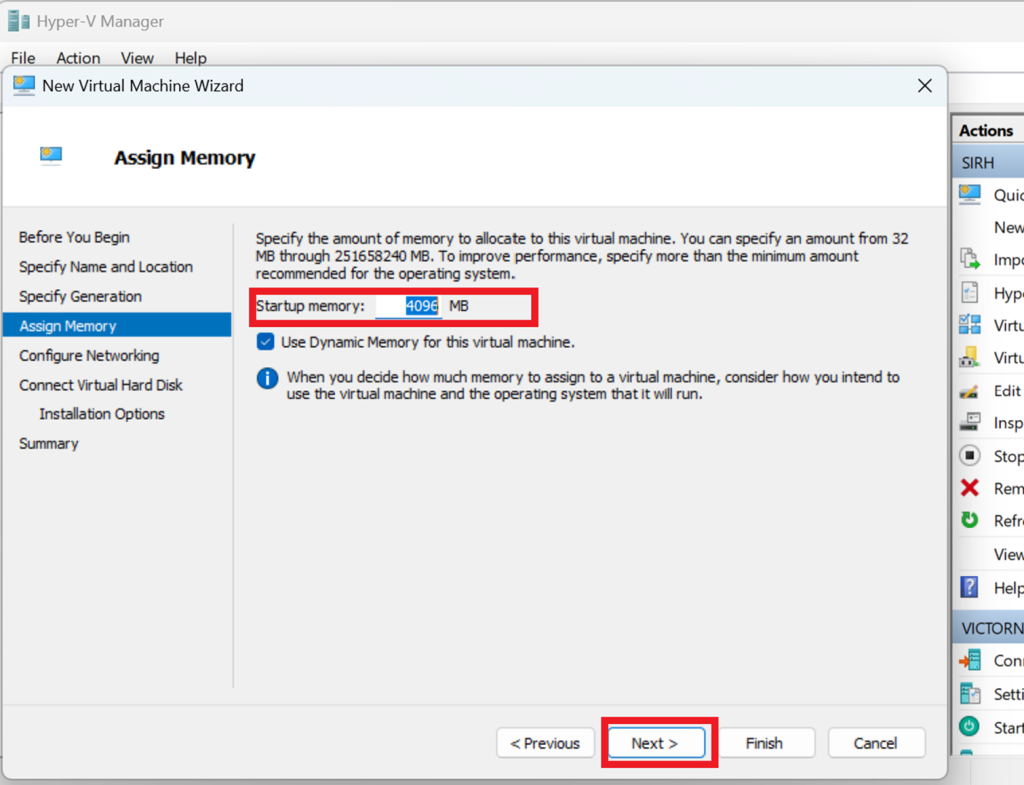
→ Assign Memory (start with 4 GB or more, depending on the Host Machine RAM)
→ Select and connect it to the same virtual switch as the Domain Controller for network visibility.
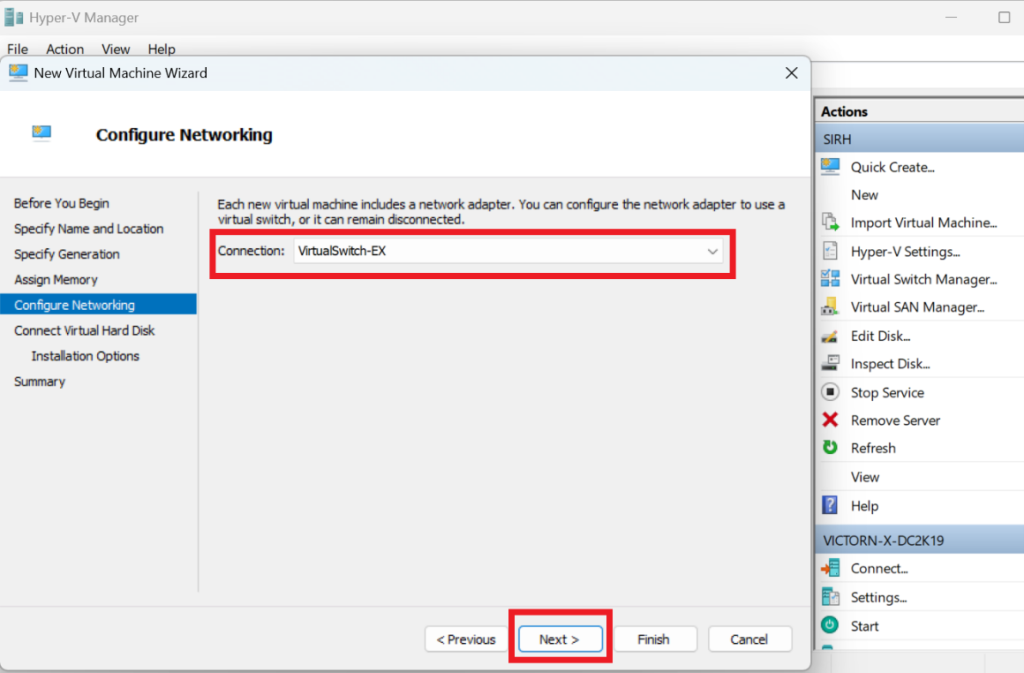
→ Create a new virtual hard disk (e.g., 40GB or more) → choose and install a Windows 10 ISO
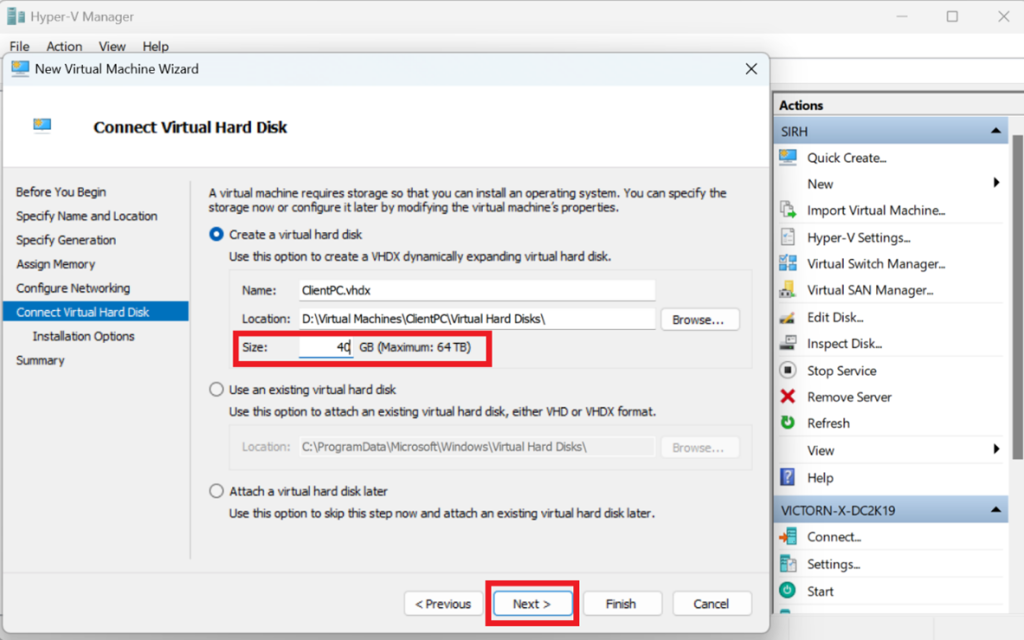
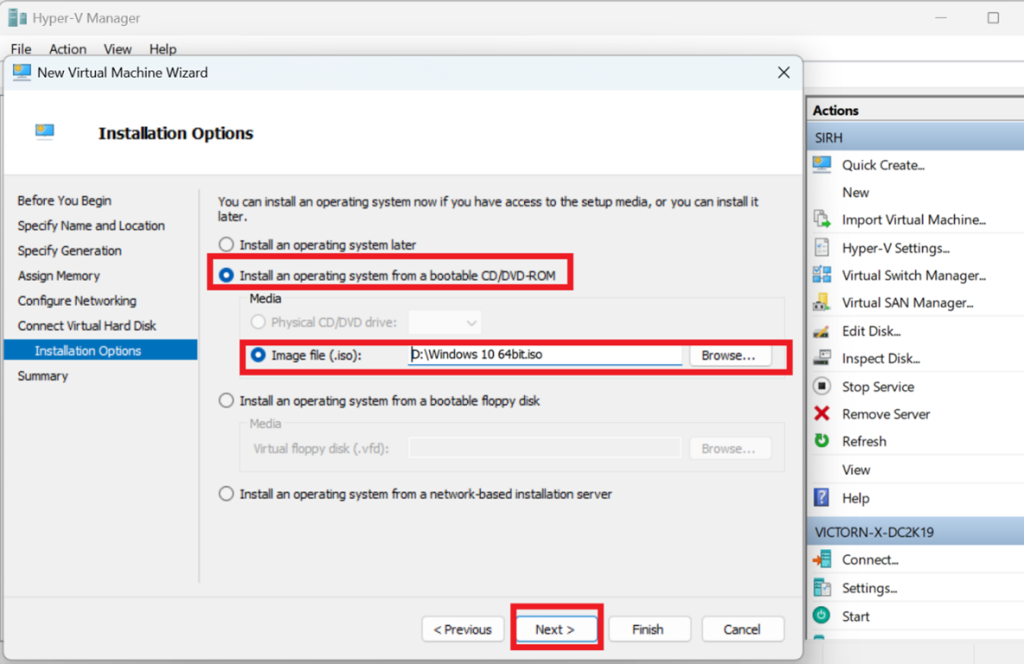
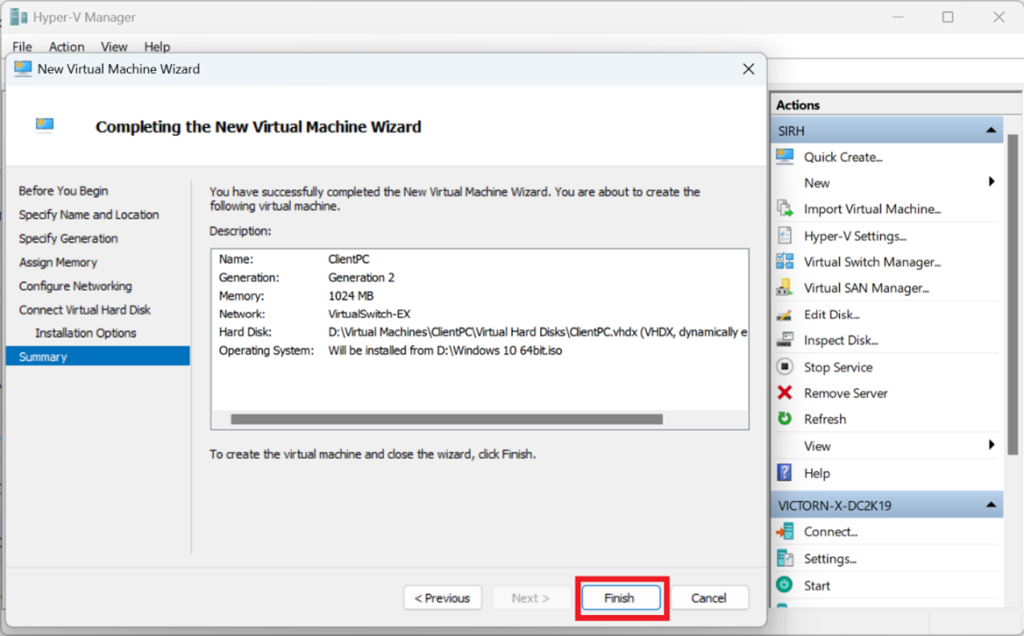
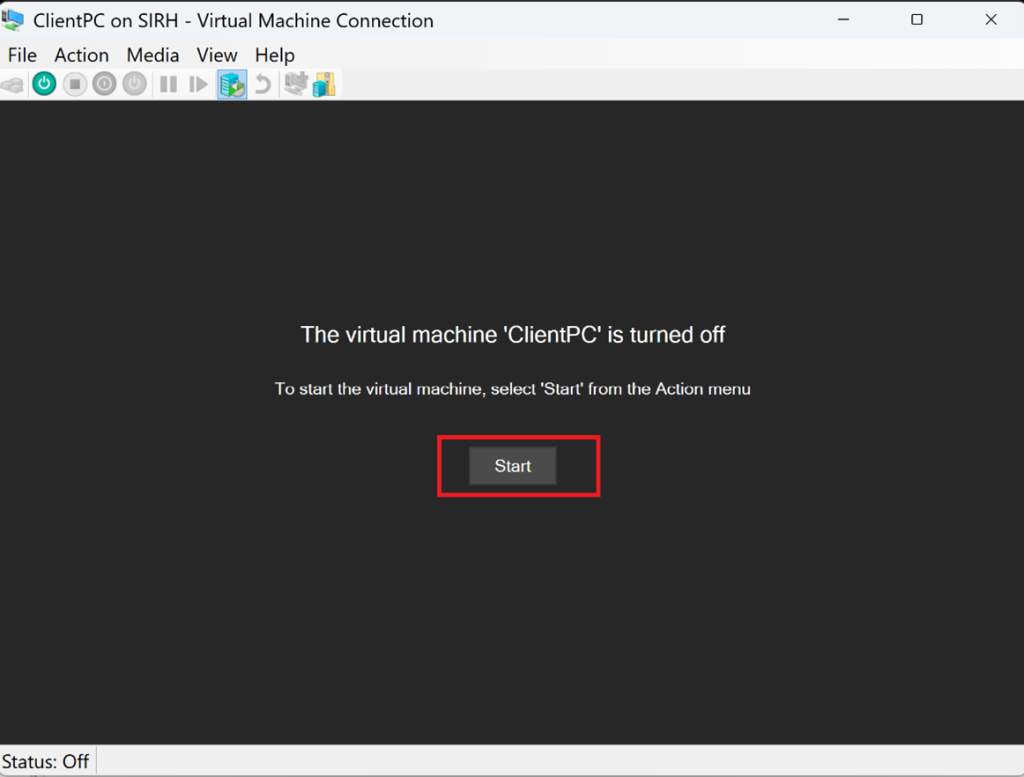
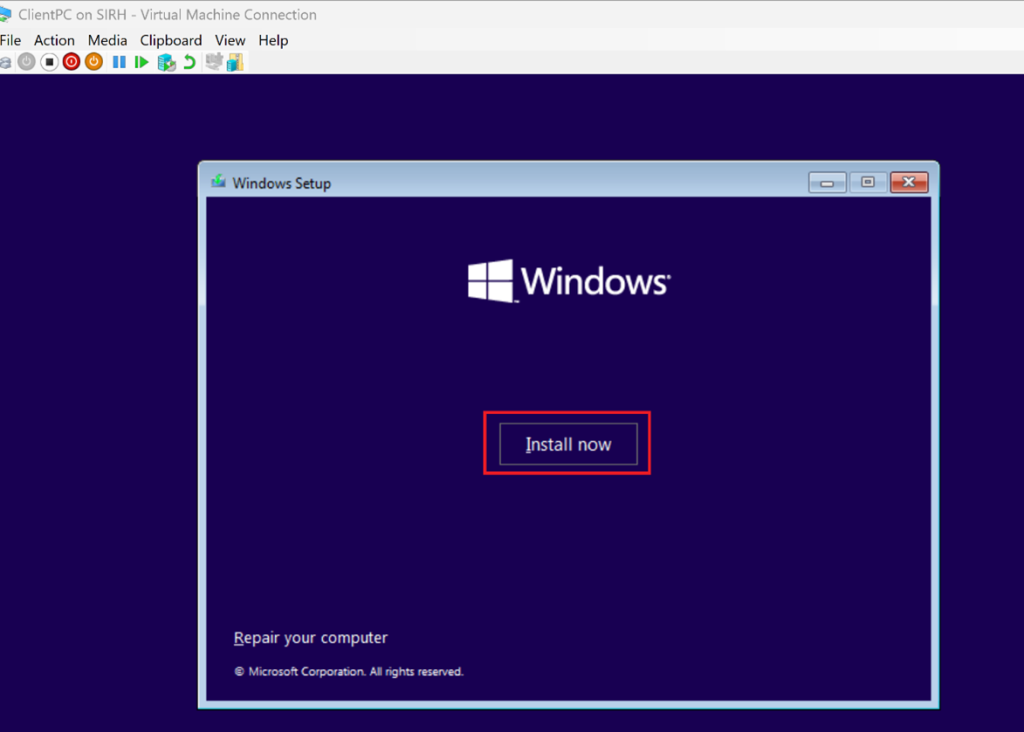
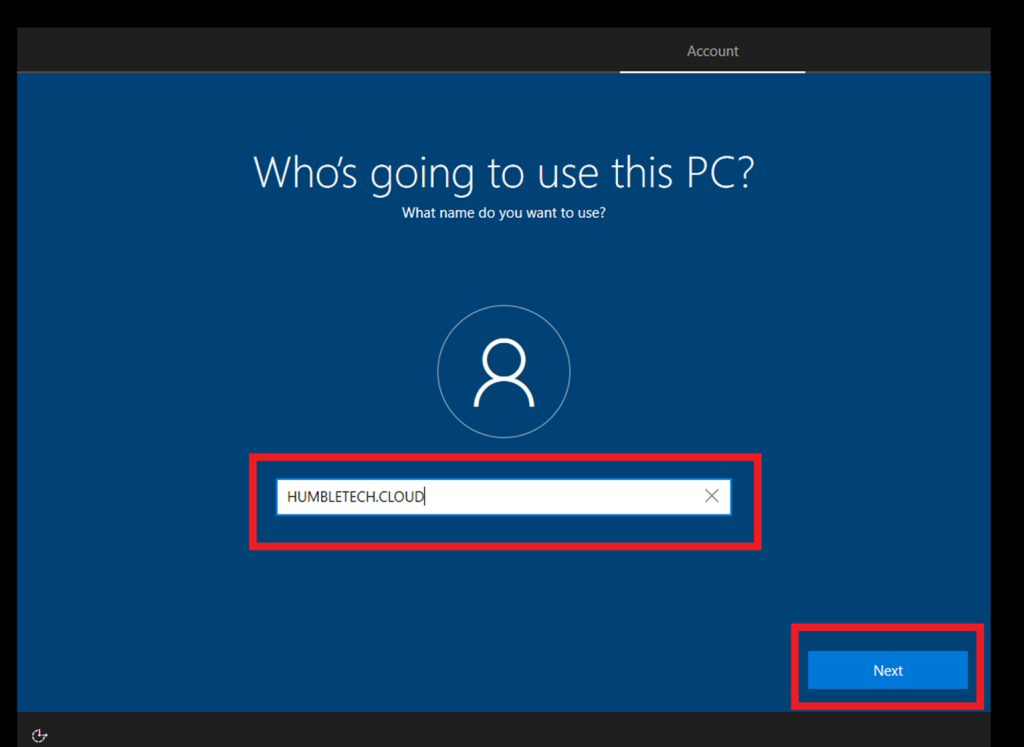
Start the VM → Open the console → Follow the Windows setup wizard
(Choose edition, set password, etc.)
Step 2: Configure Network Settings
-
Assign a static IP address (recommended for lab stability)
-
Configure DNS to point to the Domain Controller’s IP address
💡 Incorrect DNS configuration is the most common cause of domain join failures.
Untick Ipv6 → Double-click on Ipv4 → Set a static IP address
Configured DNS to point to the Domain Controller’s IP address (e.g., 192.168.21.200)
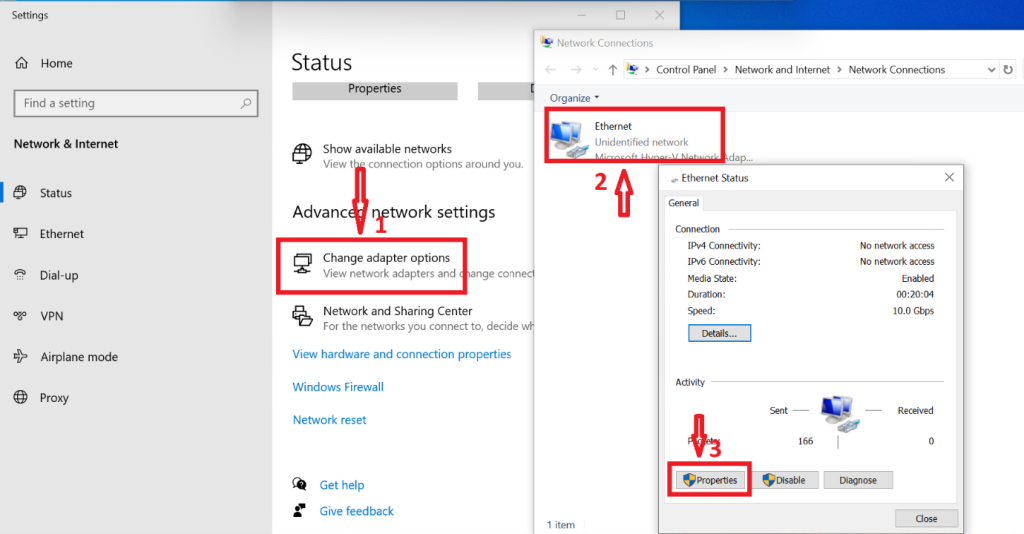
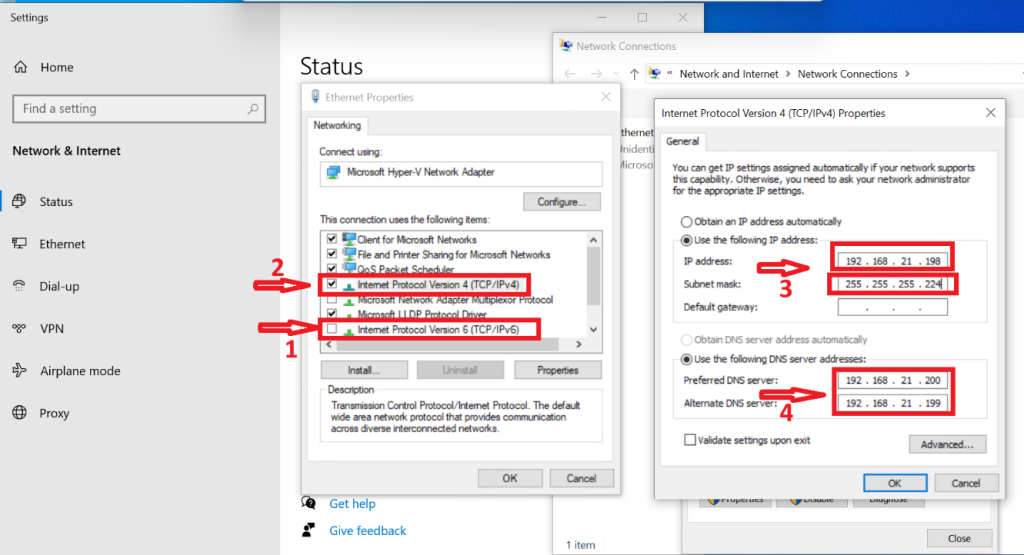
Step 3: Join the Client to the Domain
-
Join the client computer to the existing Active Directory domain
-
Authenticate using domain administrator credentials
-
Restart the client system when prompted
Ping the DNS IP address to contact the server
Opened System Settings → Changed PC name (ClientPC-01)
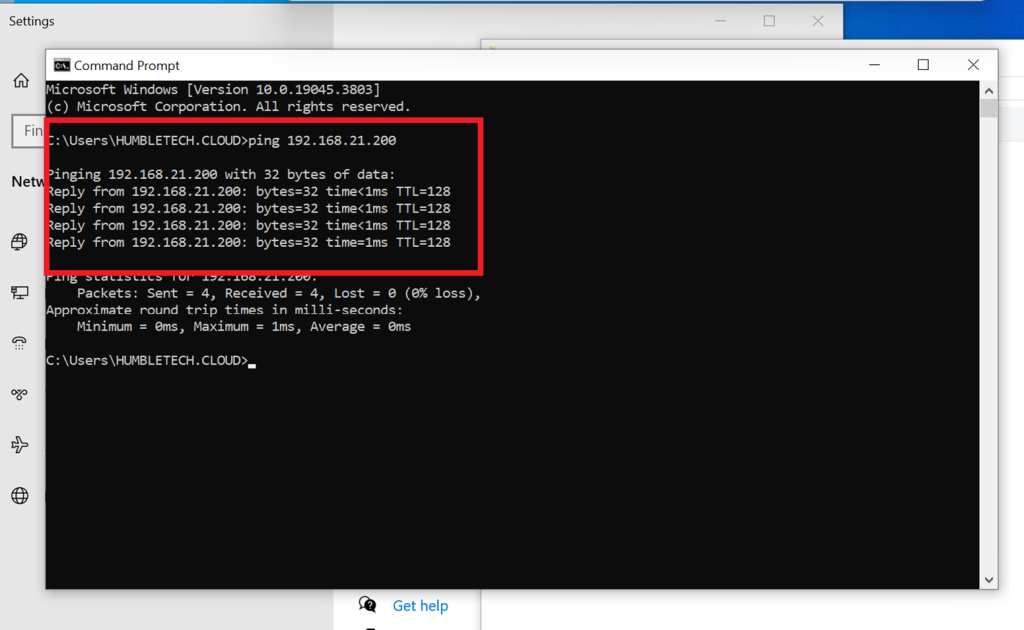
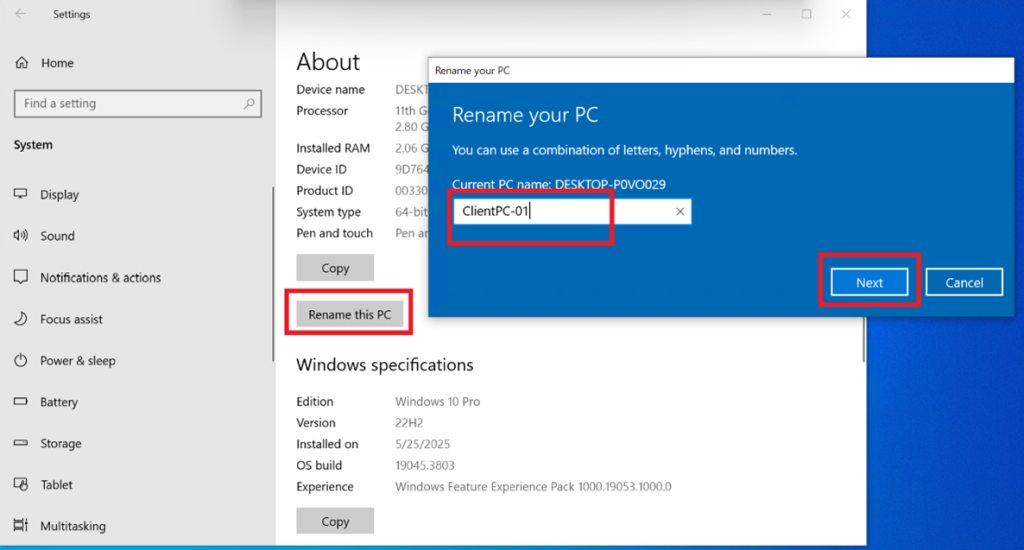
→ Selected Domain and entered Domain (humbletech.cloud)
→ Authenticated using Domain Admin credentials
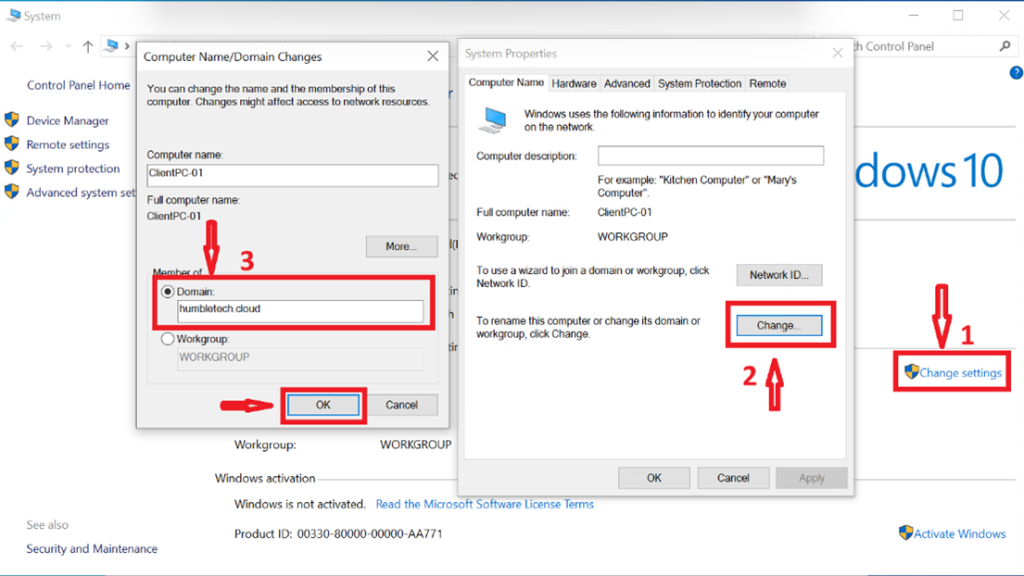
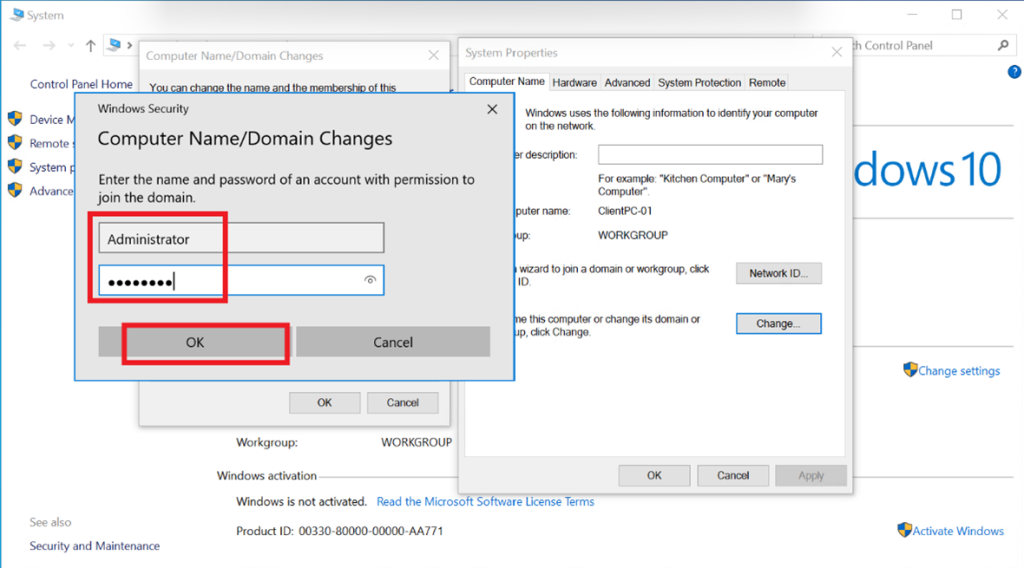
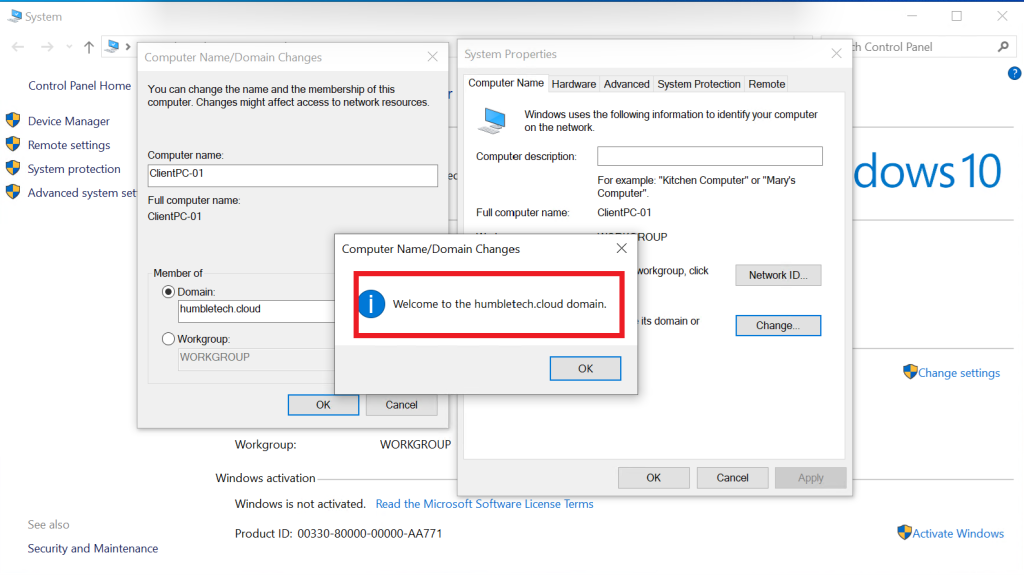
→ You will see a Message “Welcome to the (humbletech.cloud) Domain”
→ Restarted the VM
Step 4: Verify Domain Membership
-
Confirm the computer account appears in Active Directory Users and Computers
-
Validate successful domain logon using a domain user account
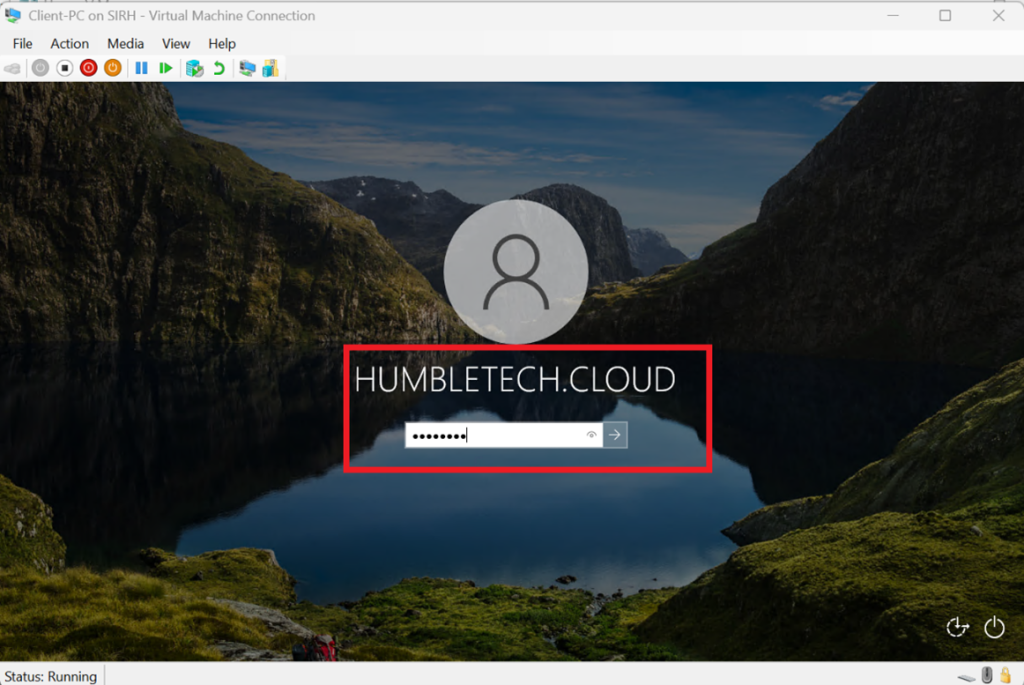
Logged in with the domain user account
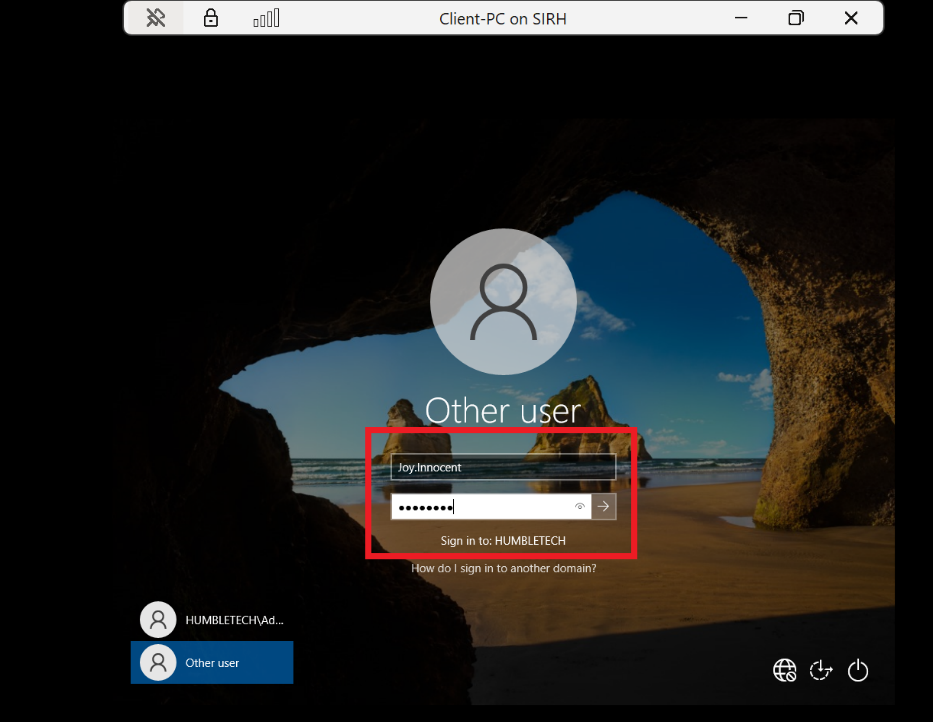
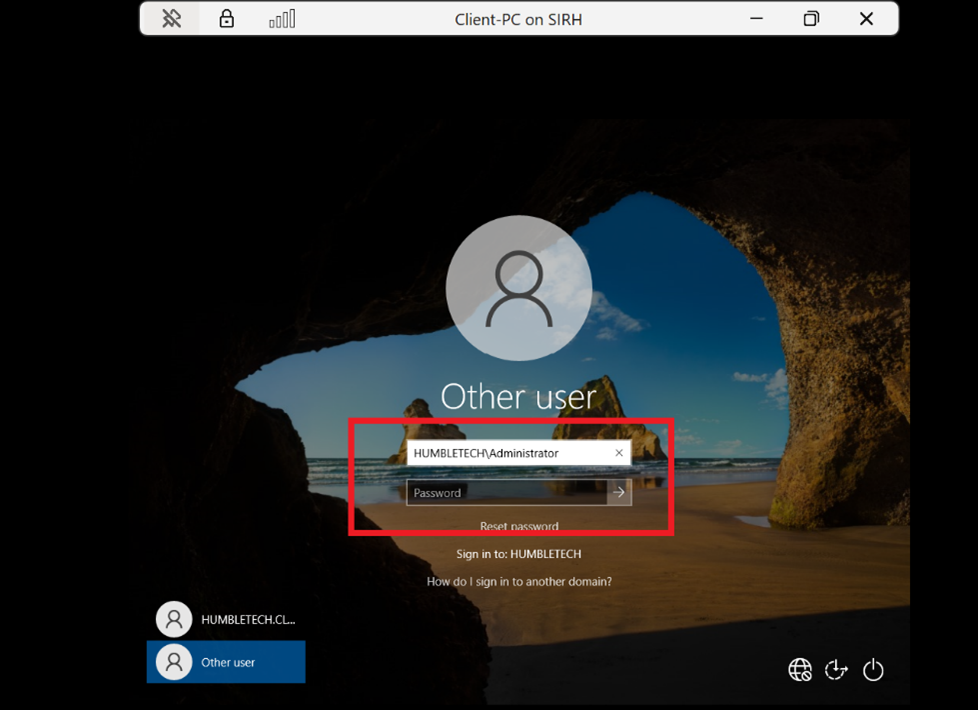
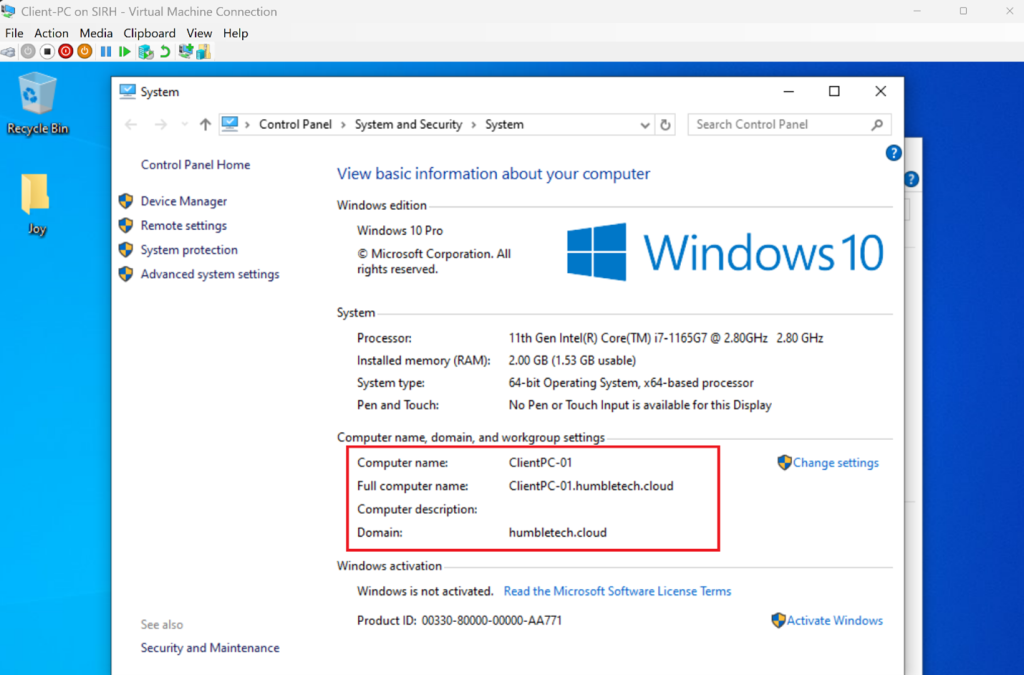
Confirmed in Active Directory Users and Computers (ADUC) that the machine appeared under Computers
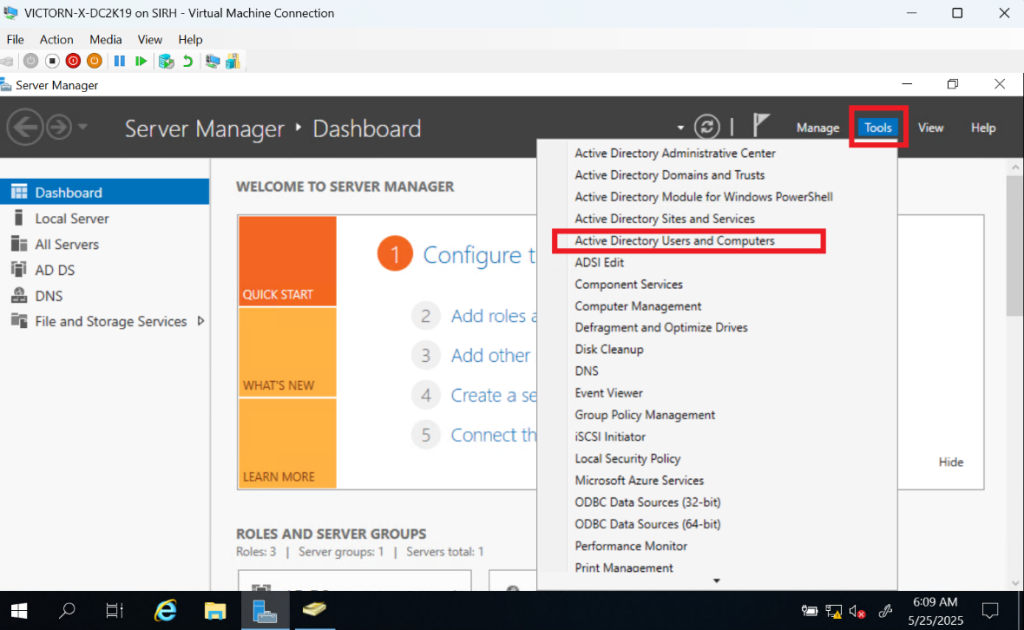
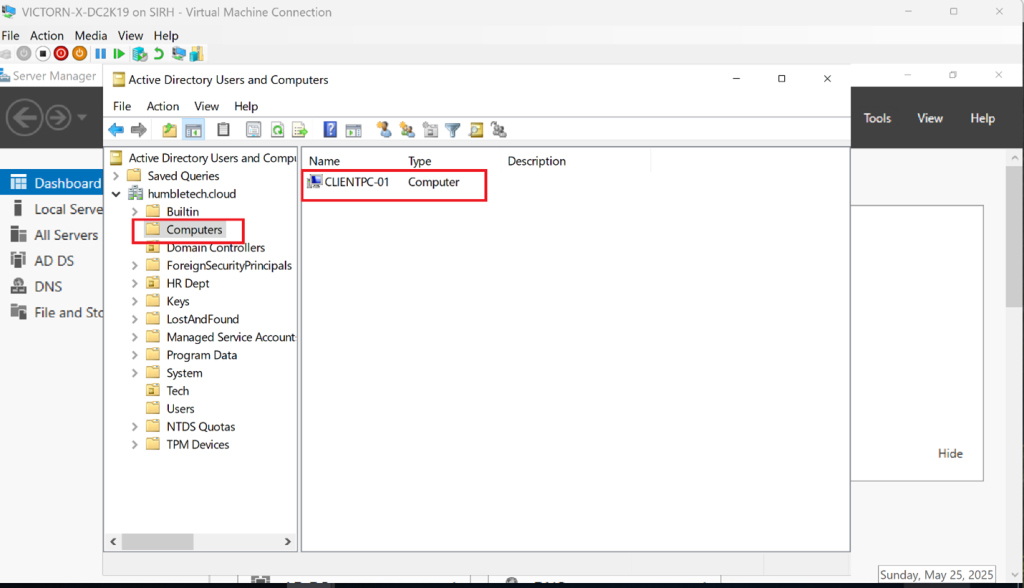
Congratulations! You Have Successfully Join a Windows Client to Active Directory on Windows Server 2019
Why This Lab Matters
Domain-joined client computers are essential for:
-
Centralized user authentication
-
Applying and testing Group Policy Objects (GPOs)
-
Enforcing enterprise security controls
-
Simulating hybrid and cloud-integrated identity environments
Microsoft documentation treats domain-joined clients as a core component of Active Directory infrastructure.
Lab Outcome
By the end of this lab, you will have:
-
A Windows client VM successfully joined to the domain
-
Verified communication between the client and Domain Controller
-
A complete environment ready for Group Policy and security testing
This setup forms the foundation for advanced labs such as GPO deployment, login scripts, software distribution, and hybrid identity scenarios.
Discover more from Humble Cloud Tech
Subscribe to get the latest posts sent to your email.