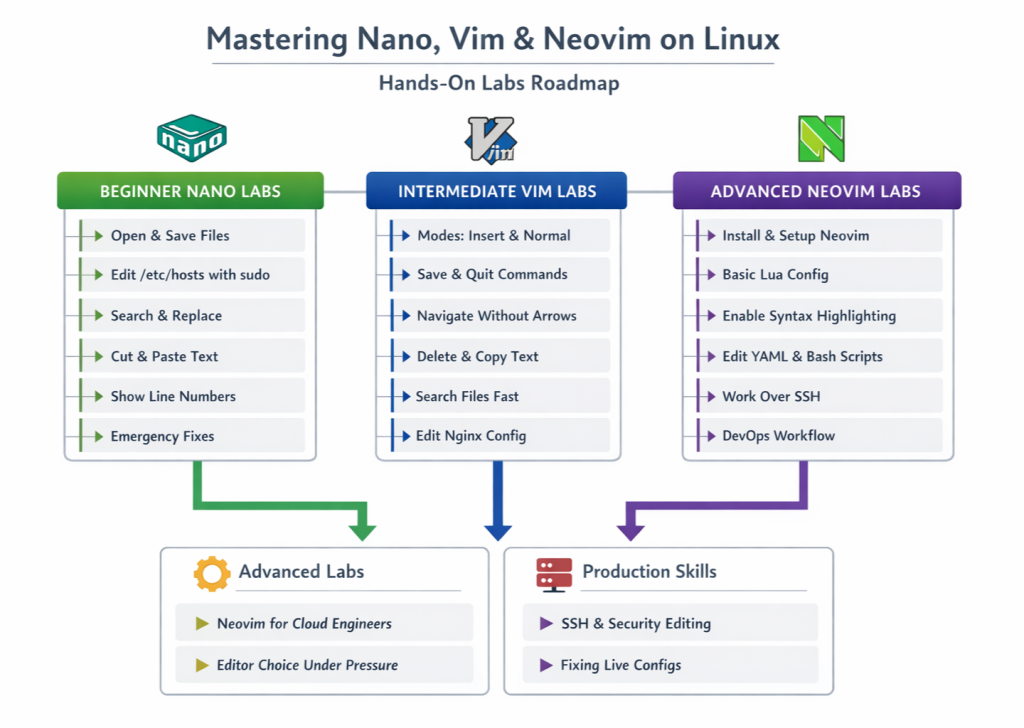
Nano vs Vim vs Neovim: Which Linux Text Editor Should Engineers Actually Use?
Editing files directly on Linux systems is not an optional skill for engineers; it is a daily requirement in real production environments.
Whether you are:
-
Updating a broken configuration file on a remote VM
-
Editing a Kubernetes manifest or CI pipeline over SSH
-
Fixing permissions, services, or startup scripts
…you will eventually need to work entirely inside the terminal, often without a graphical interface.
In these moments, your text editor matters more than your IDE.
Three editors dominate almost every Linux environment:
-
Nano
-
Vim
-
Neovim
Each one serves a different role, and understanding when to use each is a real-world Linux and DevOps skill, not a preference war.
This guide explains what actually matters, backed by hands-on practice.
Why Terminal Editors Matter in Real Linux Environments
In cloud and DevOps environments:
-
Servers are remote
-
GUIs are unavailable
-
SSH latency exists
-
Mistakes are expensive
Production Linux systems are designed to be minimal, secure, and headless.
That’s why mastering terminal editors connects directly to broader Linux skills covered in:
👉 Linux Foundations (Beginner): How Linux Really Works – Not Just Commands
👉 Linux Beginner Labs: Foundations (Understand Linux, Not Just Commands)
If you cannot confidently edit files in the terminal, every other Linux skill becomes fragile.
Nano: The Beginner-Friendly Safety Net
Nano is designed to be approachable, predictable, and immediately usable.
Why Nano Exists
Nano prioritizes clarity over power. It shows you exactly what keys do at the bottom of the screen, removing guesswork.
Key Characteristics
-
On-screen shortcut hints
-
No editing modes (what you type is what you insert)
-
Almost zero learning curve
Typical Real-World Use Cases
-
Quick edits on a newly provisioned VM
-
Fixing configuration files during outages
-
Beginner Linux learning environments
-
Emergency recovery when Vim knowledge fails
Nano is often the editor people use before they understand Linux deeply, which is perfectly fine.
It fits naturally alongside early learning topics like:
👉 Linux Core Operations: Full Hands-On Practical Labs for Users, Permissions, sudo, Packages & Services
Limitations Engineers Should Understand
-
Slower for repetitive edits
-
No advanced navigation model
-
Minimal extensibility
-
Inefficient for large files or structured code
Nano is not meant to scale with your workflow; it is meant to get you unstuck.
Beginner Lab: Safe Nano Editing on a Linux Server
Objective: Learn to edit critical files without breaking the system.
1. Open a test file:
nano test.conf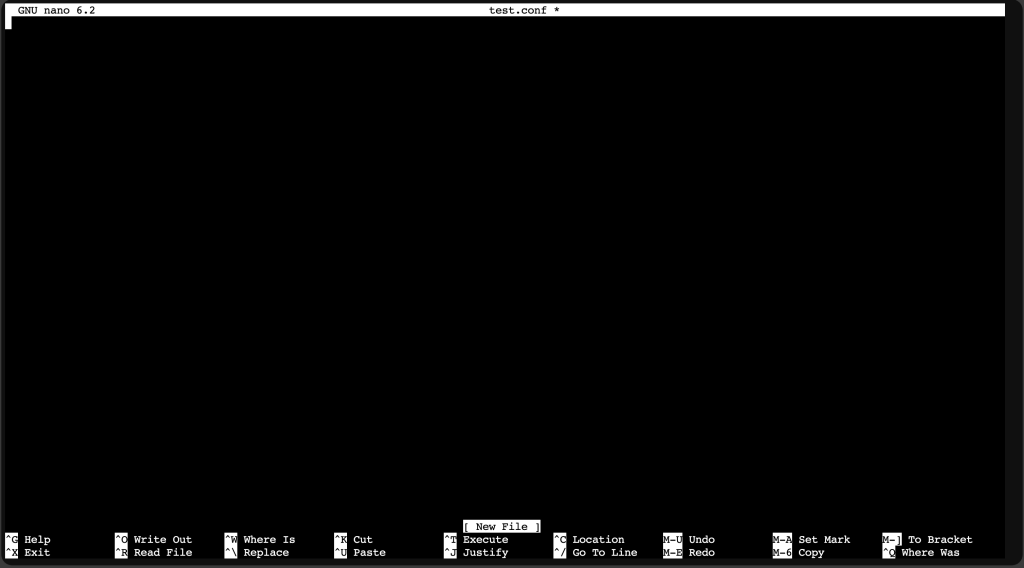
2. Practice:
-
Saving (
Ctrl + O) -
Exiting (
Ctrl + X) -
Searching (
Ctrl + W) -
Cancelling actions safely
3. Simulate a real task:
-
-
Edit
/etc/hosts
-
sudo nano /etc/hosts-
Add a temporary hostname mapping
-
Save and verify
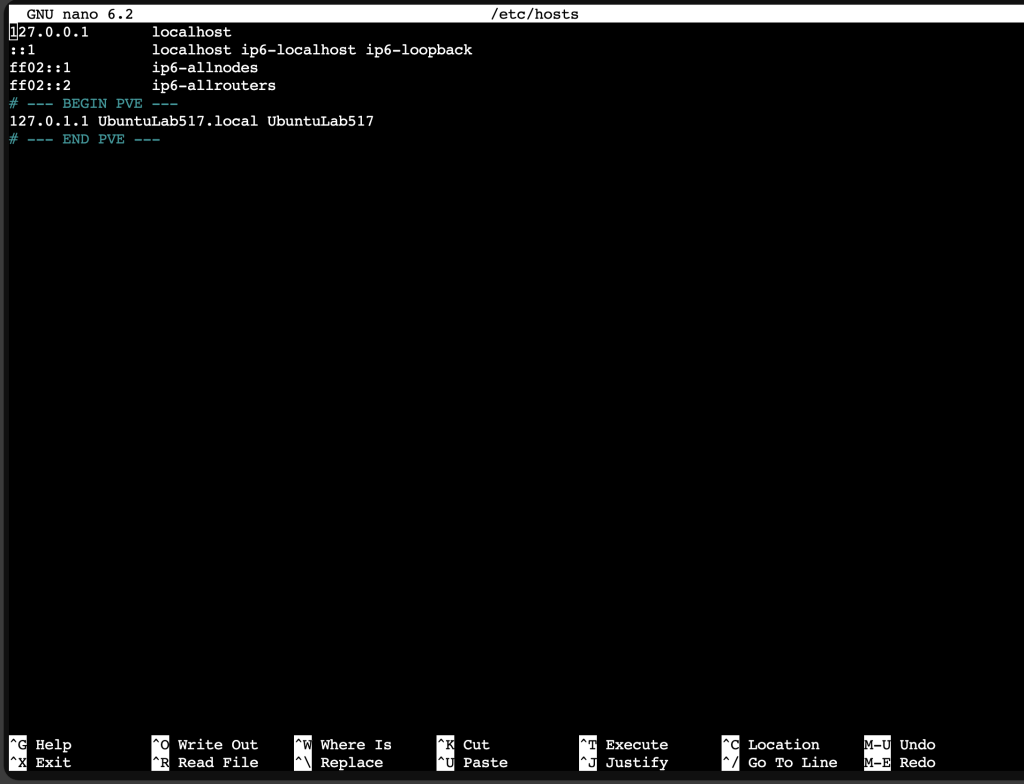
Save the file in nano (the real keystrokes)
Inside nano:
- Ctrl + O (This means “Write Out” → save the file)
- Nano will show:
File Name to Write: /etc/hostsPress Enter to confirm. - Ctrl + X (Exit nano)
That’s the full save‑and‑exit workflow.
Verify the change
cat /etc/hosts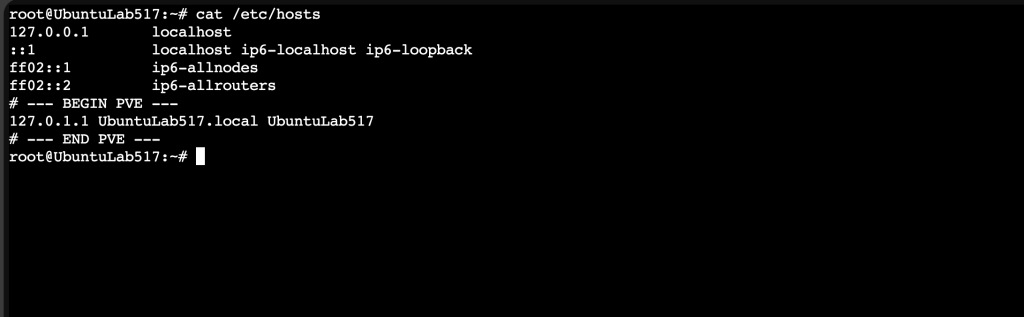
This lab builds confidence before moving into more powerful editors.
Vim: The Universal Engineering Tool
Vim is not popular because it is friendly. Vim is popular because it is everywhere.
Why Vim Is Still Essential
-
Installed by default on almost every Linux system
-
Extremely lightweight
-
Works reliably over slow SSH connections
-
No graphical dependencies
If you SSH into a random production server, Vim will almost always be available.
That alone makes Vim essential knowledge.
Vim’s Core Concept (That Beginners Miss)
Vim is not “hard.” It is mode-based.
The most important modes:
-
Normal mode → navigation and commands
-
Insert mode → typing text
Beginners struggle because they try to use Vim like Nano, and Professionals succeed because they embrace the model.
This philosophy ties directly into a deeper Linux understanding found in:
👉 Mastering Linux Core Operations: Users, Permissions, sudo, Packages & Services (Beginner → Intermediate)
What Vim Is Optimized For
-
Fast navigation without arrow keys
-
Precise text manipulation
-
Editing large configuration files
-
Repeatable actions
Once learned, Vim reduces friction in tasks like:
-
Editing systemd unit files
-
Fixing YAML indentation
-
Working with logs and scripts
Intermediate Lab: Vim Survival Skills
Objective: Become functional in any production system.
-
-
Open a file in Vim:
-
vim filename.txtIf the file doesn’t exist, Vim creates it when you save.
Practice:
-
-
-
Enter insert mode:
i
-
Press i → you enter insert mode, and Type normally
-
-
Exit insert mode:
Esc
-
Press Esc → to return to normal mode. Normal mode is where all the powerful commands live.
-
Save & quit:
:wq=> Write + Quit. -
Quit without saving:
:q!=> Force quit, discard changes. -
Navigate by words and lines:
-
Move by words
- w → next word
- b → previous word
- e → end of word
Move by lines
- j → down
- k → up
- h → left
- l → right
Jump to start/end of line
- 0 → start of line
- $ → end of line
Jump to a specific line
:10→ go to line 10gg→ top of fileG→ bottom of file
- Fix indentation or duplicate lines using commands, not typing.
Indent a line
Place the cursor on the line:
>>
Unindent a line:
<<
Indent a block
Use visual mode:
- Press V (line visual mode)
- Move up/down to select lines
- Press > to indent
- Press < to unindent
Duplicate lines (the Vim way)
Duplicate the current line:
yy p
Breakdown:
- yy → yank (copy) the whole line
- p → paste below
Duplicate above:
yy P
Delete lines (without typing manually)
Delete current line:
dd
Delete 3 lines:
3dd
Real practice flow (do this once and it sticks)
- Open a test file:
vim practice.txt - Press i, type a few lines
- Press Esc
- Move around with w, b, j, and k.
- Indent a line with >>
- Duplicate a line with yy p
- Delete a line with dd
- Save by pressing Esc then :wq
This builds real muscle memory.
This lab prepares you for real SSH-based work.
Neovim: Modern Vim for Real Engineering Workflows
Neovim is a modern evolution of Vim, not a replacement for Vim knowledge.
What Neovim Improves
-
Built-in Language Server Protocol (LSP) support
-
Asynchronous plugins (faster, non-blocking)
-
Lua-based configuration (cleaner and more maintainable)
Neovim turns the terminal into a full development environment.
Why DevOps & Cloud Engineers Prefer Neovim
-
IDE-like features without GUIs
-
Excellent for YAML, Terraform, Bash, Python, Go
-
Works perfectly over SSH
-
Highly customizable
Neovim fits naturally into workflows discussed in:
👉 Linux in Cloud, DevOps & Production: How Linux Powers Modern Infrastructure
👉 Linux Processes & Networking: Monitoring, Signals, Ports, and Connectivity
When Neovim Makes Sense
-
Daily infrastructure editing
-
CI/CD pipelines
-
Infrastructure as Code
-
Long terminal-based sessions
Neovim rewards engineers who invest time upfront.
Which Editor Should You Learn First?
| Editor | Best Use Case |
|---|---|
| Nano | Beginners, quick emergency edits |
| Vim | Universal access, production survival |
| Neovim | Advanced workflows, productivity |
Recommended Learning Path
-
Start with Nano to remove fear
-
Learn Vim for universal reliability
-
Move to Neovim for daily engineering work
This progression mirrors how engineers grow in real environments.
Why This Matters in Production
In real systems:
-
GUIs don’t exist
-
Downtime is costly
-
Mistakes propagate fast
Editing skills connect directly to:
👉 Linux Security & Hardening: Permissions, SSH, Firewalls, and System Protection
👉 Linux Storage & Filesystems: Disks, Partitions, Mounts, and Disk Usage
Text editors are foundational tools, not preferences.
Advanced Labs (End-of-Post Engagement)
Lab: Neovim for Cloud Engineers
-
-
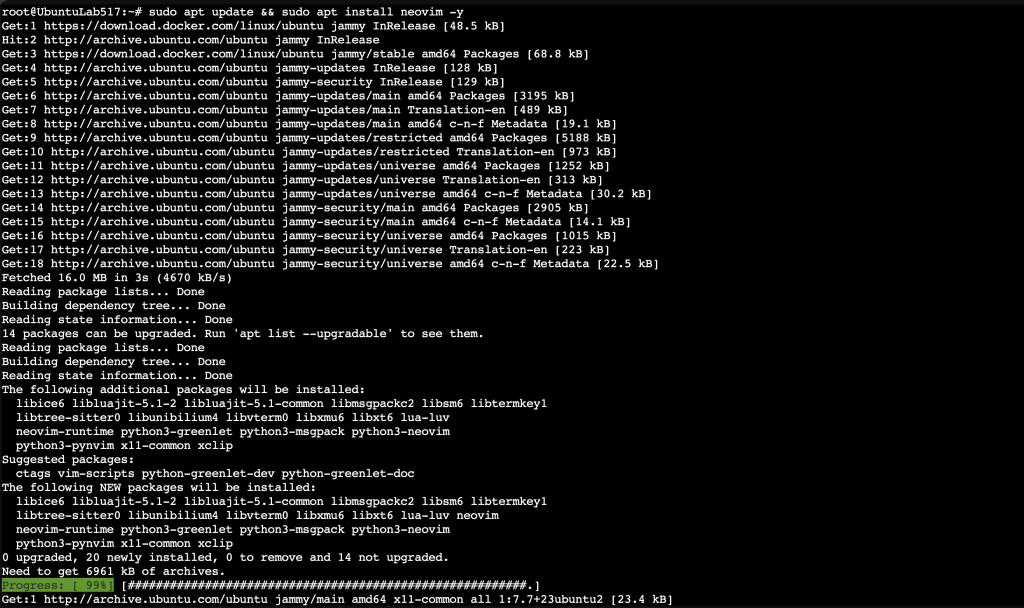
Install Neovim
sudo apt update
sudo apt install neovim -y
-
-
-
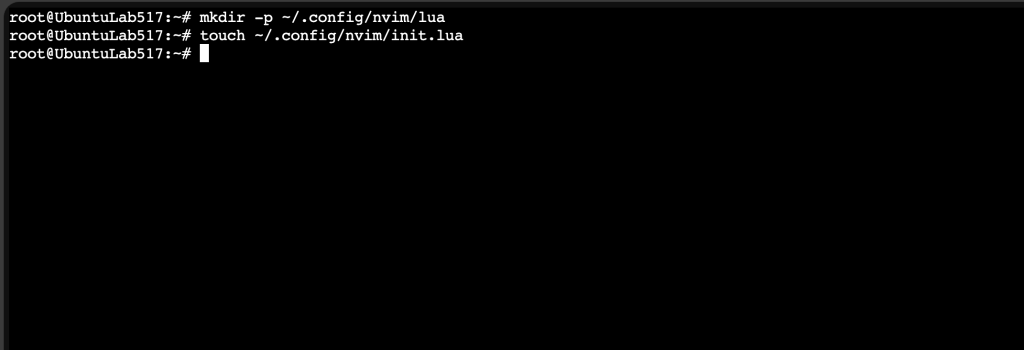
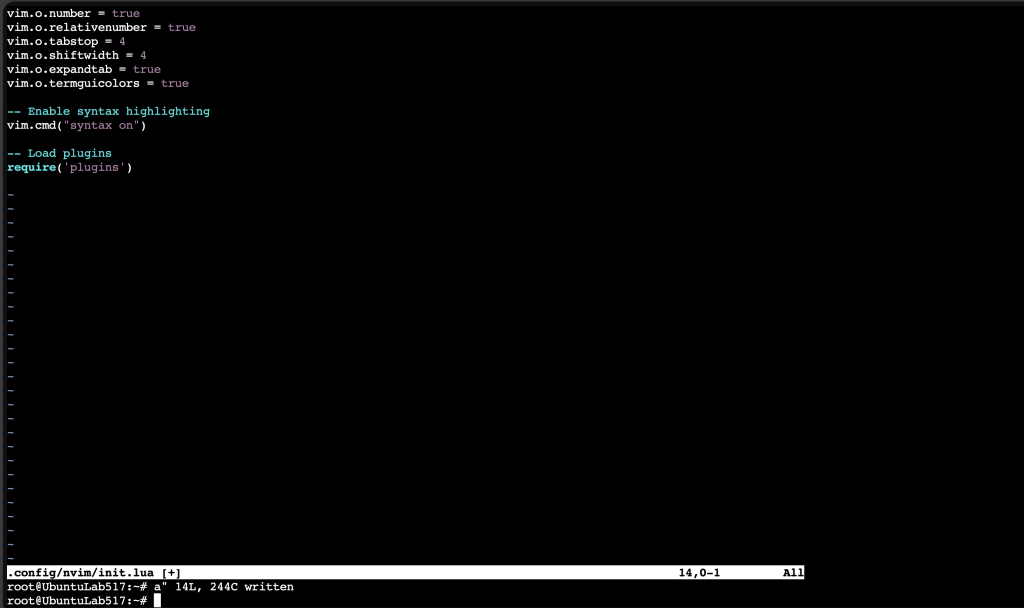
Configure basic Lua setup
Neovim uses:
~/.config/nvim/Create the structure:
mkdir -p ~/.config/nvim/lua
touch ~/.config/nvim/init.lua
-
-
Enable syntax highlighting for YAML, Bash, Terraform
-
Test editing over SSH
nvim script.shLab: Editor’s Choice Under Pressure
-
Simulate a broken service
-
Fix the config using Nano
-
Optimize the fix using Vim
-
Refactor with Neovim
These labs force practical understanding, not memorization.
Hands-On Labs Section
The following hands-on labs are designed to help beginners move from zero confidence to production-ready editing skills on real Linux systems.
Hands-On Labs: Mastering Nano, Vim & Neovim on Linux
These labs are designed to be completed in order, but each one also works independently. By the end, a beginner will confidently edit files on any Linux system, including production servers.
NANO LABS (10 LABS)
Nano is often the first editor used on servers, especially during emergencies. These labs focus on safety, clarity, and confidence.
Nano Lab 1: Opening and Exiting Files Safely
nano example.txtWhat this does
-
Opens (or creates)
example.txtin Nano -
Starts in insert mode automatically
Key commands
-
Ctrl + O→ Write (save) the file -
Enter→ Confirm filename -
Ctrl + X→ Exit Nano
Why it matters
-
Prevents accidental data loss
-
Essential when editing config files like
/etc/hosts
Nano Lab 2: Editing System Files with sudo
sudo nano /etc/hostsWhat this does
-
Opens a protected system file
-
Uses elevated privileges
Why it matters
-
Most real Linux edits involve system files
-
Teaches permission awareness early
Nano Lab 3: Searching Inside Files
Ctrl + WWhat it does
-
Searches for text inside the file
-
Useful for large configs
Real-world use
-
Finding ports, hostnames, or service names quickly
Nano Lab 4: Replacing Text
Ctrl + \What it does
-
Searches and replaces text
-
Prompts before each replacement
Why it matters
-
Safe batch edits without automation
Nano Lab 5: Displaying Line Numbers
nano -l example.txtWhat it does
-
Shows line numbers
-
Helps when logs or errors reference lines
Nano Lab 6: Jumping to a Line Number
Ctrl + _What it does
-
Prompts for a line number
-
Jumps instantly
Use case
-
Debugging error messages referencing specific lines
Nano Lab 7: Cutting and Pasting Text
Ctrl + K → Cut line
Ctrl + U → Paste line
Why it matters
-
Moving blocks of configuration safely
Nano Lab 8: Opening Files in Read-Only Mode
nano -v important.confWhat it does
-
Prevents accidental edits
Real-world use
-
Inspecting production configs safely
Nano Lab 9: Enabling Soft Line Wrapping
nano -w example.txtWhat it does
-
Prevents long lines from wrapping visually
Nano Lab 10: Emergency Fix Scenario
Task
-
SSH into a VM
-
Fix a broken config
-
Save and exit without panic
Outcome
-
Confidence under pressure
VIM LABS (10 LABS)
Vim is about speed, precision, and universality. These labs focus on survival first, then efficiency.
Vim Lab 1: Opening a File
vim example.txtWhat it does
-
Opens file in Normal mode
Vim Lab 2: Entering and Exiting Insert Mode
i → Insert mode
Esc → Normal mode
Why it matters
-
Core Vim concept
-
Prevents beginner confusion
Vim Lab 3: Saving and Quitting
:w     → Save
:q     → Quit
:wq    → Save & quit
:q!    → Quit without saving
Production relevance
-
Emergency exits without breaking files
Vim Lab 4: Navigating Without Arrow Keys
h → left
j → down
k → up
l → right
Why
-
Faster on remote servers
-
Works everywhere
Vim Lab 5: Jumping by Words and Lines
w → next word
b → previous word
0 → start of line
$ → end of line
Vim Lab 6: Deleting Text
dd → delete line
dw → delete word
Real use
-
Cleaning configs quickly
Vim Lab 7: Undo and Redo
u → undo
Ctrl + r → redo
Vim Lab 8: Searching
/keyword
n → next match
Vim Lab 9: Copy and Paste
yy → copy line
p → paste/code>
Vim Lab 10: Editing Production Configs
Task
-
Open
/etc/nginx/nginx.conf -
Navigate efficiently
-
Save safely
NEOVIM LABS (10 LABS)
Neovim builds on Vim but adds modern DevOps productivity.
Neovim Lab 1: Installing Neovim
Discover more from Humble Cloud Tech
Subscribe to get the latest posts sent to your email.