Virtual Disks, Storage Pools, and iSCSI – The Hidden Challenges of Hyper-V Storage (And How I Solved Them)
Managing storage in virtualized environments isn’t just about adding disks; it’s about ensuring performance, scalability, and resilience while controlling costs and downtime.
Whether dealing with aging on-prem hardware, hybrid workloads, or budget-sensitive cloud extensions, storage design directly impacts stability and growth.
In this hands-on lab, I walk through how I approached Hyper-V storage design while consolidating multiple workloads, focusing on practical, repeatable steps that scale from lab environments to production.
What This Lab Covers
In this tutorial, you’ll learn how to:
-
Add Virtual Hard Disks (VHD/VHDX) to Hyper-V virtual machines
-
Build Storage Pools for elastic capacity and simplified management
-
Create Virtual Disks with appropriate resiliency settings
-
Configure iSCSI Targets and Initiators for remote, shared storage access
-
Extend Hyper-V storage over Ethernet in a cost-effective and scalable way
Why iSCSI for Hyper-V Storage?
iSCSI (Internet Small Computer Systems Interface) allows servers to access block-level storage over standard TCP/IP networks.
Why it works well with Hyper-V:
-
Reliable over Ethernet
-
Budget-friendly compared to Fibre Channel
-
Scales from homelabs to production
-
Suitable for hybrid designs extending to cloud platforms
Lab Environment Overview
-
Hyper-V Hosts
-
Windows Server (File & Storage Services enabled)
-
iSC
-
iSCSI Initiator (Hyper-V host or access server)
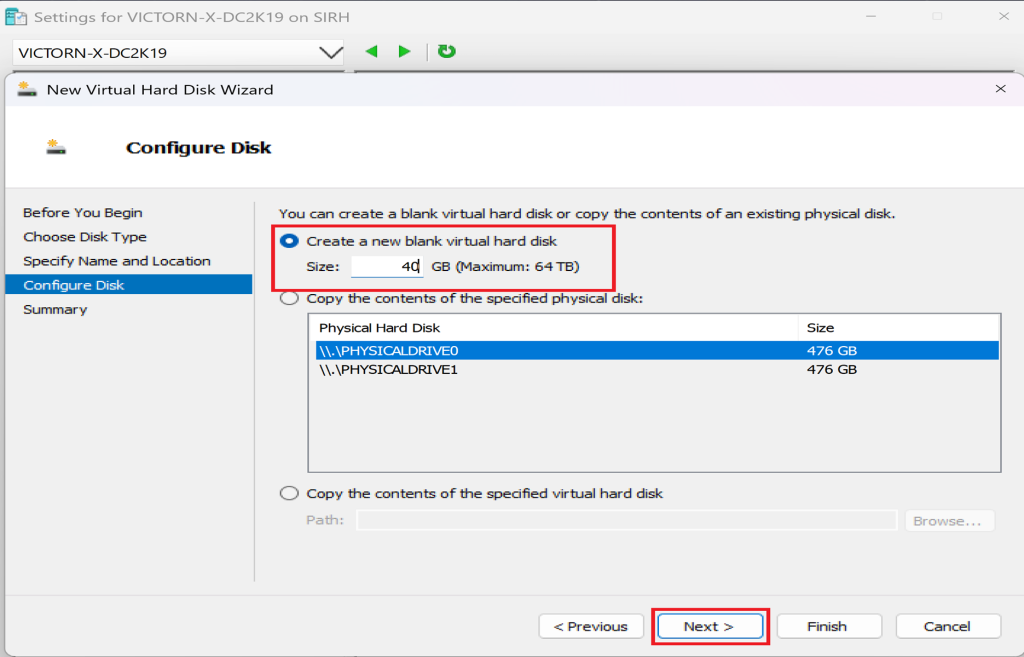
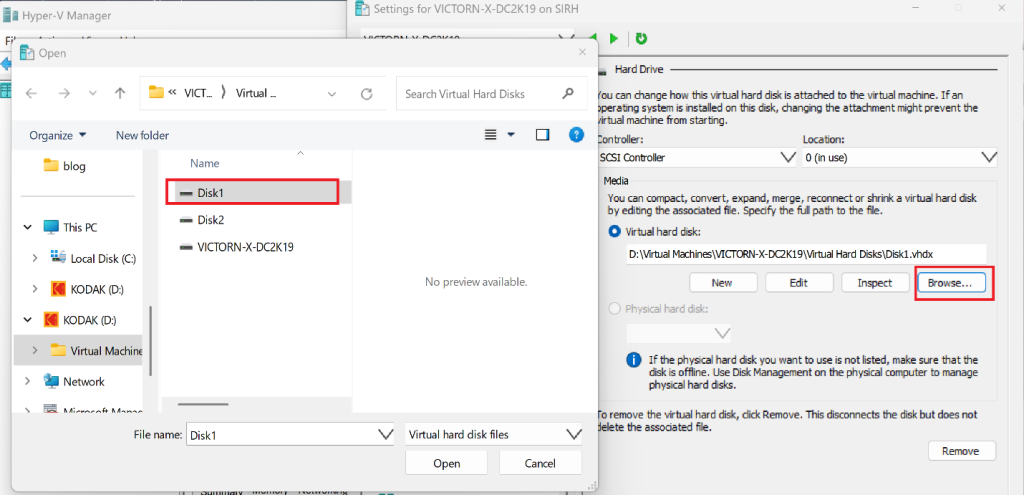
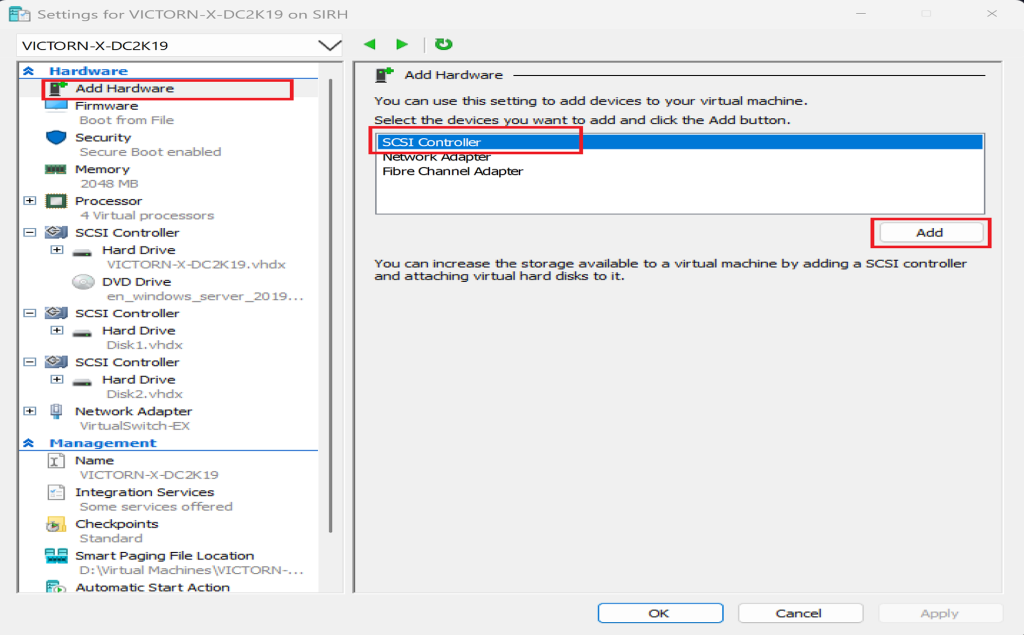
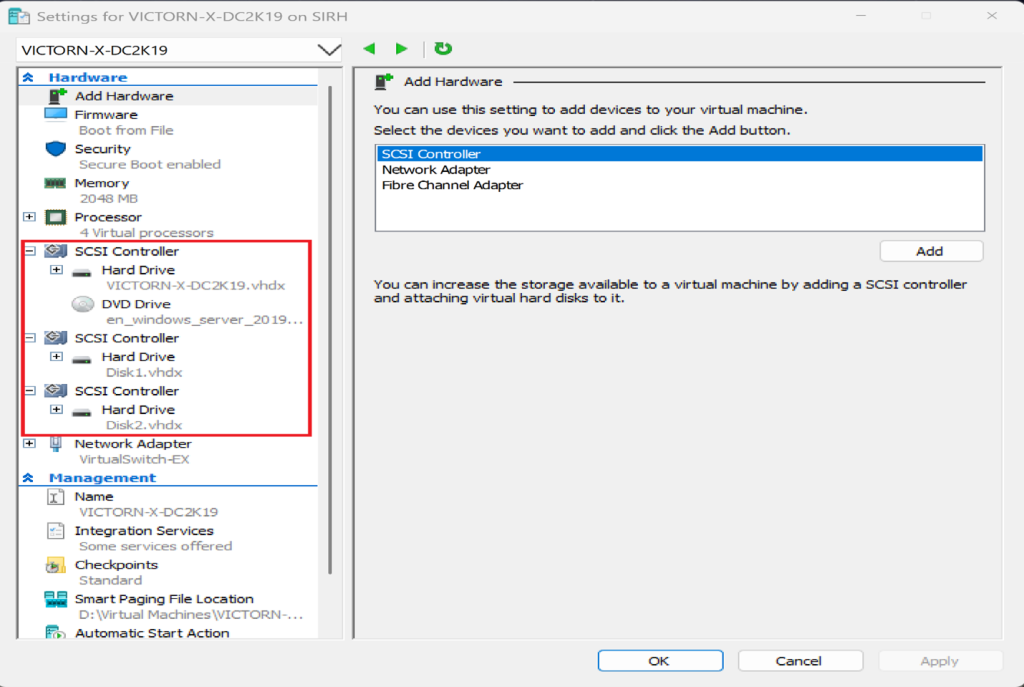
Step 1: Add Virtual Hard Disks to Hyper-V VMs
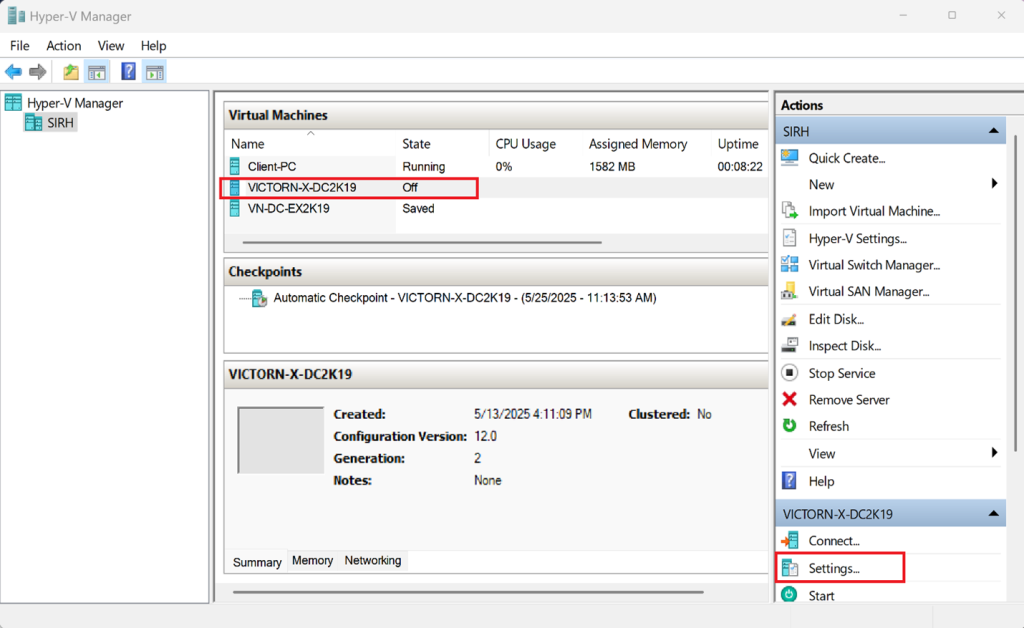
Open Hyper-V Manager
Select the VM → Settings
Under Hard Drive, click Add
Choose New Virtual Hard Disk
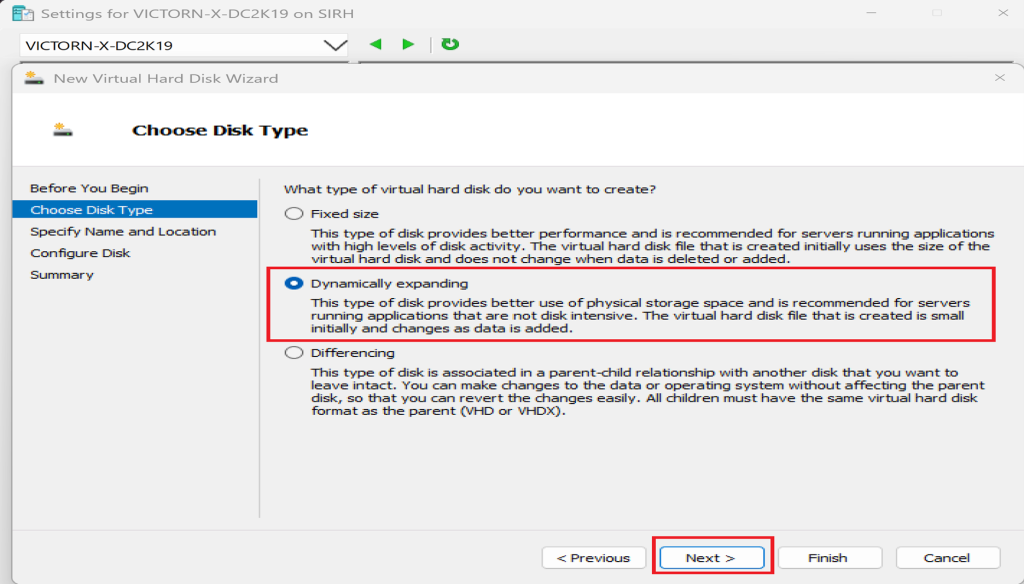
Select the Dynamic disk type
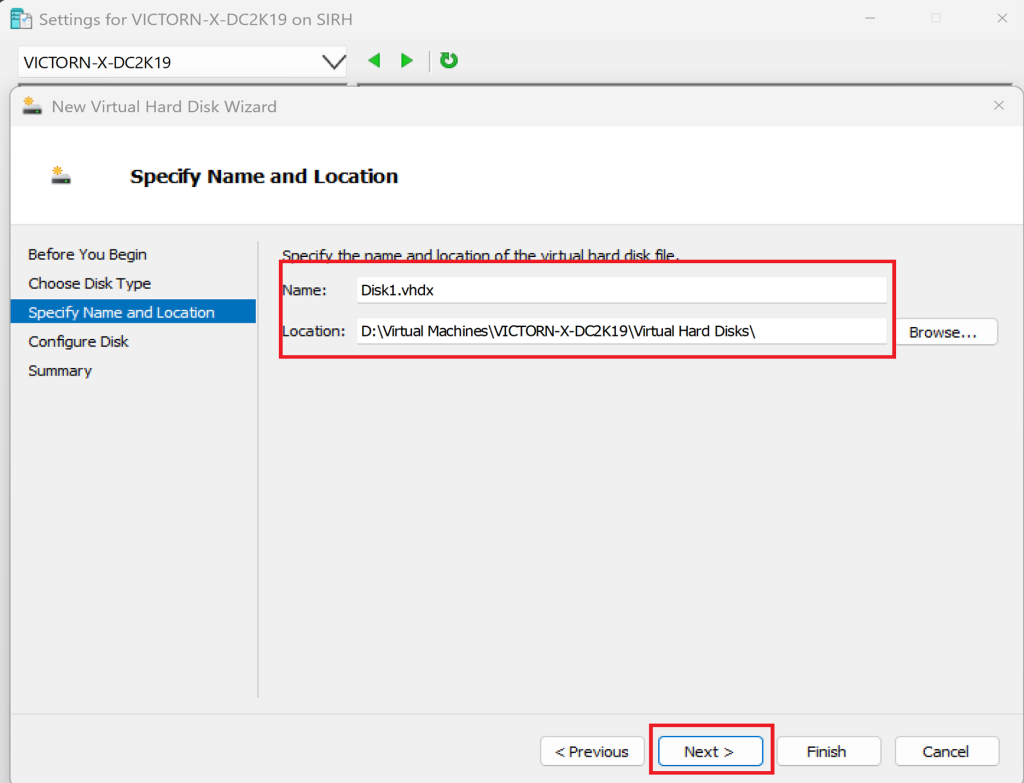
Set disk size and location → Apply
Inside the VM:
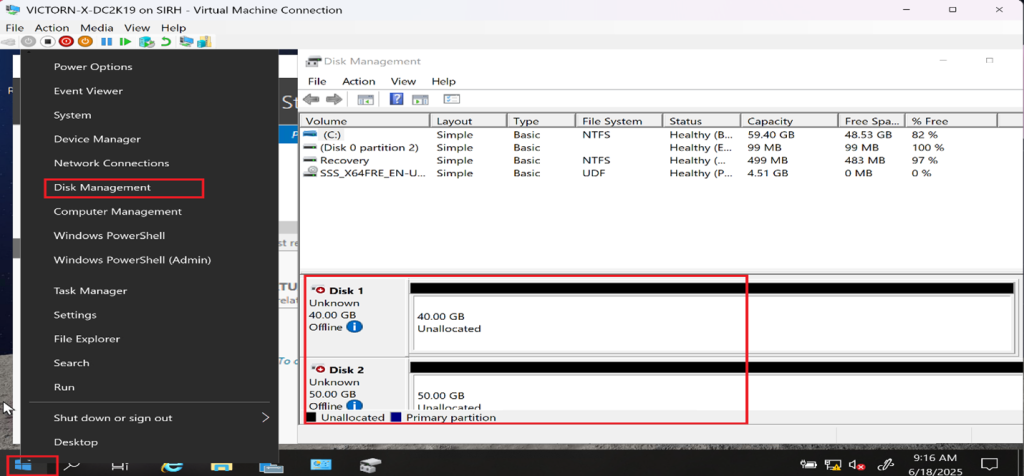
- Open Disk Management
- Initialize, partition, and format the disk (no reboot required)
🔸 Pro Tip:
Use Dynamic disks unless strict performance baselines require fixed provisioning. Dynamic disks conserve storage and scale efficiently.
Step 2: Create a Storage Pool on the Target Server
Create the Storage Pool
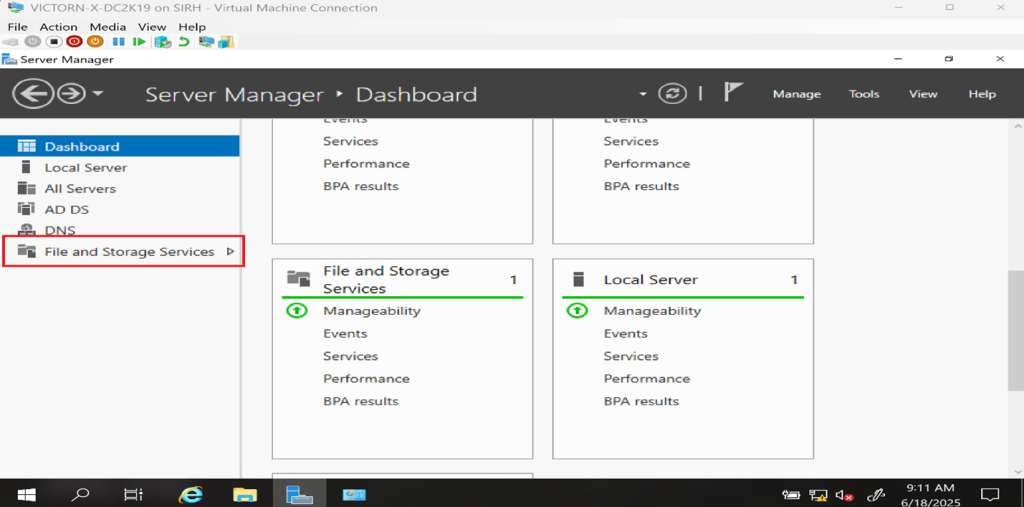
Open Server Manager
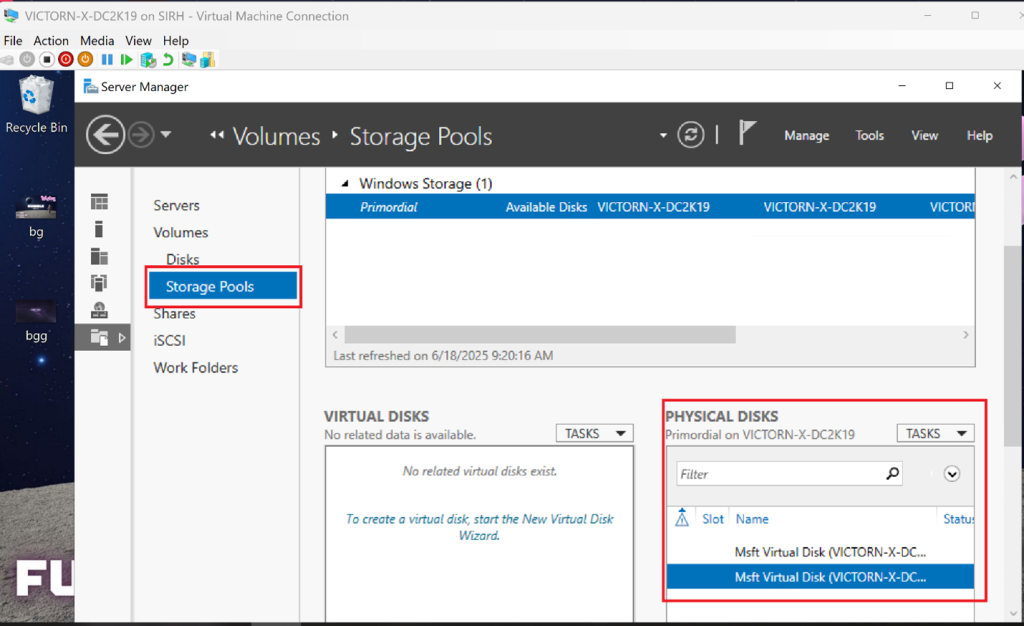
Navigate to File and Storage Services → Storage Pools
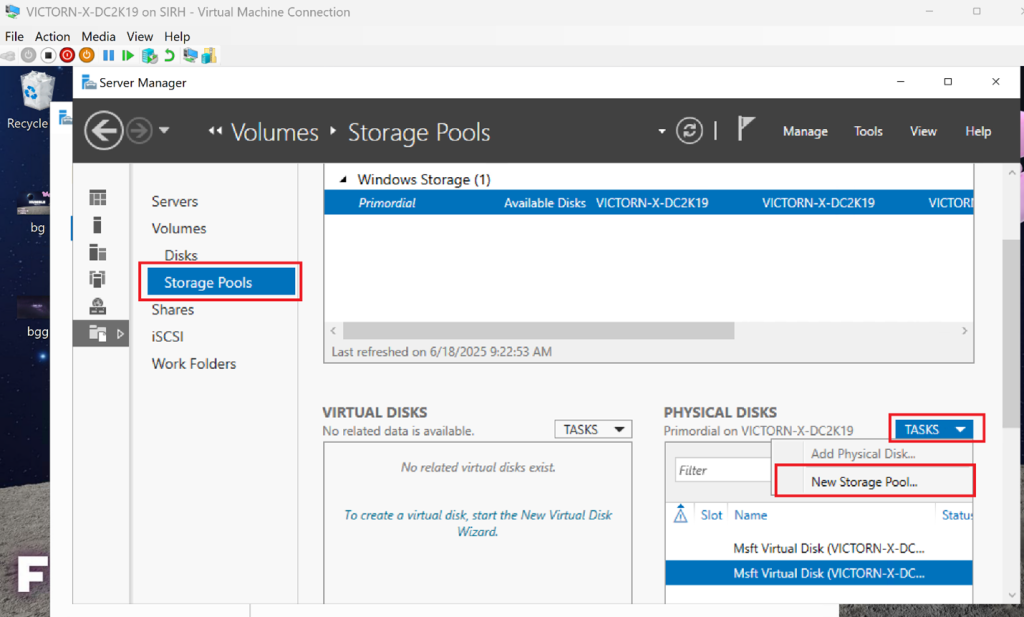
Click Tasks → New Storage Pool
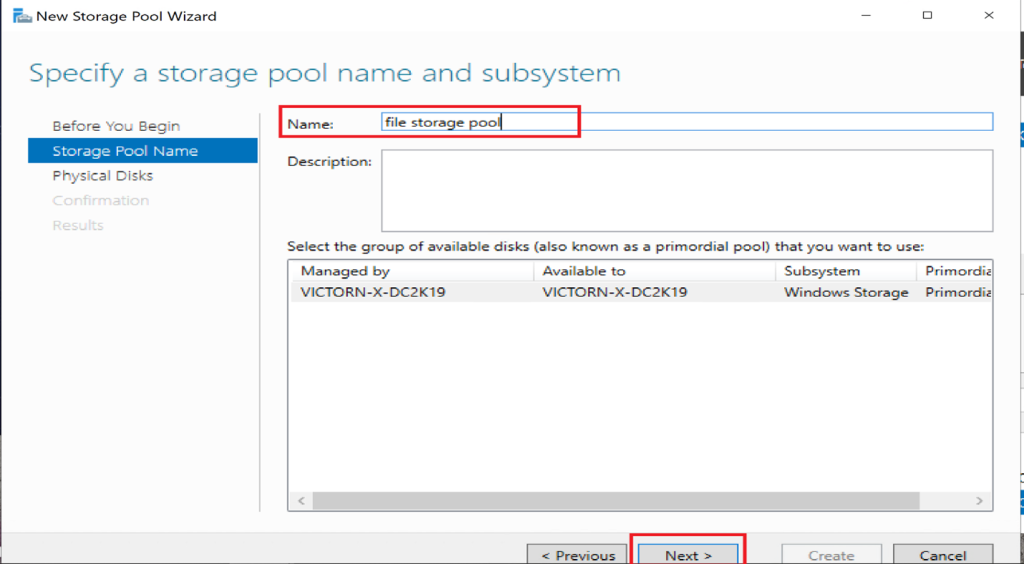
Name the pool
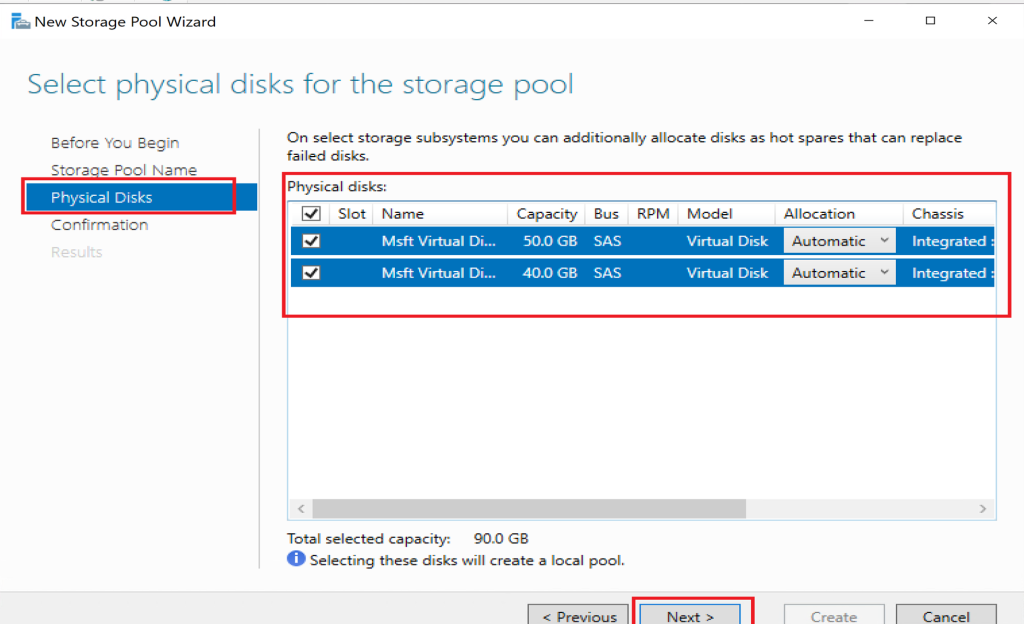
Select available physical disks
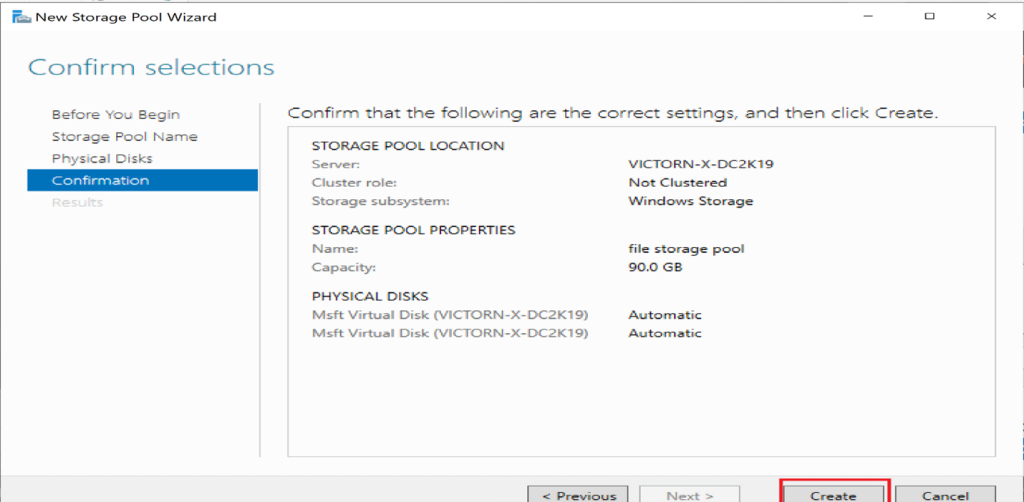
Click Create to finalize the storage pool.
Step 3: Create a Virtual Disk from the Storage Pool
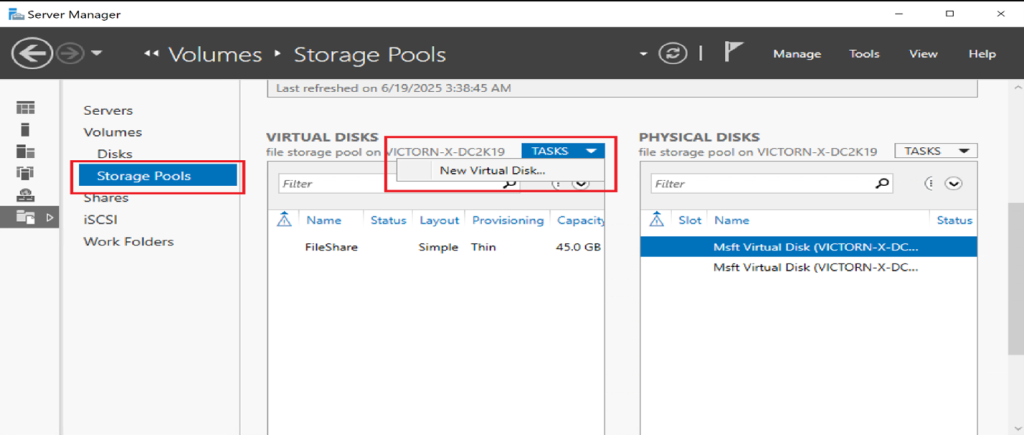
In Server Manager, go to File and Storage Services → Storage Pools
Select your storage pool
Under Virtual Disks, click Tasks → New Virtual Disk
Follow the wizard prompts:
- Choose the storage pool
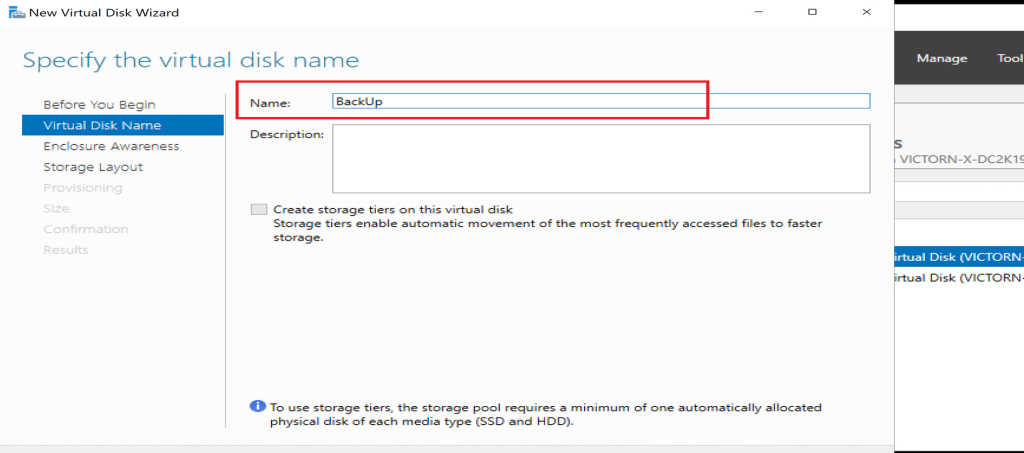
- Name the virtual disk
- Proceed with storage layout selection.
Assign a Resiliency Type
Within the wizard:
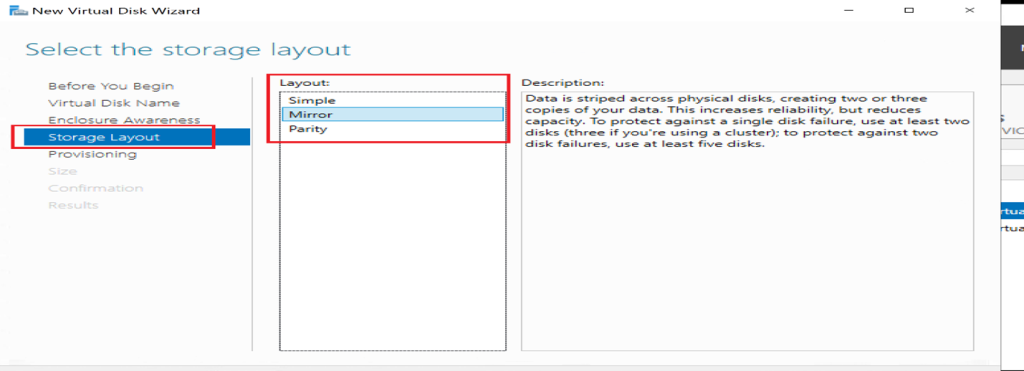
Choose the desired Resiliency Layout:
-
Simple – Stripes data for performance (no redundancy)
-
Mirror – Two-way or three-way replication for Fault tolerance
-
Parity – Balanced performance and redundancy using striping with parity.
Provisioning Type
-
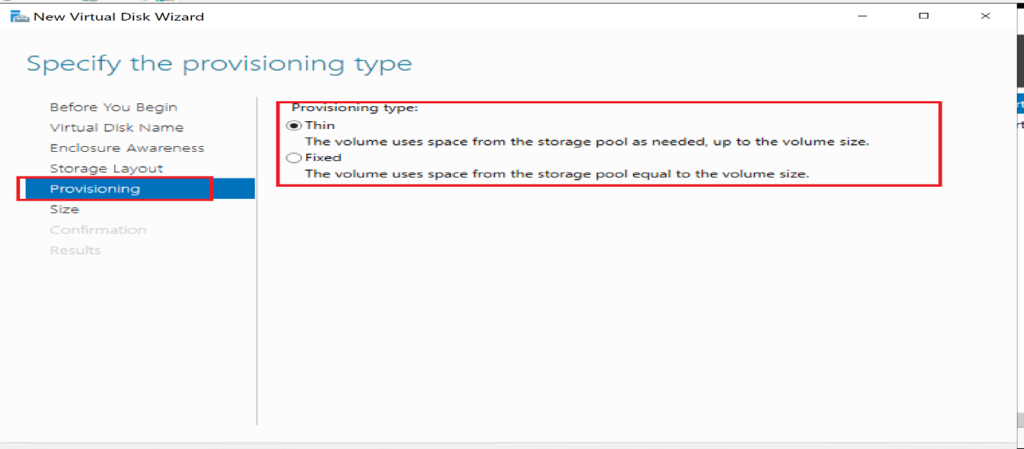
Thin – Allocates space as needed
-
Fixed – Reserves the full disk size upfront.
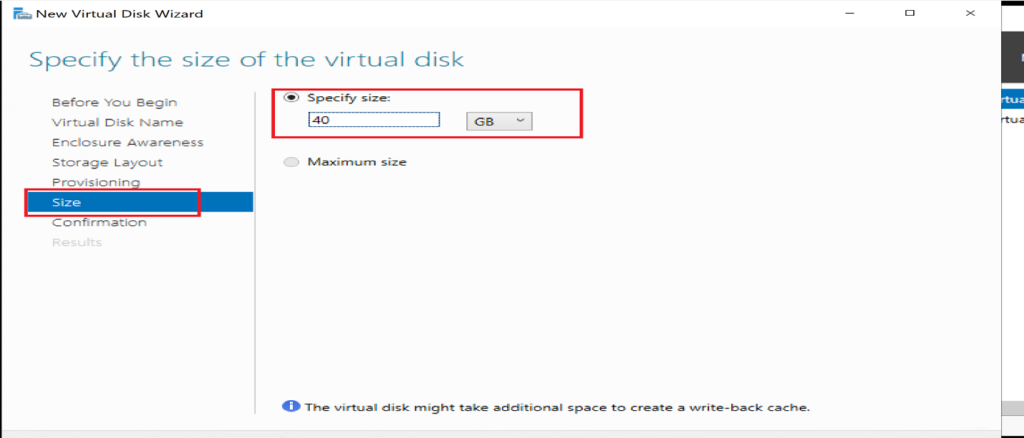
Set the disk size and complete the wizard to create the virtual disk.
Step 4: Format the Disk and Assign a Drive Letter
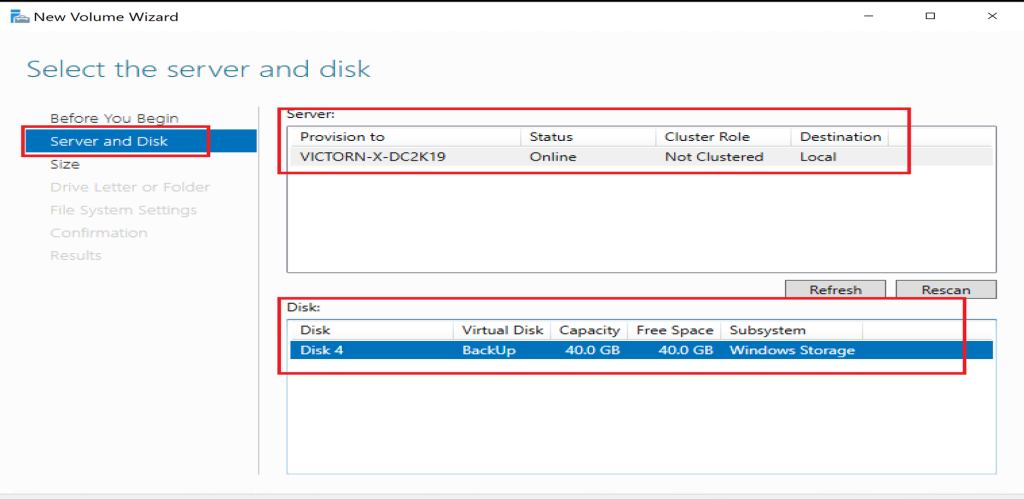
Still in Server Manager, after the disk is created, Click Tasks → New Volume
Select the server and virtual disk
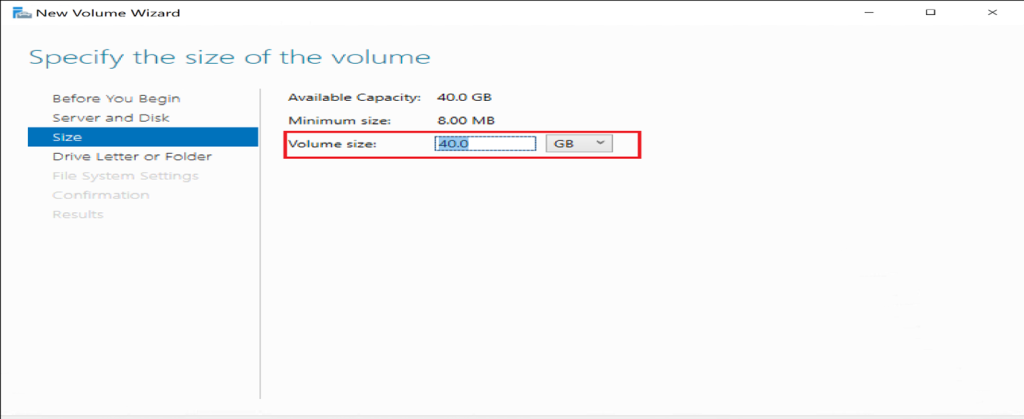
Specify the volume size.
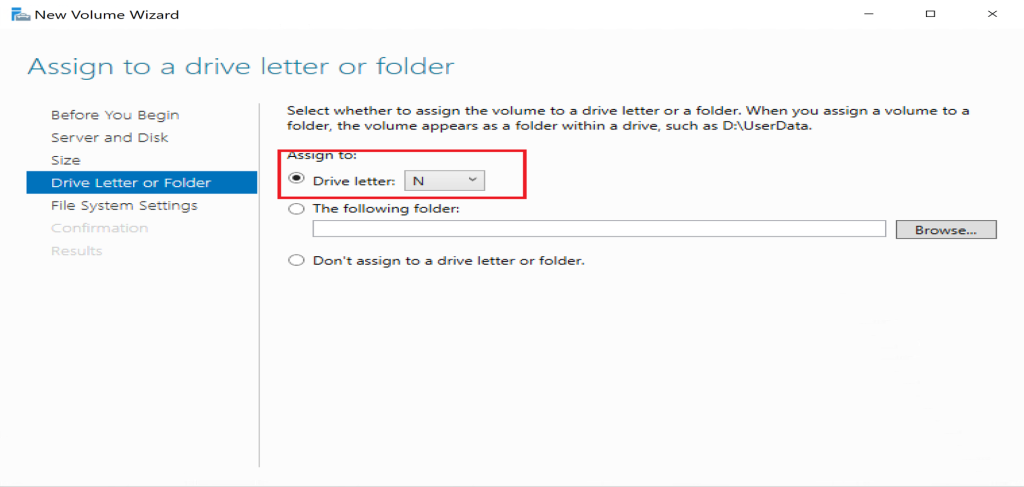
Assign a drive letter or mount as a folder.
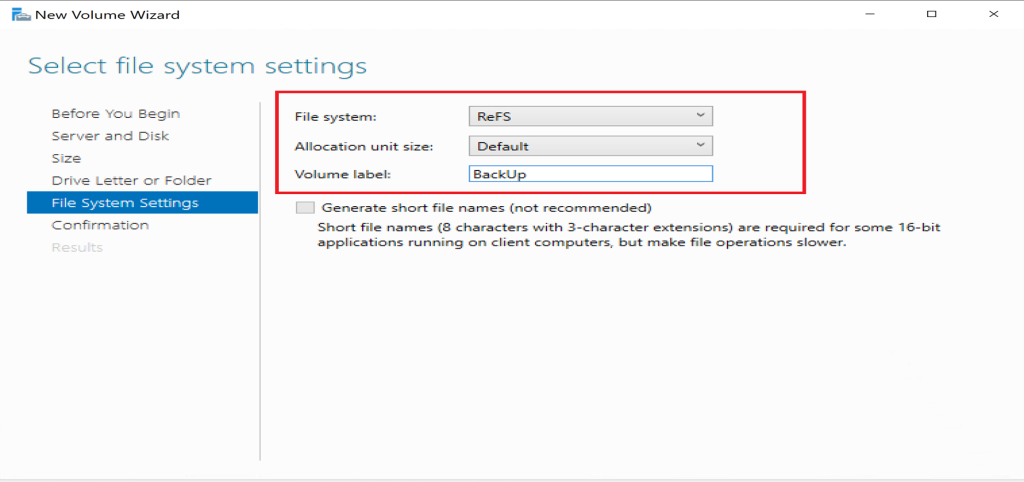
Choose a file system (e.g., NTFS or ReFS), allocation unit size, and provide a volume label.
📌 Finish the wizard to format and mount the volume.
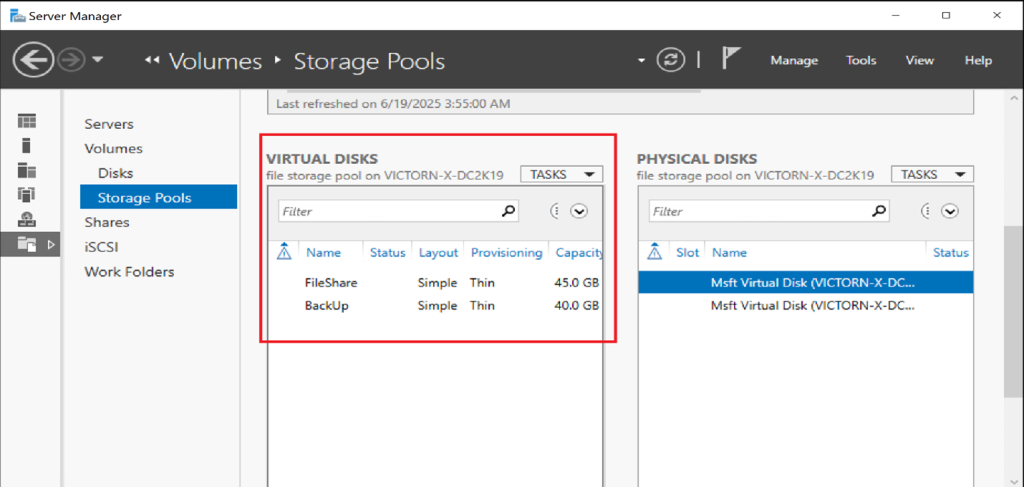
✅ Result:
Storage can now be expanded logically without adding physical disks, extending infrastructure lifespan.
Step 5: Configure iSCSI Target Server (Storage Provider)
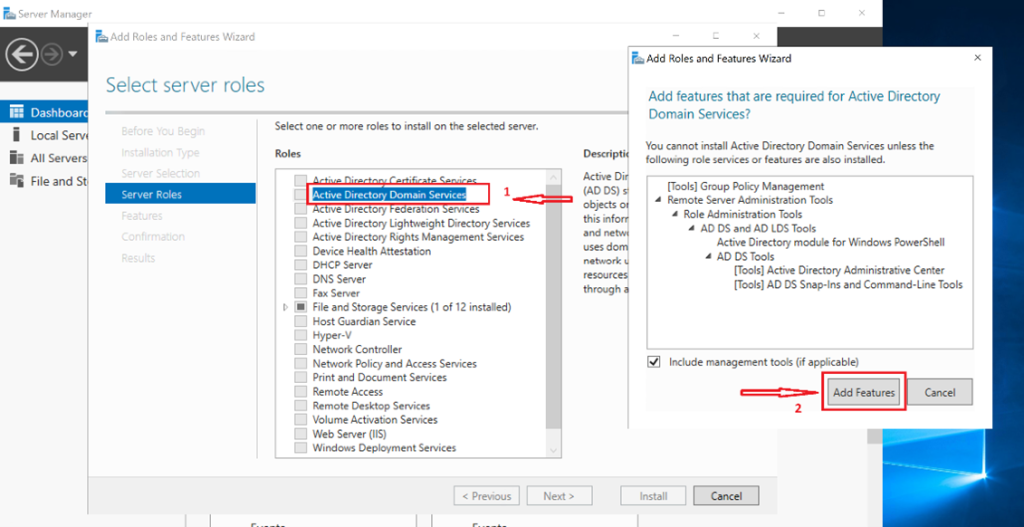
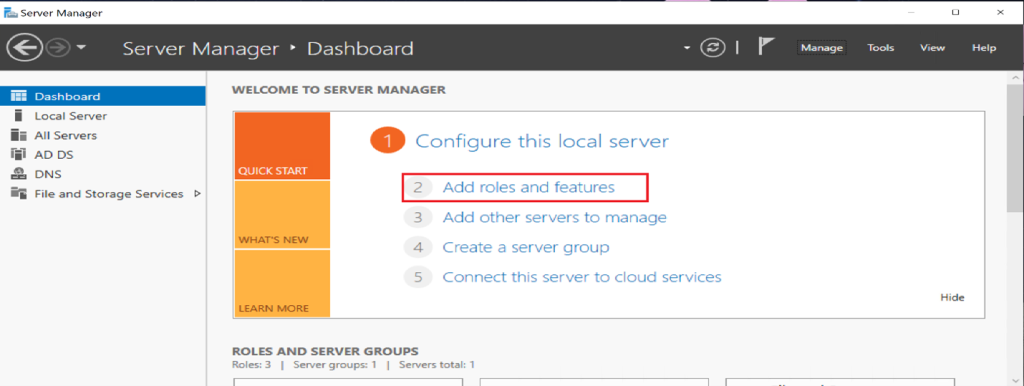
Install iSCSI Target Server Role
- Open Server Manager
- Manage → Add Roles and Features
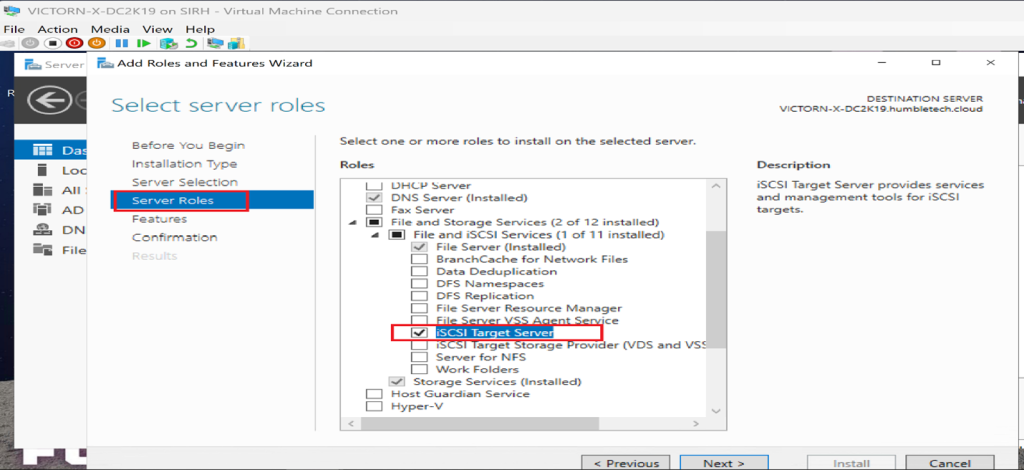
- Select Role-based or feature-based installation → ClickNext.
- Select your server → Click Next.
- Under File and Storage Services → Expand File and iSCSI Services
- Enable iSCSI Target Server
- Click Next, then Install.
Create an iSCSI Virtual Disk
-
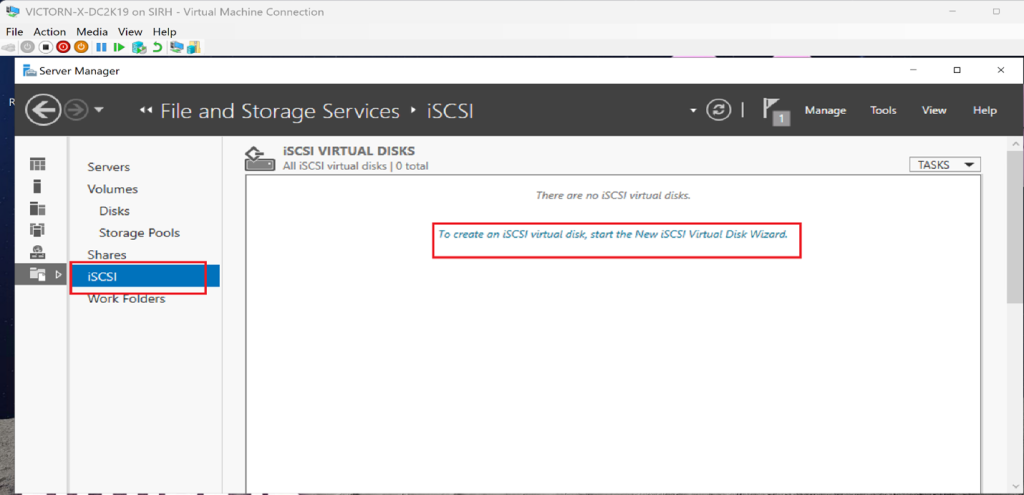
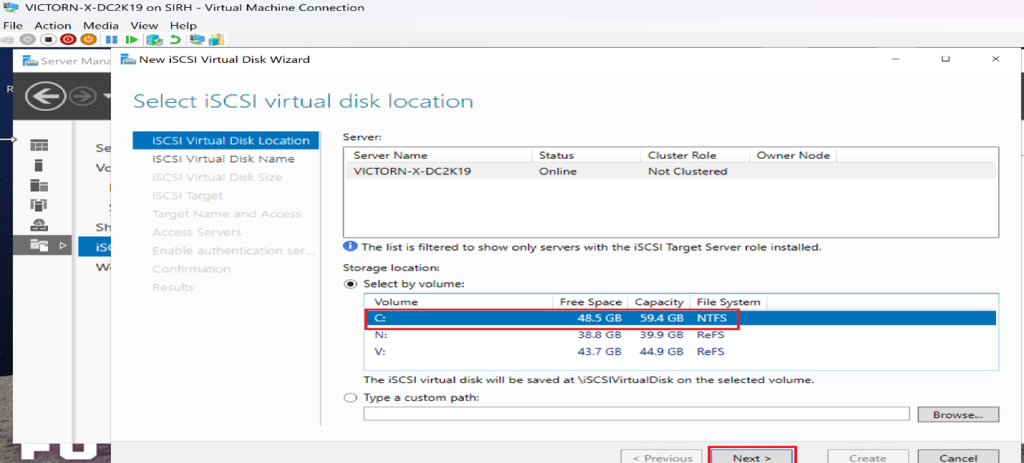
In Server Manager, go to File and Storage Services and click iSCSI.
-
On the right pane, click “To create an iSCSI virtual disk….”
-
Choose a volume or custom path to store the virtual disk
-
Name the disk → Click Next.
-
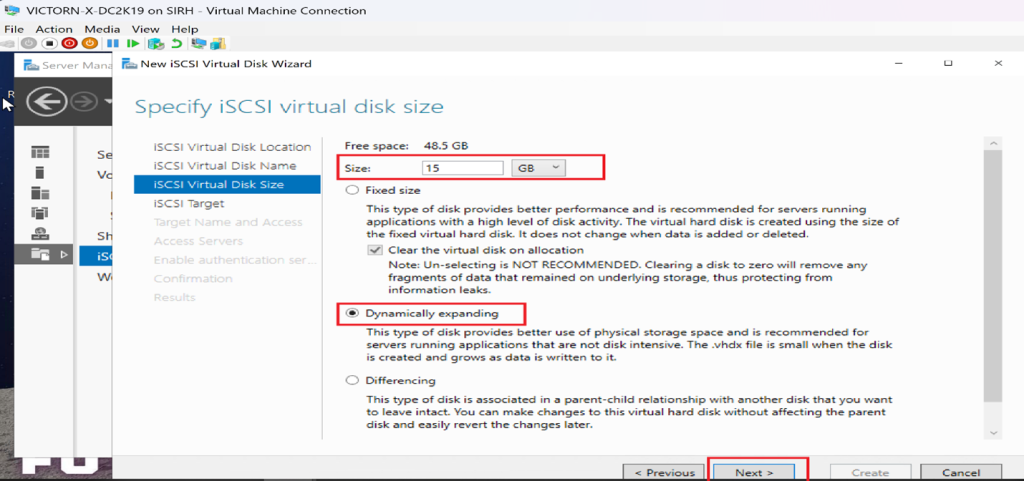
Set the disk size and choose the type:
-
Fixed – pre-allocated space.
-
Dynamically Expanding – Grows as needed.
-
Differencing – Tracks changes from a parent disk.
-
-
Click Next to proceed.
Create an iSCSI Target
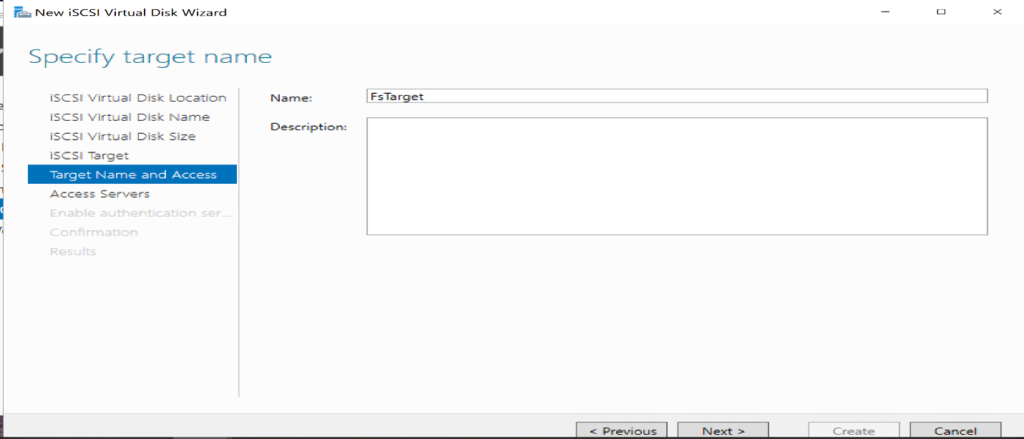
- Choose New iSCSI Target → Click Next.
- Name the target → Click Next.
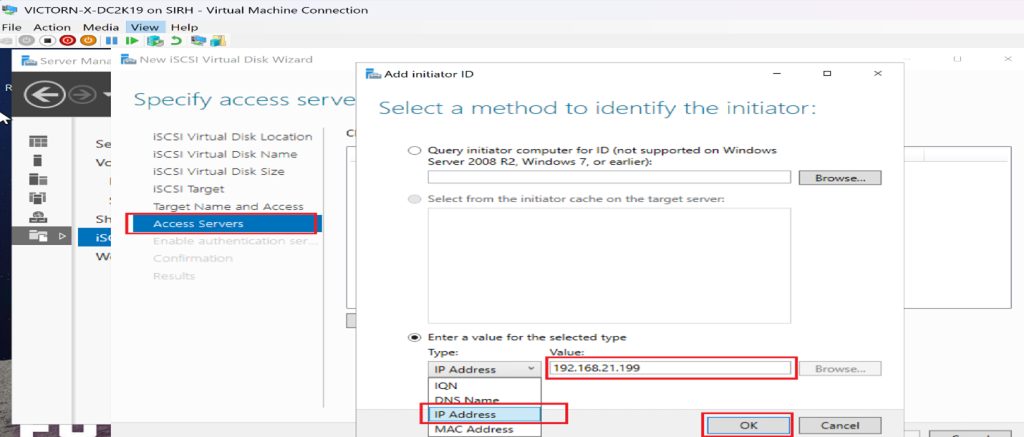
- Click Add to specify access servers:
- Choose IP Address and enter the initiator server’s IP.
- (Optional) Enable CHAP authentication for security.
- Review settings → Click Create.
Step 6: Configuring iSCSI Initiator for Remote Storage Access Server
Steps to Access the Storage Pool from the Access Server
-
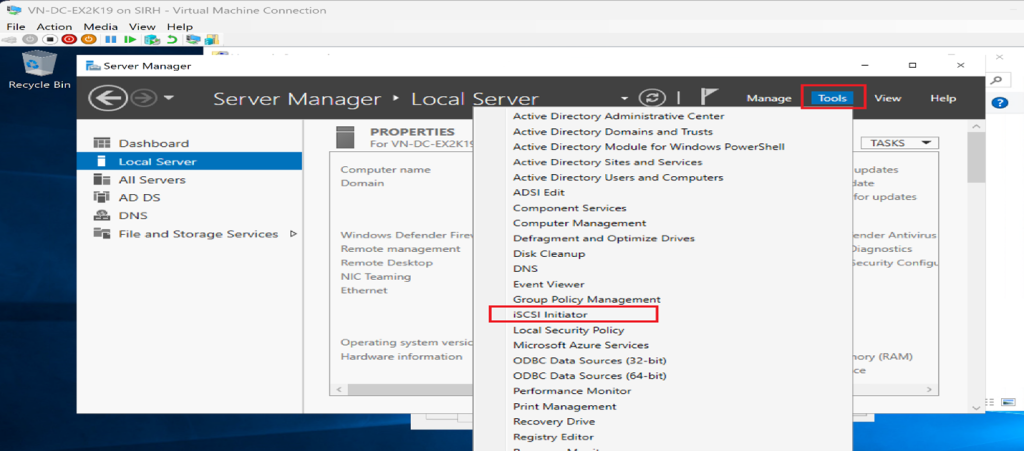
Enable iSCSI Initiator on the Access Server.
-
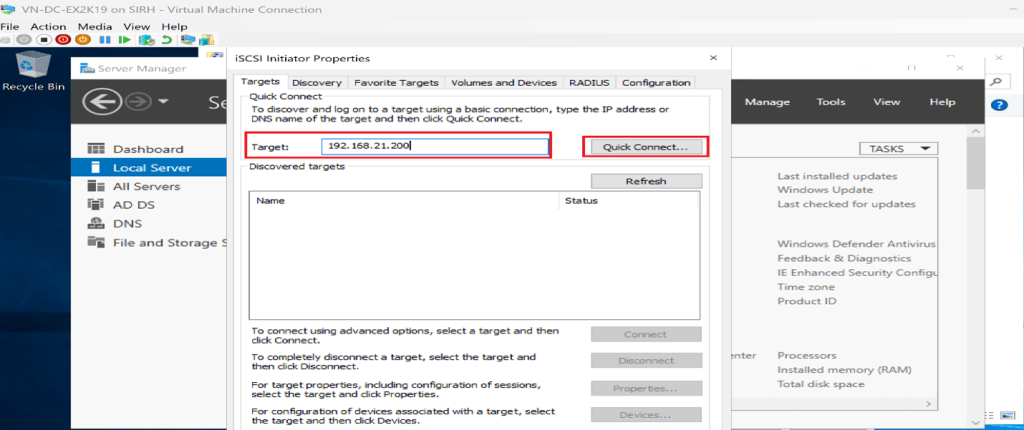
Open iSCSI Initiator Properties
-
Go to Discovery → Click Discover Portal
-
Enter the IP address of the Target Server and click OK.
-
Go to Targets → Select the discovered target → Click Connect.
-
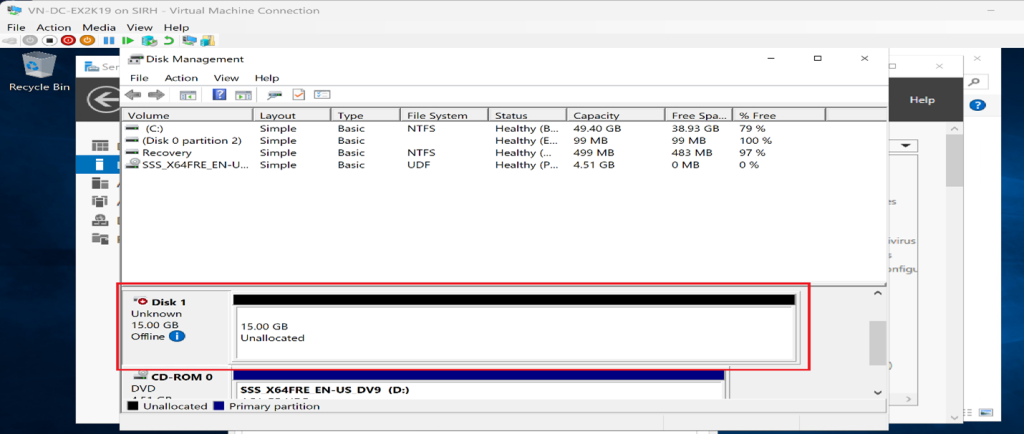
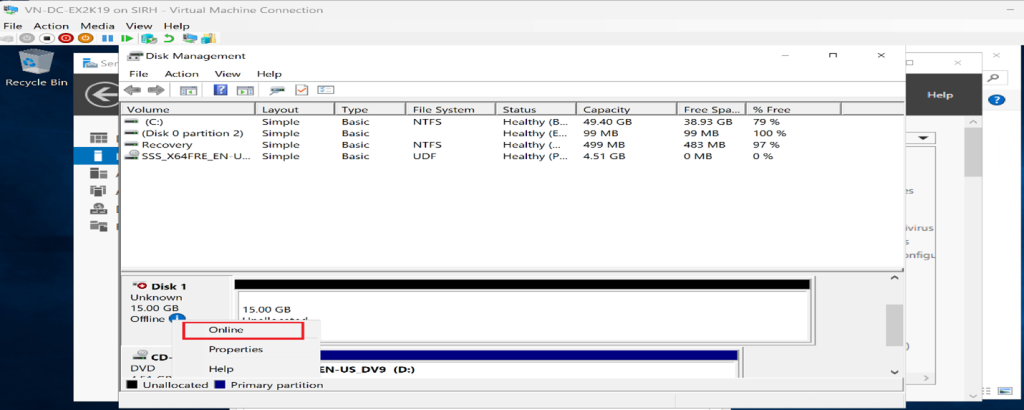
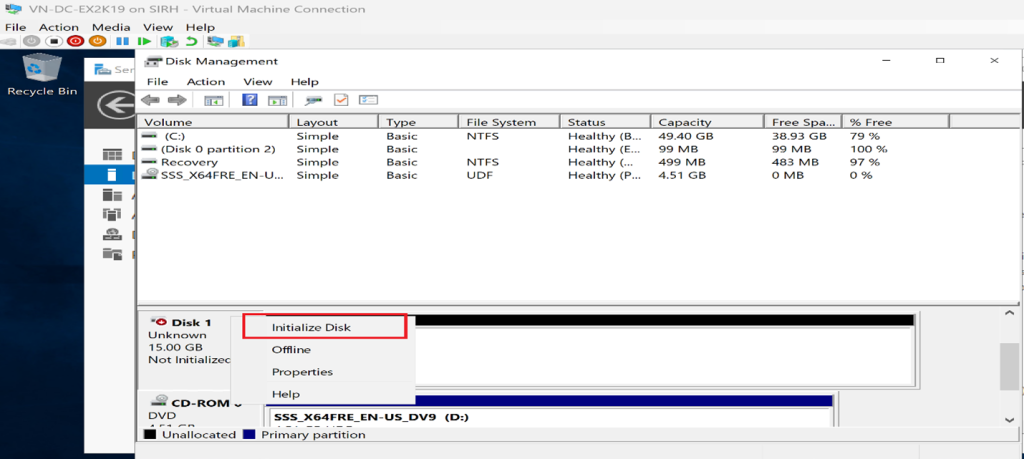
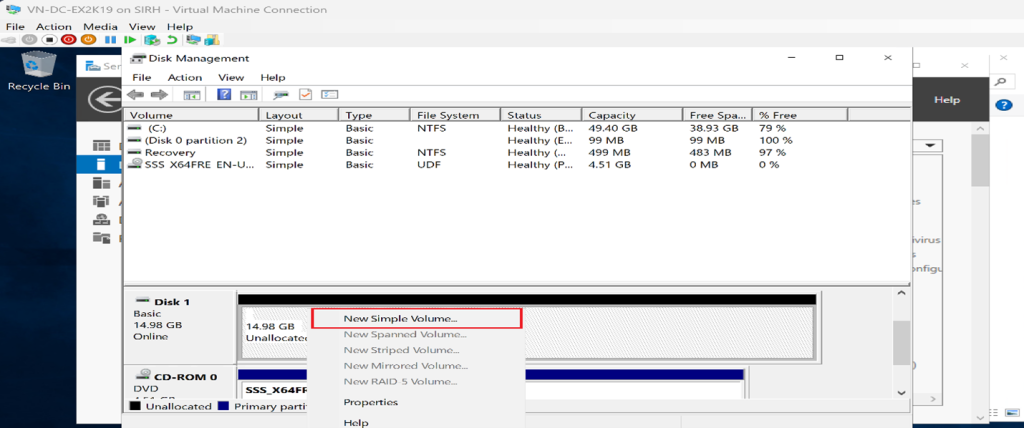
Open Disk Management
-
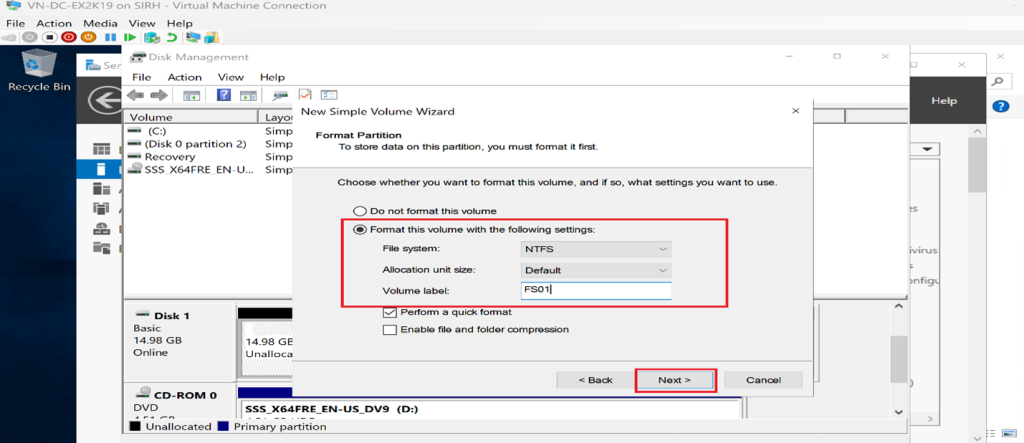
Initialize and format the newly connected disk.
✅ Final Steps:
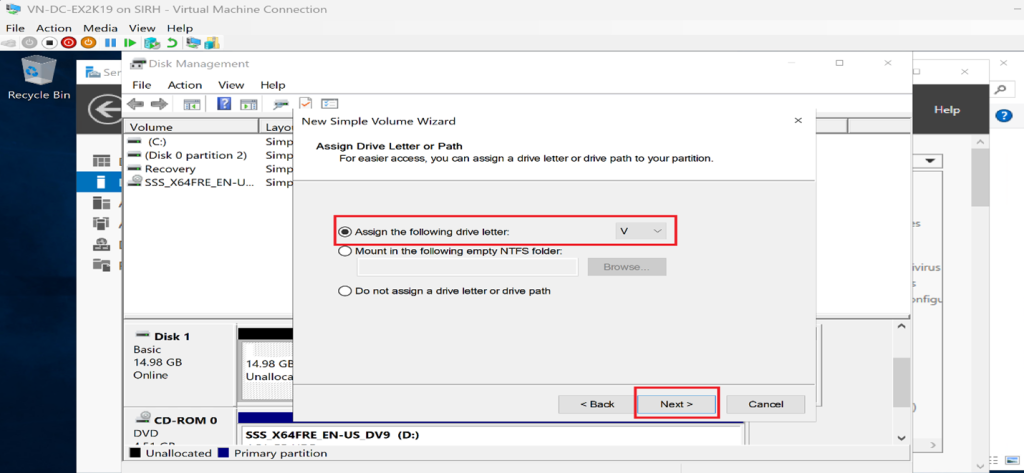
- Assign a drive letter to the disk.
- Verify connectivity and storage availability.
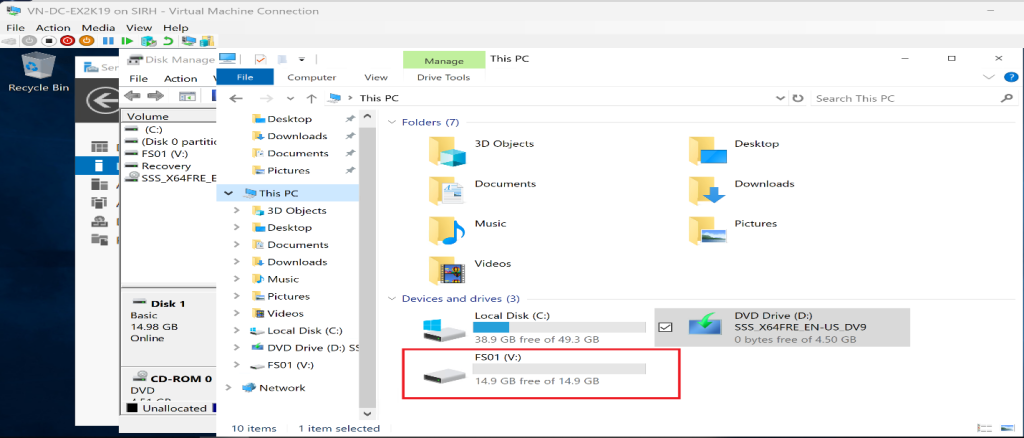
Final Result
The virtual disk is now exposed via iSCSI.
The initiator server can access it as if it were local storage, enabling:
-
Centralized storage
-
Easier scaling
-
Improved workload consolidation
Key Takeaway
If you’re running Hyper-V or any hypervisor, storage strategy should be a top priority.
Efficient storage management is foundational for:
-
Virtualization
-
Hybrid cloud workloads
-
Enterprise scalability
-
Performance and resilience
Smart storage decisions today prevent outages and costly redesigns tomorrow.
Discover more from Humble Cloud Tech
Subscribe to get the latest posts sent to your email.