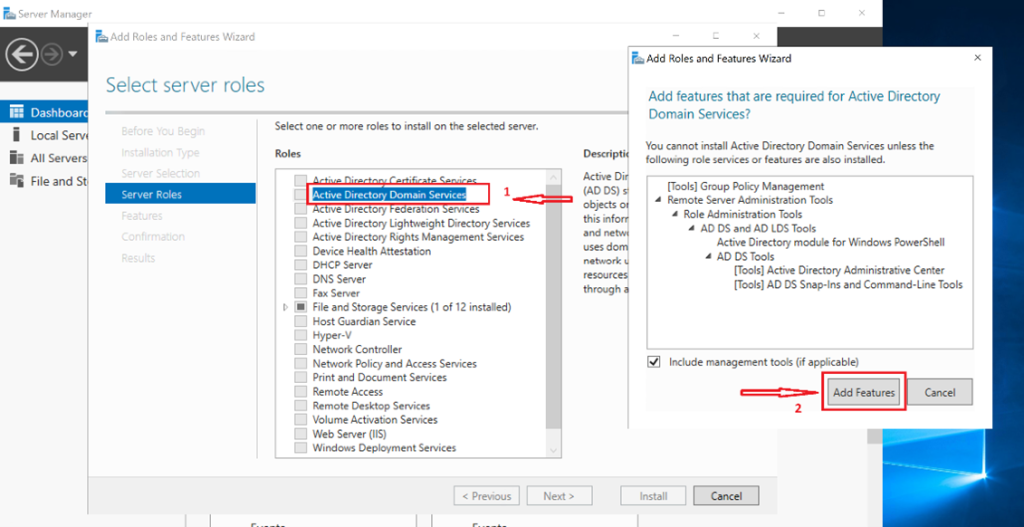
In this lab, I implemented key Group Policy configurations to standardize system behavior, improve user experience, and strengthen security awareness across all domain-joined devices.
The configuration focuses on:
-
Enforcing a consistent and professional desktop environment
-
Preventing unauthorized or accidental system shutdowns
-
Displaying a clear security and legal notice to users before sign-in
All policies were deployed centrally using Group Policy Management on Windows Server 2019, ensuring consistent application across both on-site and hybrid environments.
Lab Overview
Environment
-
Active Directory Domain Services (AD DS)
-
Group Policy Management Console (GPMC)
-
Domain-joined Windows client machines
Policies Implemented
-
Desktop background enforcement
-
Power button behavior restriction
-
Interactive logon message (legal notice)
Step-by-Step Lab Tutorial on Windows Server
Step 1: Change Desktop Background for All Users
Purpose:
Ensure every user logs into a standardized, branded desktop environment.
Steps:
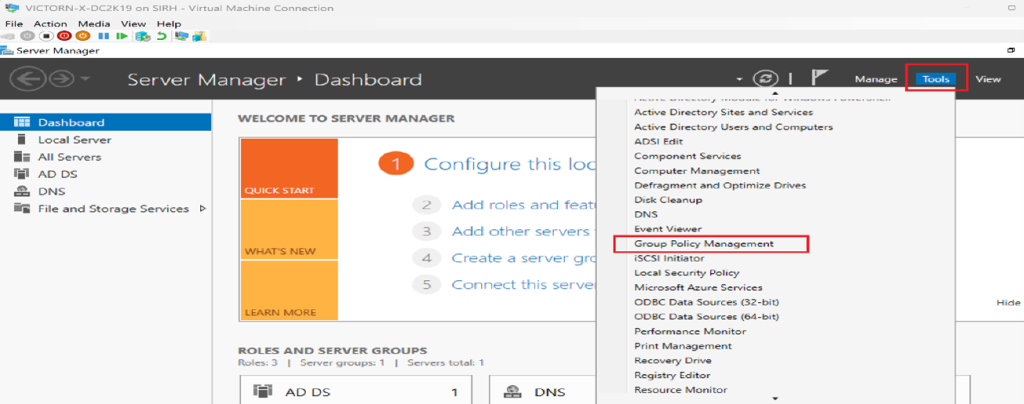
Open Server Manager
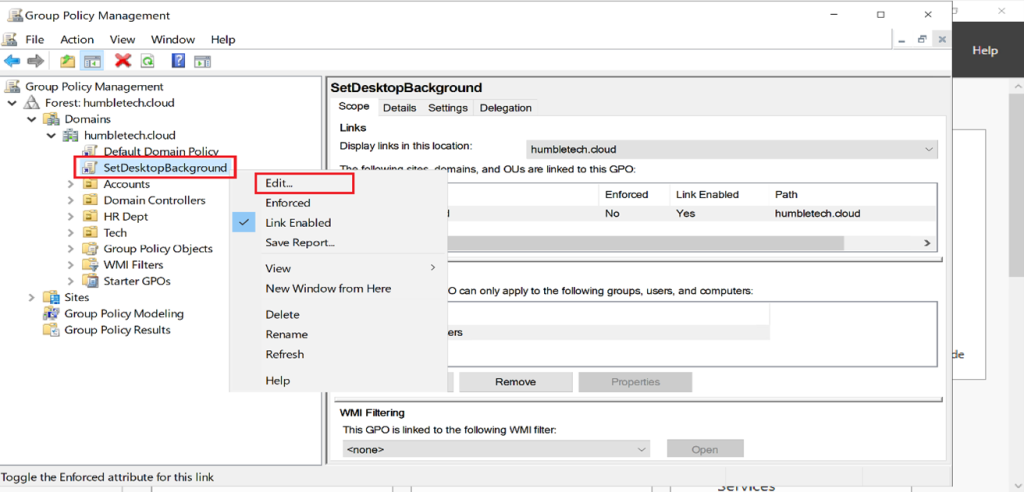
Navigate to Tools → Group Policy Management
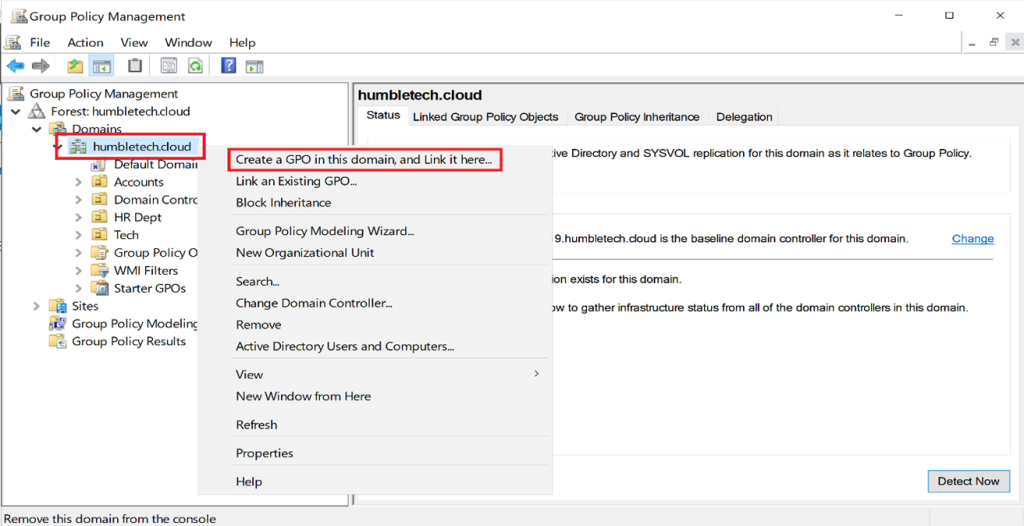
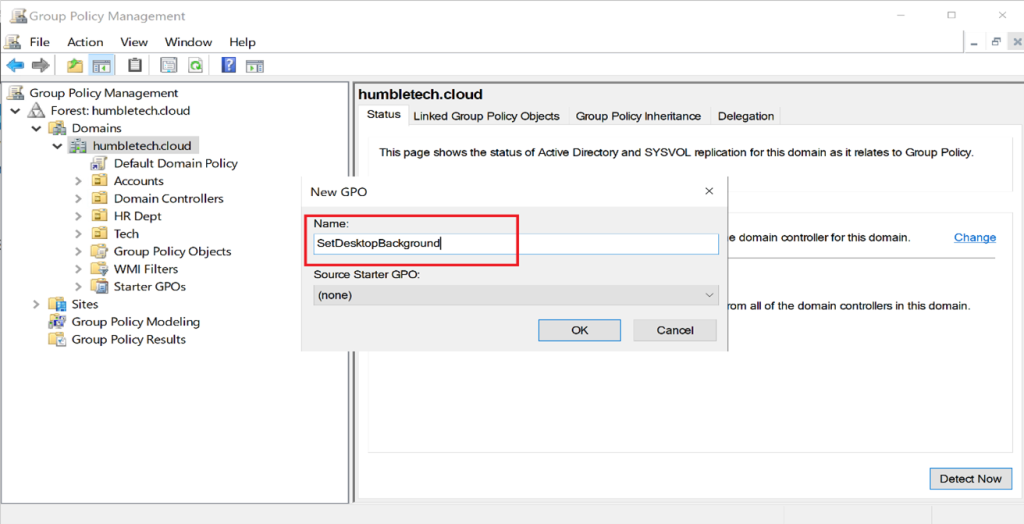
Create or edit a GPO (example: CompanyDesktopBackground)
Link the GPO to the domain or relevant OU
Navigate to:
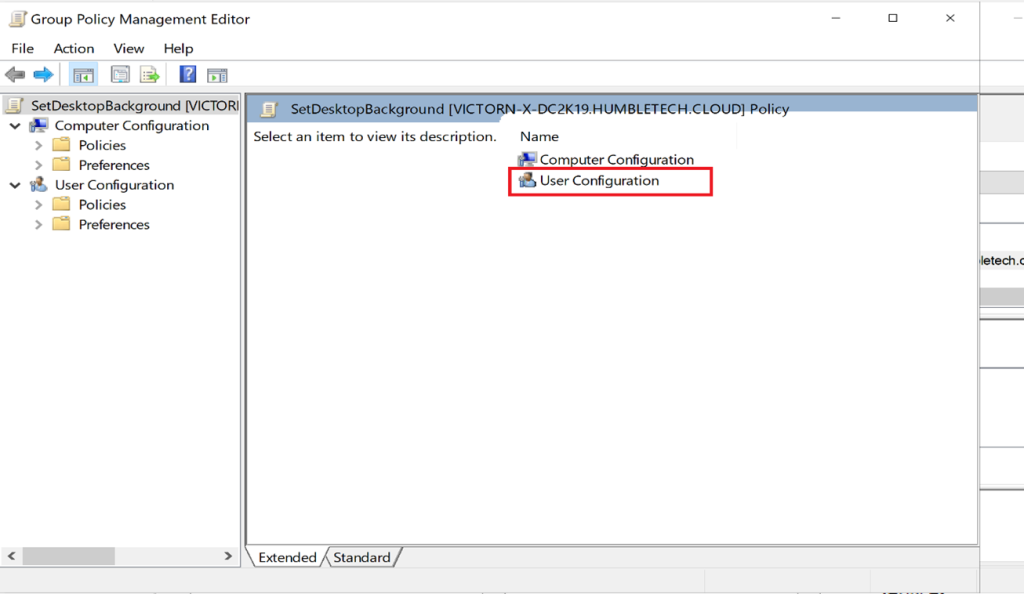
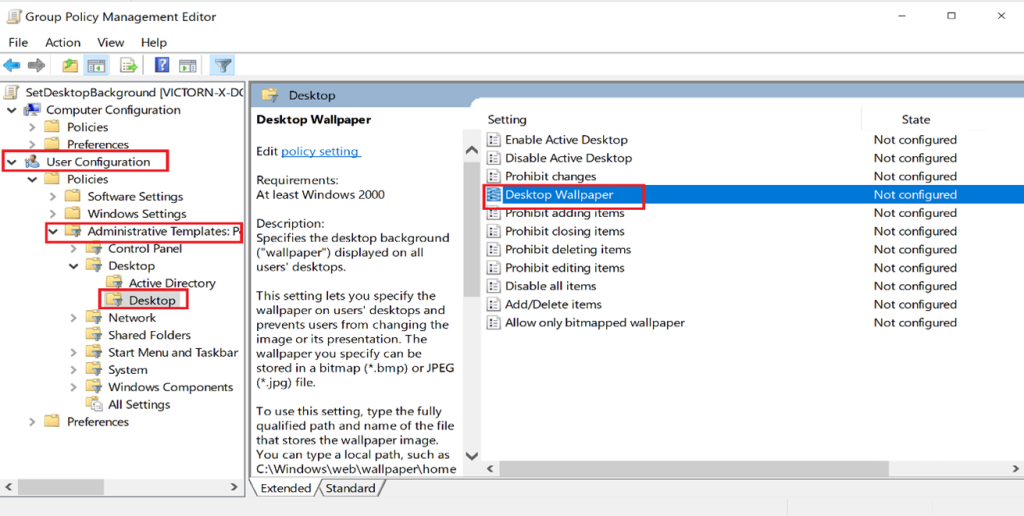
User Configuration → Administrative Templates → Desktop → Desktop Wallpaper
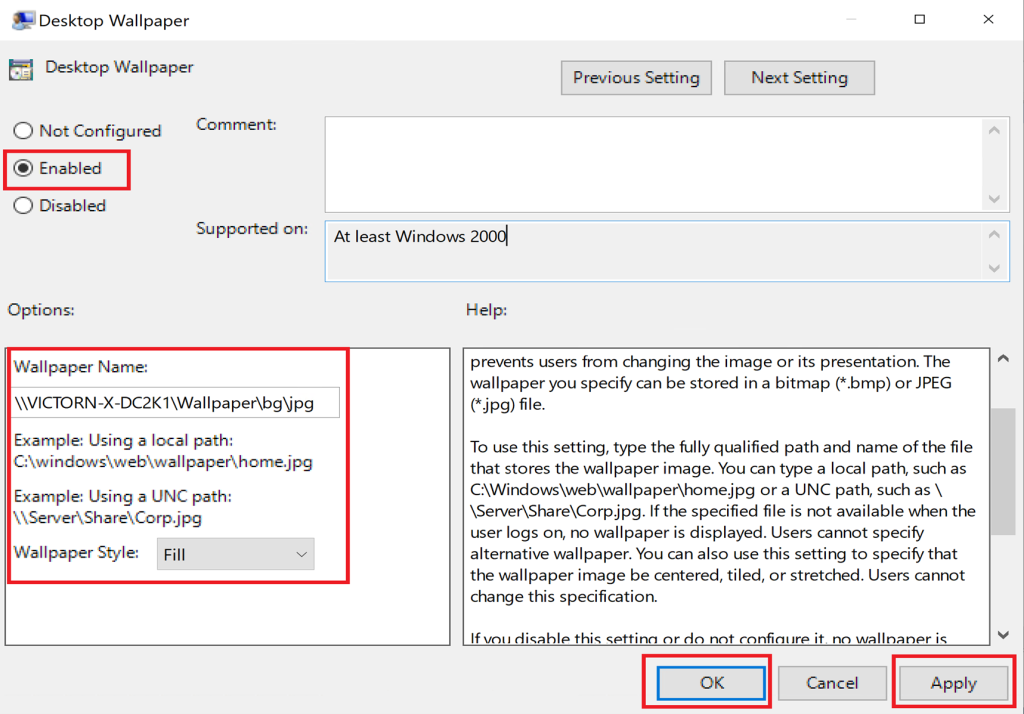
Enable Desktop Wallpaper
Set the image path (UNC recommended):\\DC01\Wallpapers\bg.jpg
Choose a style such as Fill or Stretch
Result:
All domain users receive a consistent, professional desktop background at logon.
Step 2: Disable or Restrict Power Button Behavior
Purpose:
Prevent accidental or unauthorized shutdowns that could disrupt operations.
Steps:
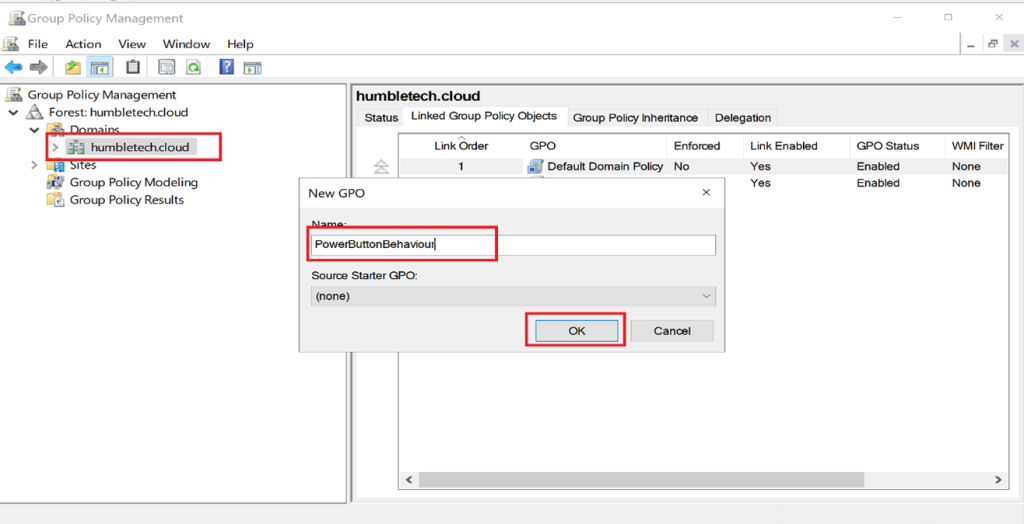
Create a new GPO (example: PowerButtonControl)
Link it to the domain or workstation OU
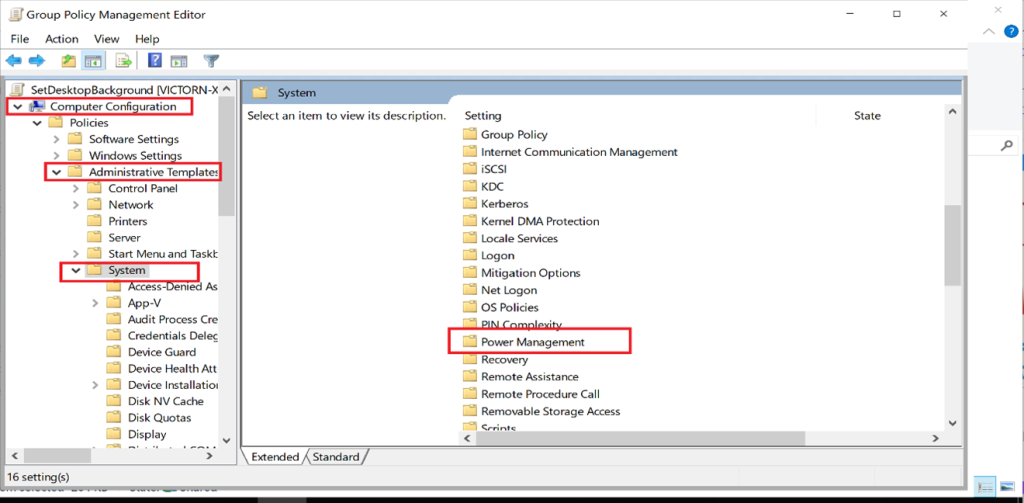
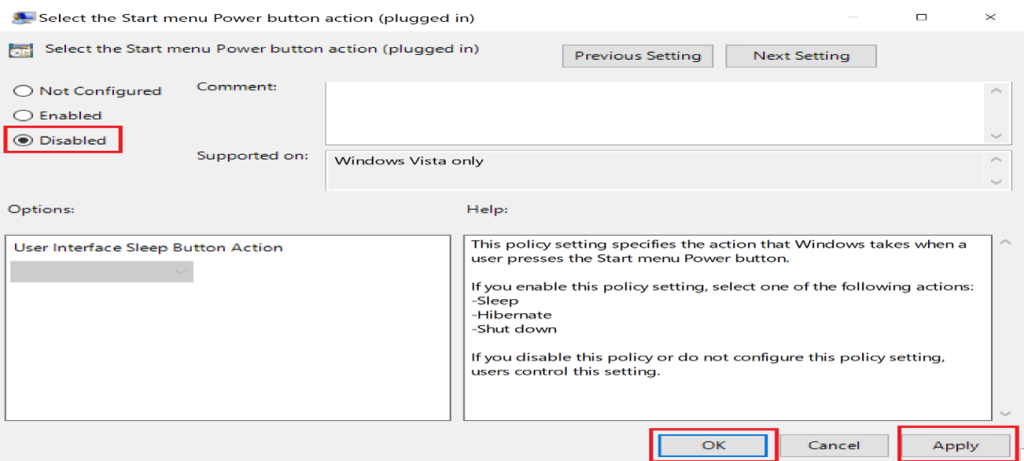
Navigate to:
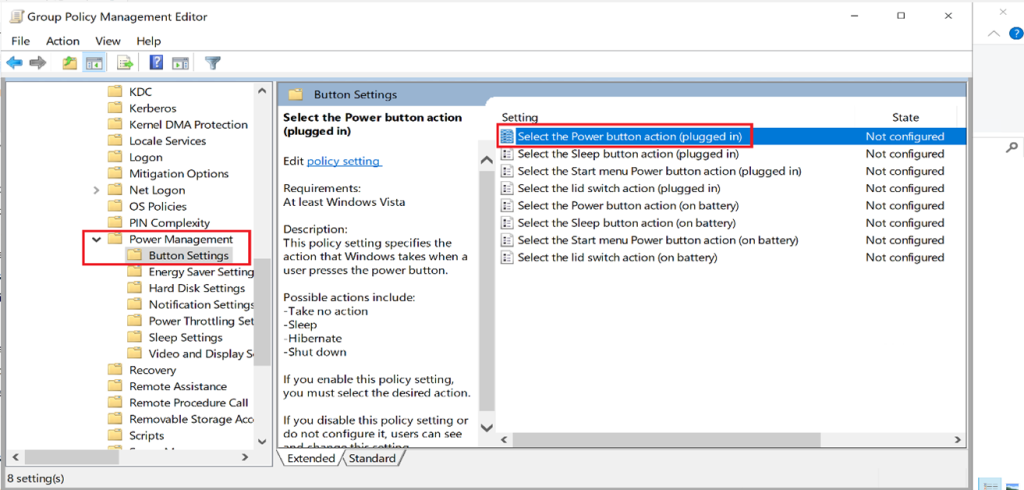
Computer Configuration → Administrative Templates → System → Power Management → Button Settings
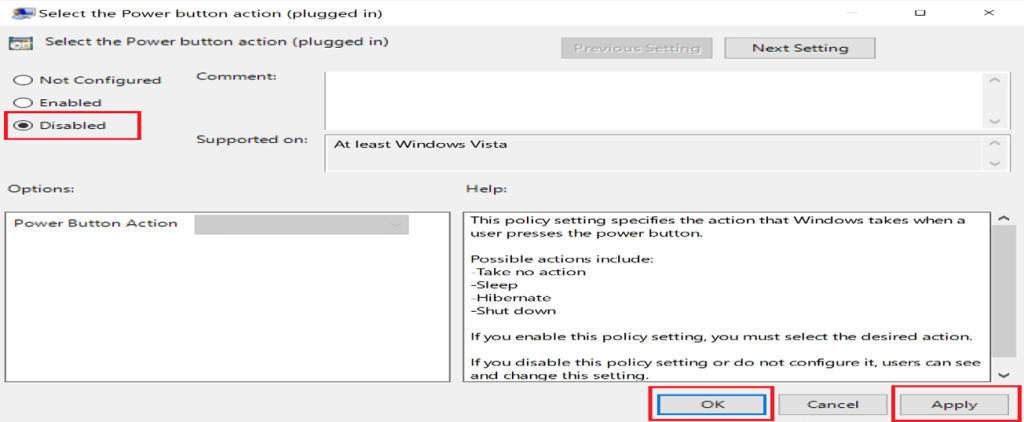
Configure Select the Power Button Action
Disable shutdown
Or set action to Lock or Sleep only
Result:
Improved workstation availability and reduced downtime risks.
Step 3: Enforce Legal Notice / Logon Banner
Purpose:
Display security warnings or compliance notices before user authentication.
Steps:
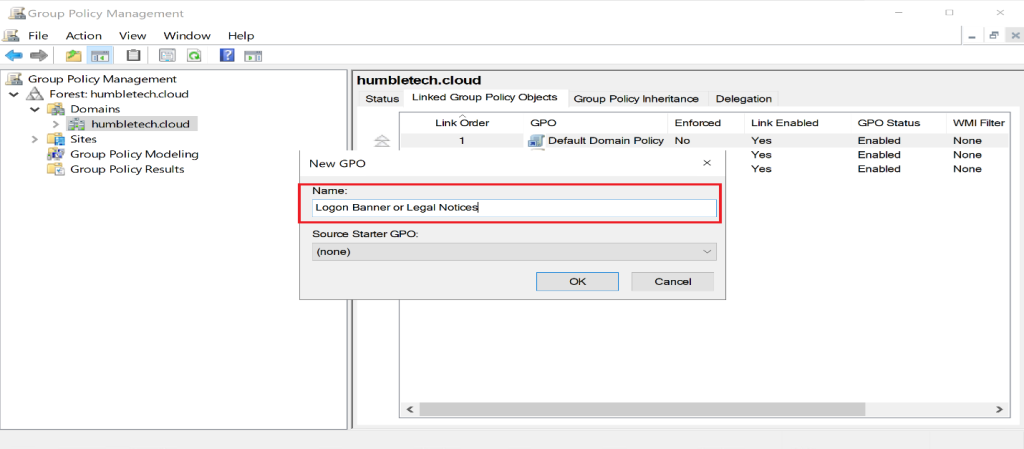
Create a GPO (example: LegalNotice)
Link it to the domain
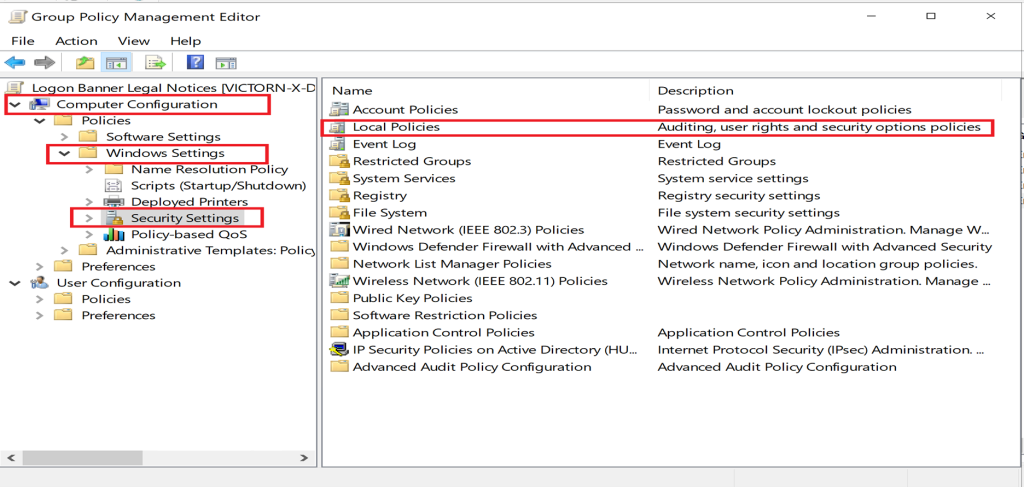
Navigate to:
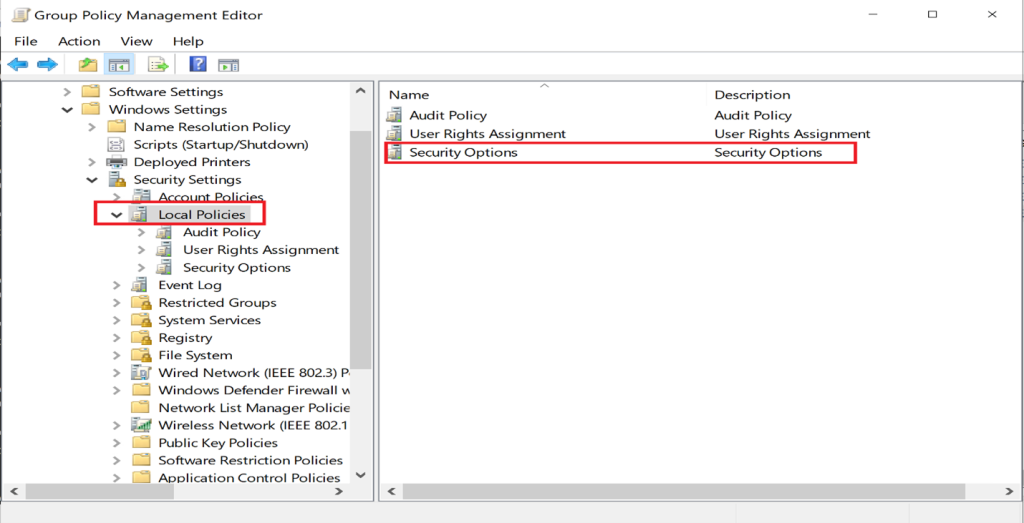
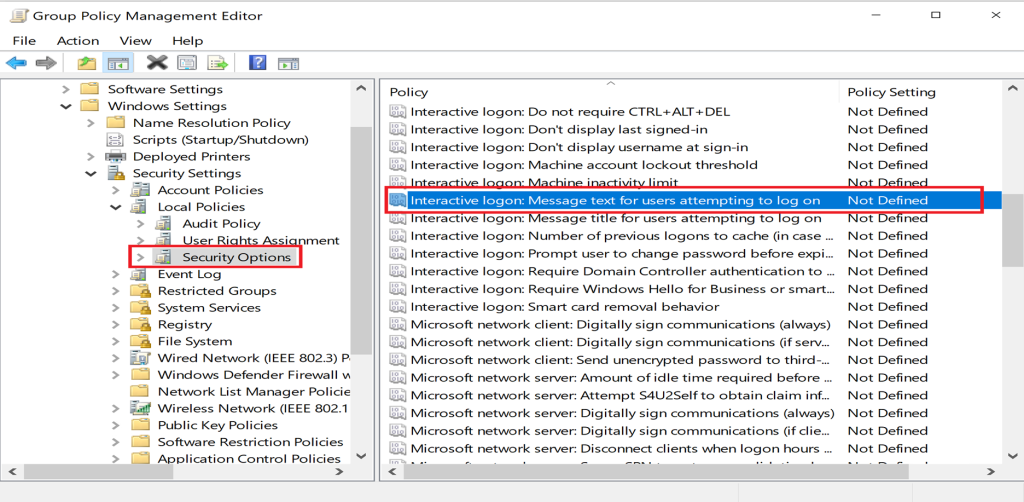
Computer Configuration → Windows Settings → Security Settings → Local Policies → Security Options
Configure:
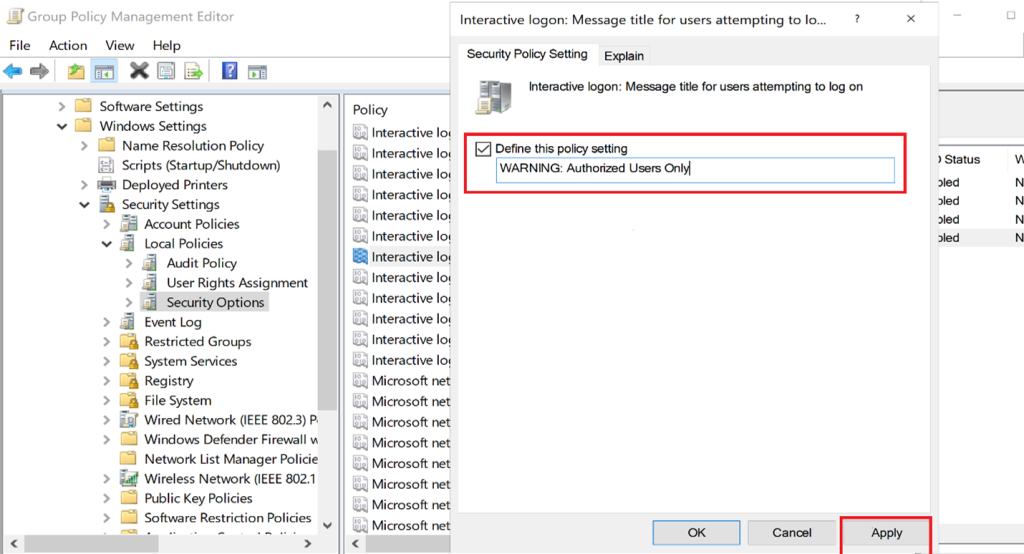
Interactive logon: Message title
Interactive logon: Message text
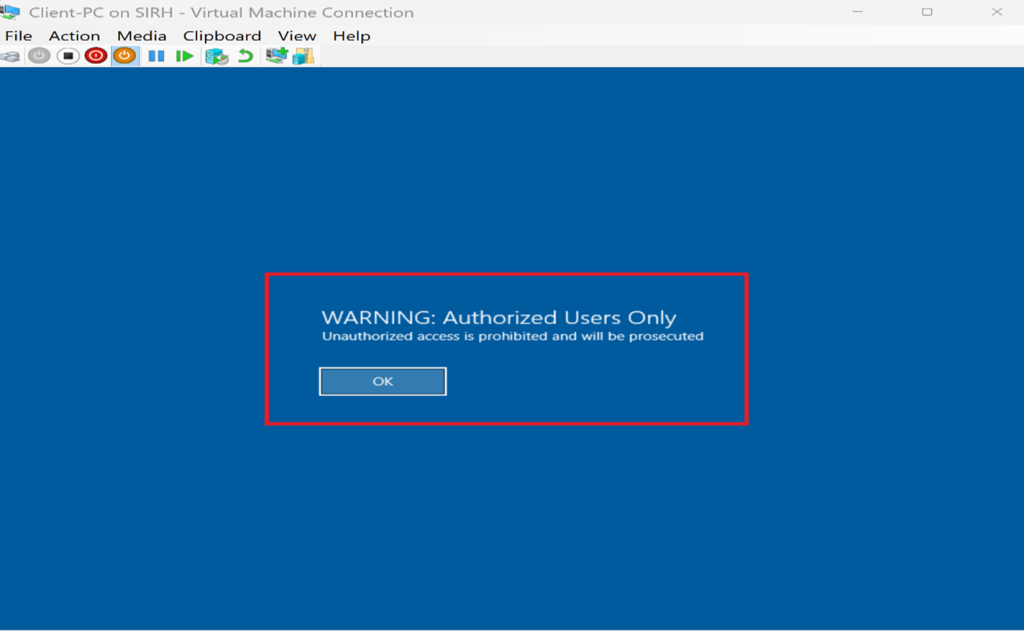
Log in to a domain-joined client to verify
Result:
Users receive a clear security reminder before accessing corporate systems.
I enhanced the domain environment’s operational and security posture by successfully configuring and deploying these Group Policy settings.
- The desktop background policy ensured that every domain-joined system displayed standardized, branded wallpaper, reinforcing organizational identity and maintaining a clean, professional interface.
- The power button action policy prevented unauthorized or accidental shutdowns, reducing system downtime risks and maintaining greater control over workstation availability.
- The interactive logon message policy provided a clear, customized security disclaimer and organizational notice at every logon screen, promoting user awareness and supporting compliance requirements.
Step 4: Apply and Validate Policies
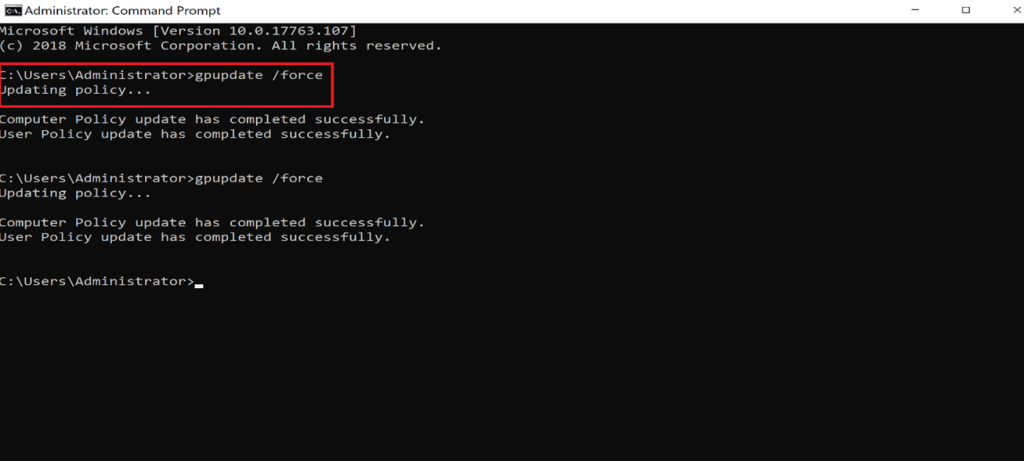
Run the following command on a domain client:
gpupdate /force
Optional validation tools:
-
rsop.msc -
gpresult /r
Why This Matters
These Group Policy configurations help organizations achieve the following:
✔️ Consistent user experience
✔️ Centralized workstation control
✔️ Improved security posture and compliance
✔️ Reduced manual configuration for IT teams
✔️ Clear security communication at every logon
Microsoft confirms that Group Policy provides centralized management and enforcement of user and computer settings in Active Directory environments, making it a foundational enterprise control mechanism.
Outcome and Impact
By successfully deploying these Group Policy settings, I enhanced the operational consistency and security posture of the domain environment:
-
Desktop Background Policy
Reinforced organizational branding and ensured a clean, uniform user interface. -
Power Button Policy
Reduced risks of accidental shutdowns and improved workstation uptime. -
Logon Message Policy
Promoted security awareness and supported compliance requirements.
This lab demonstrates how centralized policy enforcement simplifies administration while improving reliability and security across enterprise environments.
Discover more from Humble Cloud Tech
Subscribe to get the latest posts sent to your email.