
This lab documents a real-world Group Policy implementation used to restrict USB drives, external hard drives, and all removable storage devices across domain-joined systems in an Active Directory environment.
The configuration addresses a critical security risk in modern on-premises and hybrid environments by preventing unauthorized data transfers, blocking removable media access, and securing Remote Desktop sessions.
Lab Objective
To centrally enforce removable media restrictions using Group Policy, ensuring:
-
No read/write access to USB storage
-
All removable storage classes are blocked
-
USB passthrough is disabled in RDP sessions
-
Policies apply consistently across all domain-joined systems
Lab Prerequisites
Before starting this lab, ensure the following:
-
A functioning Active Directory domain
-
Domain-joined client computers
-
Group Policy Management Console (GPMC) installed
-
Administrative privileges in the domain
-
Target computers placed in the correct OU
Step-by-Step Lab Tasks
Step 1: Open Group Policy Management
-
Log in to the Domain Controller
-
Open Group Policy Management
-
Identify the OU containing target computers

Step 2: Create and Link a New GPO
-
Create a new Group Policy Object (e.g., Disable USB & Removable Media)
-
Link the GPO to the appropriate computer-based OU
💡 These settings apply under Computer Configuration, so the GPO must target computer objects, not users.

Step 3: Edit the Group Policy Object
Navigate to:
Computer Configuration → Administrative Templates → System → Removable Storage Access

Step 4: Configure Removable Storage Policies
Navigate to Computer Configuration → Administrative Templates → System → Removable Storage Access
Enable/Disable the options shown on the right side as per the company requirements.


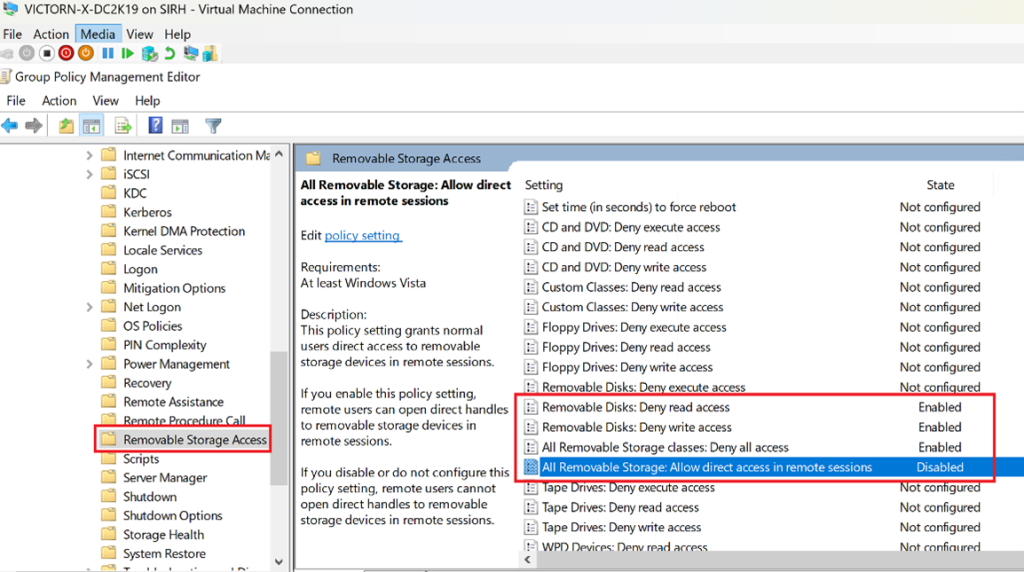
Enabled Settings (Full Removable Media Restriction)
Removable Disks: Deny read access – Enabled
-
Prevents users from opening or viewing files on USB storage
-
Blocks access even if the device is physically connected
Removable Disks: Deny write access – Enabled
-
Prevents copying or saving files to USB drives
-
Reduces data leakage and unauthorized file transfers
All Removable Storage Classes: Deny all access – Enabled
-
Blocks all removable storage types, including:
-
USB flash drives
-
External hard drives
-
CDs/DVDs
-
Tape drives
-
Smartphones and portable devices (WPD)
-
This setting overrides individual device permissions and enforces a blanket restriction.
Disabled Setting (USB Passthrough via RDP)
All Removable Storage: Allow direct access in remote sessions – Disabled
-
Prevents USB devices from being redirected into Remote Desktop sessions
-
Secures remote access scenarios and hybrid work environments
Not Configured Settings (Left at Default)
The following remain Not Configured:
-
CD/DVD (deny read/write/execute)
-
Floppy drives
-
Tape drives
-
Custom device classes
-
WPD devices (phones, tablets)
Because “Deny all access to all removable storage classes” is enabled, these device types are already blocked.
Granular configuration is only required if exceptions are needed later.
Step 5: Apply and Enforce the Policy
On target client machines, run:
gpupdate /force
Then:
-
Reboot if required
-
Test USB access using a standard user account
-
Confirm removable media is blocked locally and via RDP

Lab Outcome
After completing this lab:
-
USB and removable storage access is fully restricted
-
USB passthrough is blocked in Remote Desktop sessions
-
Policy enforcement is centralized and consistent
-
Endpoint security posture is significantly improved
This configuration reflects real enterprise security controls used in regulated and hybrid environments.
Why This Matters (Real-World Context)
Removable media remains a common attack vector for:
-
Data exfiltration
-
Malware introduction
-
Policy and compliance violations
Microsoft provides native Group Policy settings to control removable storage access, making this approach fully supported, auditable, and enterprise-ready.
Discover more from Humble Cloud Tech
Subscribe to get the latest posts sent to your email.

