How Linux Runs, Communicates, and Stays Alive.
Every new Linux learner eventually reaches a turning point.
At the beginning, Linux can feel like a black box. Commands succeed or fail, services stop responding, systems slow down or crash, and the reasons aren’t always obvious. You follow tutorials, run commands, and hope for the best.
Then something changes.
You realize Linux isn’t a mystery at all. It behaves exactly as it’s designed to, once you understand how to read it.
Linux is fully observable.
Every running process can be inspected.
Every network connection can be traced.
Every slowdown has a measurable cause.
Every failure leaves behind evidence.
In the previous post, I covered Linux Foundations (Beginner): How Linux Really Works; Not Just Commands, focusing on the internal mechanics that power a Linux system.
Next, I explored Mastering Linux Core Operations: Users, Permissions, sudo, Packages & Services (Beginner → Intermediate), where control, access, and system structure come into focus.
This guide builds on those fundamentals by introducing visibility and stability. Not through command memorization, but by learning how to observe what the system is doing in real time and respond with confidence.
In this tutorial, you’ll learn how to:
-
Identify what is actually running on your Linux system
-
Understand why systems slow down or become unstable
-
See how Linux communicates across networks
-
How to troubleshoot live servers methodically
- Develop the mindset used by real-world system administrators
Linux doesn’t hide problems. It exposes them, if you know where to look.
WHAT ARE PROCESSES IN LINUX?
A process is a running instance of a program.
Every time you open a terminal, run a script, start a service, or launch an application, Linux creates a process.
Every process has:
- A PID (Process ID): a unique number
- An owner (user): who started it
- CPU usage: how much processing power it consumes
- Memory usage: RAM consumption
- State: what the process is currently doing
- Parent process: the process that created it
- A lifecycle (start → run → stop)
Linux is always running hundreds of processes, even when idle.
These include:
- System services
- Background daemons
- Kernel helpers
- User applications
- Scheduled tasks
Understanding processes is the foundation of system monitoring.
Lab: View All Running Processes
This will teach you what is running, who owns processes, and CPU & memory usage.
ps aux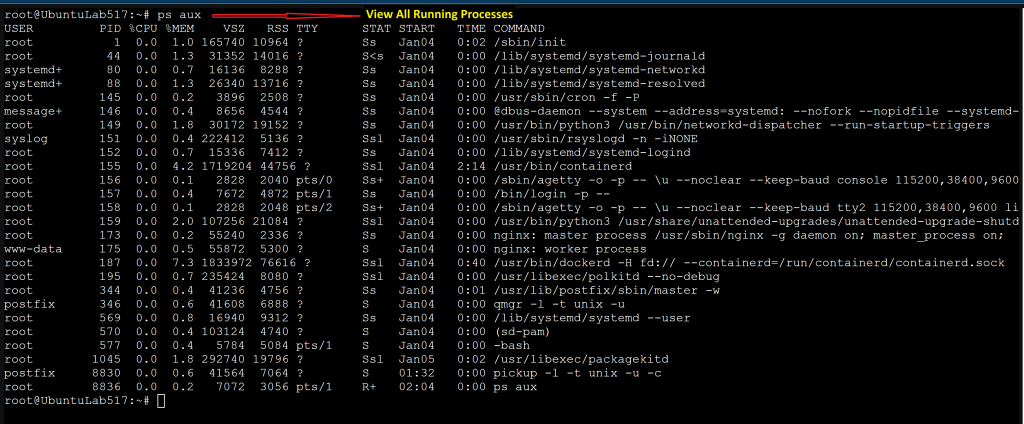
This shows:
- User: The Linux user account that owns and started the process.
- PID (Process ID): A unique number assigned by the system to identify the process.
- CPU%: The percentage of CPU time the process is currently using.
- MEM%: The percentage of system RAM the process is using.
- Start time: When the process was started (time or date).
- Command: The command or program that launched the process.
Lab: Find a Specific Process
Learn to locate services quickly.
ps aux | grep ssh
pgrep ssh
Lab: View Processes in Real Time
Admins use this during live incidents.
top
Or the modern, colourful version:
htop
This is your first window into system health.
PROCESS STATES (IMPORTANT)
Processes aren’t always “running”. They move through different states depending on what the system is doing.
| State | Meaning |
|---|---|
| R | Running (actively using CPU) |
| S | Sleeping (waiting for something) |
| D | Uninterruptible sleep (usually I/O wait) |
| Z | Zombie (terminated but not cleaned up) |
| T | Stopped (paused or debugged) |
Understanding states helps diagnose freezes and hangs.
Why it matters
- D state often indicates disk or network bottlenecks
- Zombies show poor application cleanup
- T may indicate a paused job or debugging session
- S is normal; most processes sleep until needed
Lab: Show Process States
ps -eo pid,ppid,state,cmd | head
This gives you a snapshot of system behaviour.
FOREGROUND vs BACKGROUND PROCESSES
Linux can run tasks in two modes:
-
Foreground: Attached to terminal. Blocks your shell. Ends when you close the terminal.
-
Background: Runs independently. Ideal for servers. Continues even if you disconnect
Linux servers rely heavily on background processes, like services, daemons, and cron jobs.
Lab: Run a Process in the Background
sleep 60 &Check background jobs:
jobsBring it back to the foreground:
fg %1Understand job control, which is essential for terminals.
SIGNALS: HOW LINUX CONTROLS PROCESSES
A signal is a message sent to a process to change its behaviour.
Common signals:
-
SIGTERM (15) → graceful stop
-
SIGKILL (9) → force stop
-
SIGSTOP → pause
-
SIGCONT → resume
Signals allow administrators to control processes without rebooting.
Lab: Send Signals to a Process
Start a long-running process:
sleep 300 &Gracefully stop it:
kill -15 <PID>Force kill:
kill -9 <PID>Pause:
kill -STOP <PID>Resume:
kill -CONT <PID>This is real sysadmin control.
Note: Always try graceful shutdown first.
LINUX NETWORKING BASICS
Linux networking controls:
- IP addressing
- Ports
- Network interfaces
- Connections between systems
- Firewalls
- Routes
- Services
Everything is treated as a resource: inspectable, configurable, and scriptable.
Lab: View Network Interfaces
Learn how Linux sees the network.
ip aLab: View Routing Table
ip route
These two commands alone solve 50% of beginner networking issues.
PORTS & SERVICES (The Heart of Connectivity)
A port identifies a service
Examples:
- 22 → SSH
- 80 → HTTP
- 443 → HTTPS
- 3306 → MySQL
- 5432 → PostgreSQL
If a service is running, it is listening on a port.
Lab: Check Open Ports
Find what services are listening.
ss -tulnp
This shows:
- TCP/UDP ports
- Listening services
- Process IDs
Lab: Check Which Process Owns a Port
sudo lsof -i :22
This is essential for debugging “port already in use” errors.
WHY ADMINISTRATORS CARE ABOUT NETWORKING
Admins troubleshoot questions like
- Why can’t I connect?
- Is the service running?
- Is the port open?
- Is traffic blocked?
- Is the firewall blocking traffic?
- Is DNS resolving correctly?
- Is the server reachable?
Linux provides built-in tools for this; no GUI is needed.
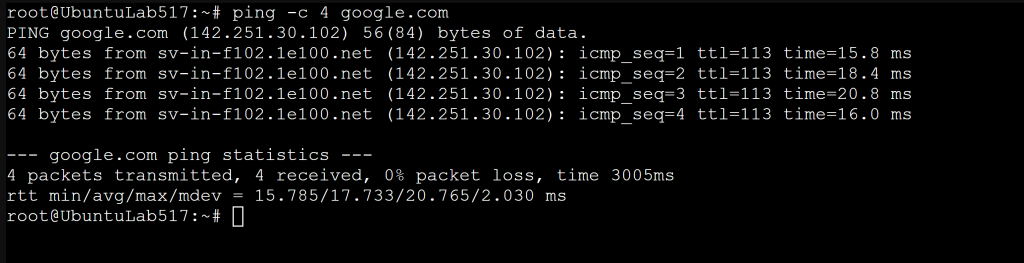
Lab: Test Connectivity
Test reachability and services.
Ping a server:
ping -c 4 google.com
Check DNS:
dig google.com

Check if a port is reachable:
nc -vz <IP> <PORT>
These are real-world troubleshooting tools.
SSH: REMOTE ACCESS FOUNDATION
SSH (Secure Shell) allows:
-
Secure remote login
-
Encrypted communication
-
Remote administration
- File transfer (SCP/SFTP)
Almost all Linux servers are managed via SSH.
Lab: Connect to a Remote Server
SSH is the backbone of Linux administration.
ssh user@server-ip
Lab: Copy a File via SSH
scp file.txt user@server-ip:/home/user/
SSH is the gateway to real Linux administration.
Key Takeaway
Linux administrators don’t guess. They observe, inspect, and control.
Processes + networking = system awareness.
Final Thoughts
Linux does not hide problems. It exposes them.
Once you understand that, Linux stops being intimidating and starts being predictable.
This guide is the point where beginners transition into real administrators, not because they know more commands, but because they know how to see, reason, and act.
That skill is what separates casual users from professionals. It gives beginners the tools to understand what the system is doing, the foundation of real troubleshooting and real confidence.