
Active Directory Domain Services (AD DS) remains one of the most essential building blocks in enterprise IT. Whether you’re managing on‑prem infrastructure, hybrid cloud environments, or lab setups, understanding how to deploy and configure AD DS is a core skill for any cloud infrastructure or systems engineer.
In a previous hands‑on lab, I deployed AD DS on a Windows Server 2019 virtual machine running on Hyper‑V, building a scalable and secure directory environment from the ground up.
Step-by-Step Installation
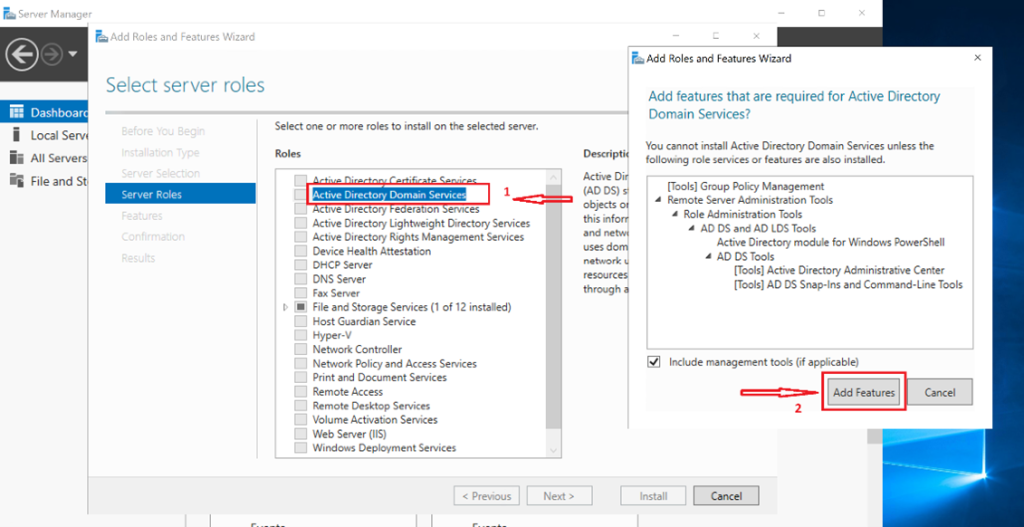
1. Installed the AD DS Role:
Opened Server Manager → Add Roles and Features
Select Active Directory Domain Services and confirm installation


2. Configured the Domain:
Promote the server to a Domain Controller (DC)
Created a new forest: sirhumble.store
Set DSRM password for recovery


Select Next and Next to Review the Prerequisites check, and then select Install, and the Windows Server will automatically reboot.
3. Checked and Verified Configuration:
- Ran DCdiag to ensure the health of the DC
- Verified DNS registration and AD replication
- Configured Static IP to avoid DNS issues.
Why Set Up AD DS on Hyper‑V?
Deploying AD DS in a Hyper‑V environment is ideal for:
- Lab environments
- Testing Group Policy and AD configurations
- Practicing role‑based access control (RBAC)
- Building hybrid cloud simulations
It provides a safe, isolated, and flexible environment to experiment, break things, fix them, and build confidence before touching production systems.
Benefits of AD DS in Enterprise Environments
- Centralized identity management
- Improved security through authentication and authorization controls
- Streamlined user, device, and resource management
- Foundation for services like DNS, Group Policy, and enterprise applications
AD DS is the backbone of most enterprise networks; mastering it unlocks deeper understanding of infrastructure, security, and cloud integration.

