
For many years, organizations have relied on traditional methods of sharing files, most commonly through mapped network drives connected to on‑premises Windows servers. This approach has served businesses well, especially those with domain‑joined computers and centralized IT infrastructure.
However, as organizations grow, adopt hybrid work models, and support remote or non–domain‑joined devices, these legacy methods start to show limitations. Companies increasingly need highly available, scalable, and secure file-sharing solutions that work across locations, devices, and networks.
This is where Azure File Sync becomes a game‑changer.
Azure File Sync allows you to modernize your existing file server infrastructure without losing the performance, compatibility, and familiarity of your on‑premises Windows file servers. It enables your files to sync automatically to Azure, giving you centralized cloud storage, global access, improved redundancy, and tiered storage that optimizes disk usage.
In this guide, I’ll walk you step-by-step through setting up Azure File Sync, configuring both local and cloud file shares, and demonstrating how files stay available and synchronized across:
✔ A domain‑joined computer connected to your local server
✔ A non–domain‑joined computer mapped directly to Azure Storage
By the end, you will clearly see how Azure File Sync provides seamless file availability across your entire organization—whether on-premises or in the cloud.
What is Azure File Sync?
Azure File Sync is a Microsoft cloud service that centralizes your organization’s file shares in Azure Files while keeping the speed and flexibility of a Windows Server in your environment. It enables you to:
- Maintain your existing Windows Server file shares
- Sync your data to Azure automatically
- Cache frequently accessed data locally for fast performance
- Use cloud tiering to store infrequently accessed data in Azure, saving local disk space
- Access files using any Windows Server-supported protocol: SMB, NFS, FTPS, and more
- Deploy multiple servers across global locations and keep them all in sync
In simple terms:
Azure File Sync brings the cloud to your on-premises file server, without forcing users to change how they work.
Creating a Storage Account
Step 1: Sign into the Azure portal
Step 2: Under Azure services, select Storage account or search for Storage and select the Storage accounts.

Step 3: On the Storage Accounts page, click on create.

Step 3: On the Basics blade, select the Subscription, the desired Resource group, or create a new Resource group.
Step 4: Enter the name of your storage account, for this tutorial we will be using abcofcloudstorage. The name must be unique across Azure. The name must also be between 3 and 24 characters long and may include only numbers and lowercase letters.
Step 5: Select the region for the storage account.
Step 6: Select the performance tier for the storage account.
Step 7: Choose how you want the Storage account to be replicated.

Step 8: Additional options are available on the Advanced which you can select based on your requirement.
Step 9: Select Review + Create to have a review of all the options you selected then Click on Create.

Creating a File Share
Now that we are done with creating the Storage account, we will go ahead to view the storage account and create a file share.
Step 1: Click on the storage account (abcofcloudstorage) that was created.

Step 2: From the left menu, Under Data storage select File shares then click on the plus (+) button beside File share.
Step 3: On the right pop-out, Name the New file share, for this tutorial we will be using abcofcloud-hrdept leave the tier set to Transaction optimized and then select Create.

Step 4: Now double-click on the new File share you created.

Step 5: Now click on Upload then on the pop up click on the folder icon. You can browse through your local disk and select any file you want to upload and Click the upload button.

What we will be doing now is connecting this New File share to a computer that is not domain-joined to our local server just to show how every file will sync together at the end.
Connecting Azure File Share from Windows
Step 1: Click on the Connect button on the pop-out by the right, select Windows, and Under the Drive, letter select the letter you want to use for the drive from the drop-down.
Step 2: Choose the Storage account key and copy the script that will be displayed to you.
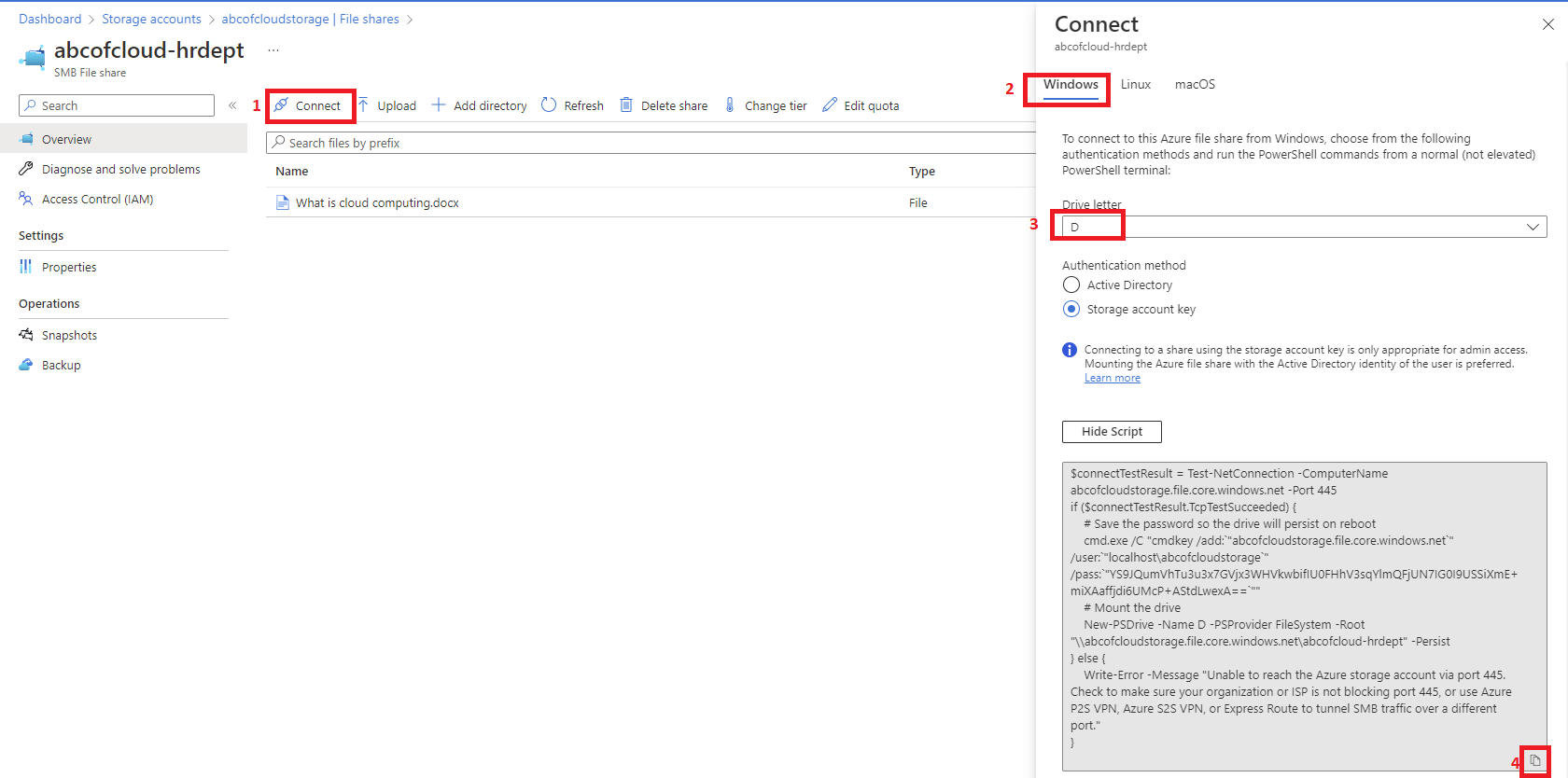
Step 3: Log in to the computer, Open PowerShell and paste the script, then hit the enter key.


Now that we have successfully created and connected the file share to our computer we can then move to the next part.
We will be creating the Azure File Sync
Step 1: Search for the Azure File Sync in Azure portal.
Step 2: In the search results, select Azure File Sync.

Step 3: Select create to open the Deploy Azure File Sync tab.
Step 4: Select the Subscription.
Step 5: Select the desired Resource Group.
Step 6: Give the Storage sync service name a unique name, we will be using abcofcloudsyncfile.
Step 7: The Networking and tags can be selected based on your requirements and after that click on Review and create.

Creating the Sync Group
A sync group defines the sync topology for a set of files. A sync group must contain one cloud endpoint, which represents an Azure file share. A sync group also must contain one or more server endpoints. A server endpoint represents a path on a registered server. To create a sync group:
Step 1: Go to the Resource Group and select the Storage Sync Service we just created.

Step 2: On the left menu under Sync, select the Sync groups and then click on the plus(+) button to add a Sync group.

Step 3: Name the Sync group with a name that is unique within the Storage Sync Service, but can be any name that is logical for you.
Step 4: Select the subscription where the Storage Sync Service is deployed.
Step 5: Select the storage account of the Azure file share that was created.
Step 6: Select the Azure File share that was created.

How to Register Windows Servers
Registering your Windows server with a Storage Sync Service establishes a trust relationship between your server (or cluster) and the Storage Sync Service. A server can only be registered to one Storage Sync Service. It can sync with other servers and Azure file shares that are associated with that Storage Sync Service.
Step 1: While you’re still in the Storage Sync Service, on the left menu click on Registered servers.
Step 2: Click on the Azure File Sync agent to download it and install it on all the servers you want to sync.

Step 3: Select the agent depending on the Windows server you have, for this tutorial we will be using Windows Server 2016, click next and run the agent.
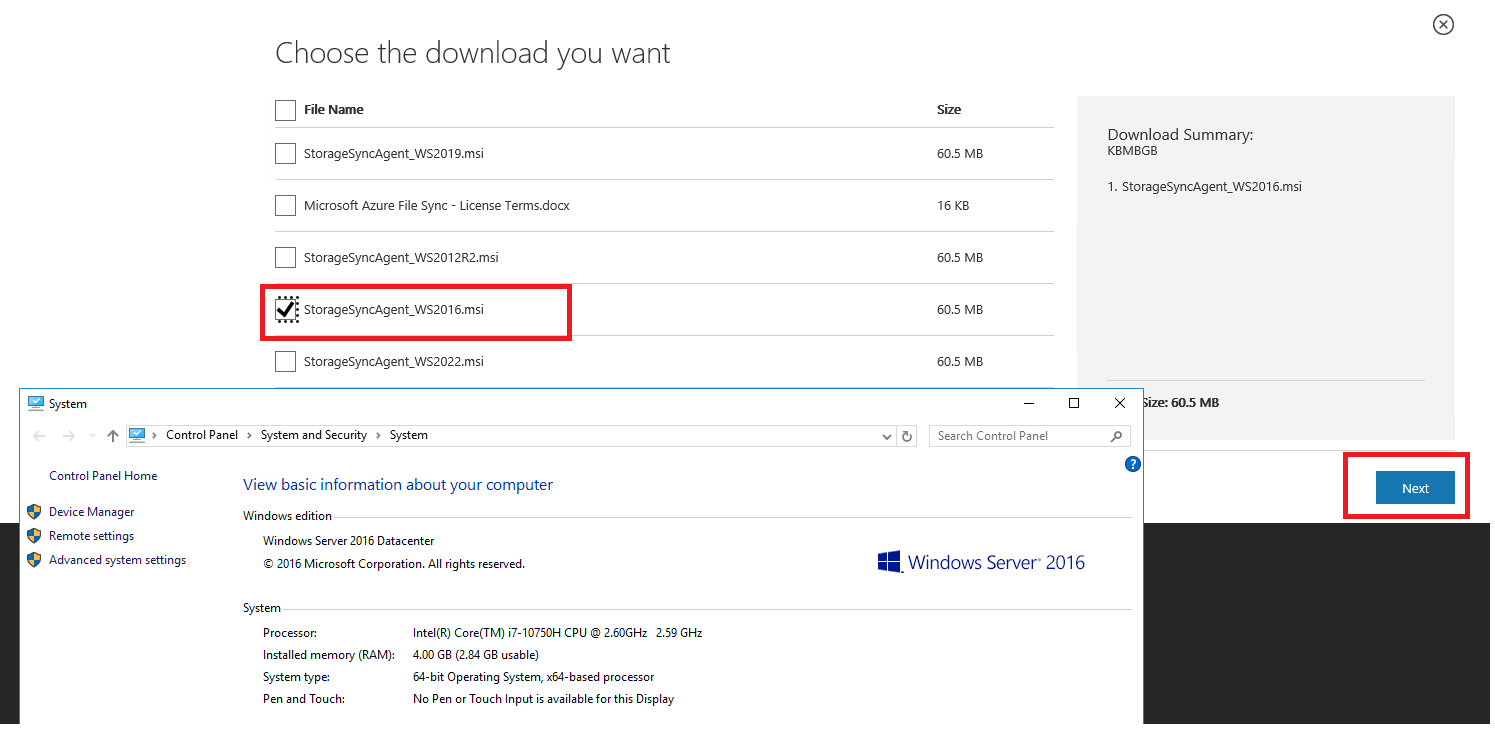
Step 4: Accept the defaults when installing the Storage Sync Agent Setup Wizard and select Finish.

Step 5: When the Server Registration UI opens on the local server, select Sign in.

Step 6: Now select the subscription that contains the Storage Sync Service.
Step 7: Then the Resource group that contains the Storage Sync Service.
Step 8: And finally the Storage Sync Service.
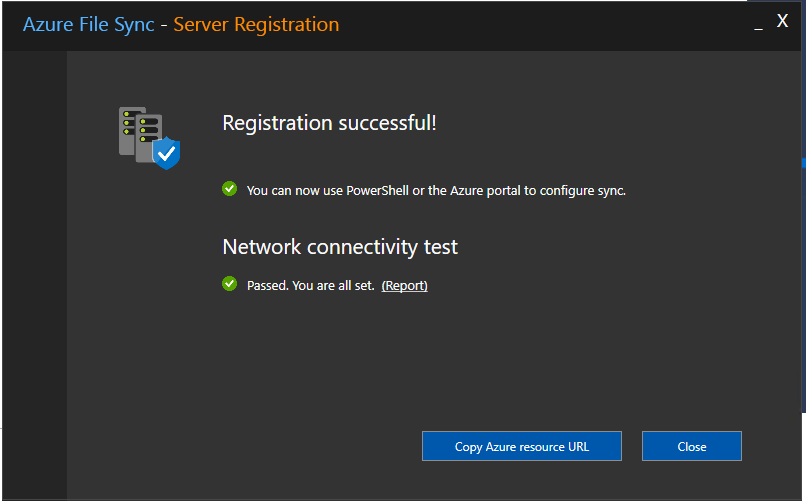
You have now successfully registered your server.
Adding a server endpoint
A server endpoint represents a specific location on a registered server. For example, a folder on a server volume. To add a server endpoint:
Step 1: Browse to the newly create sync group.

Step 2: Now Select Add server endpoint.
Step 3: On the right pop-out use the drop-down under Registered server and select the Windows server that was registered.
Step 4: Paste or type the Windows server path to the drive you want to share, for this tutorial the path I will be sharing is the C:\Shared\HR-DEPT and then create.
The Cloud Tiering and Initial sync can be configured based on your requirement. I left the Cloud Tiering blank for this tutorial.


By the side menu under Sync click on Registered servers to confirm the server state is online.

Comparing the files now, you will notice the file Staff Data on the Windows Server has now been synced to Azure File Share and the file What is Cloud computing on Azure File Share has now been synced to the Windows Server.


Client computer showing the file synced from Windows Server.
Click on this link for Troubleshooting File Sync
References: Tutorial: Extend Windows file servers with Azure File Sync

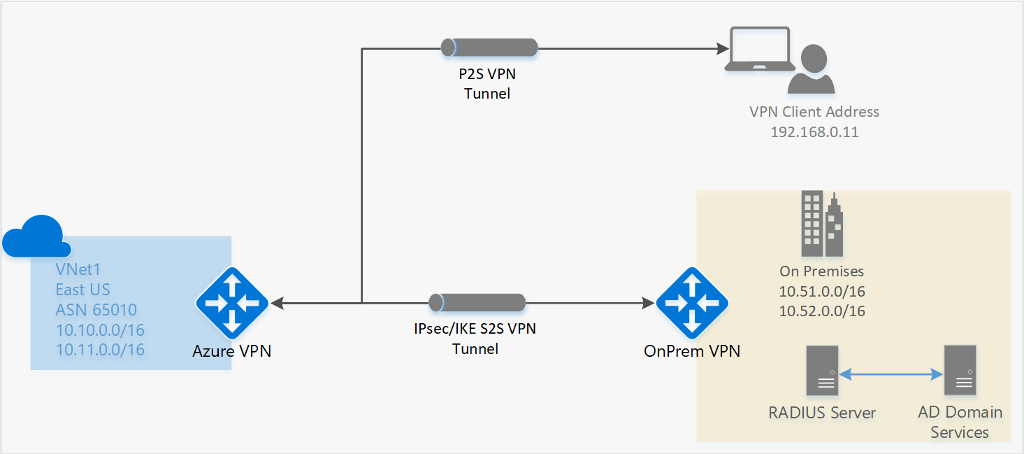
Just to read