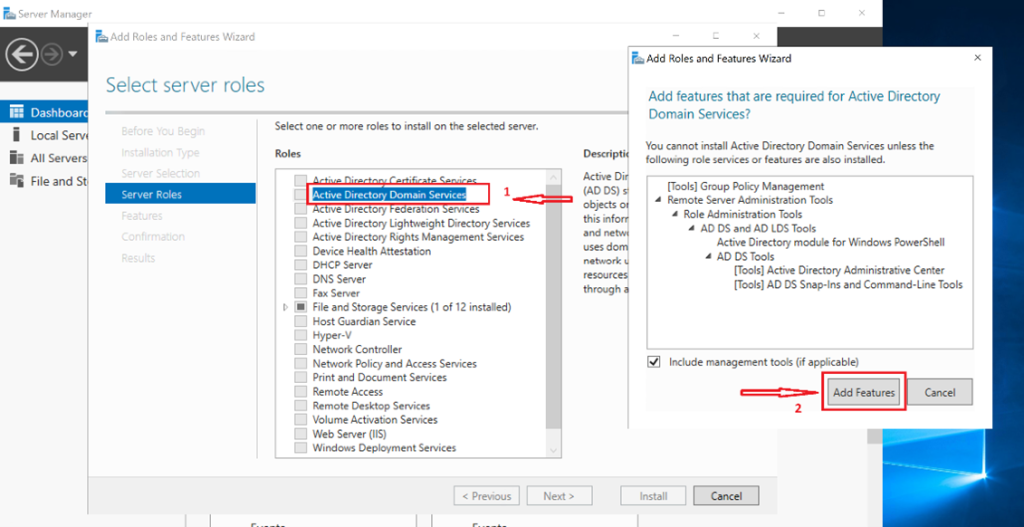
Building reliable, scalable infrastructure starts with mastering the fundamentals. I revisited one of the most essential skills in systems administration: deploying and configuring Windows Server on Hyper‑V, complete with proper networking and static IP assignment.
This hands‑on project mirrors real enterprise workflows and lays the foundation for future services like DNS, Active Directory, DHCP, and RDP.
How I Built and Networked a Windows Server on Hyper‑V
-
Enable Hyper‑V on Your Host Machine
Ensure your Windows 10/11 Pro or Enterprise supports virtualization.
Enable Hyper‑V through Control Panel → Programs and Features → Turn Windows features on or off → Hyper‑V


Reboot when prompted.
-
Launch Hyper‑V Manager
Open the Start Menu → Search Hyper‑V Manager → Launch.
-
Create a Virtual Switch
This provides network access for your VM.
In Hyper‑V Manager:
- Open Virtual Switch Manager
- Create a Private or External switch
- Bind it to your active network adapter
- Name it (e.g., NewVirtualSwitch)
- Click Apply


-
Create a New Virtual Machine
In Hyper‑V Manager:
- Right‑click your host → New → Virtual Machine

Name your VM (e.g., VICTORN‑DC2K19)

- Select Generation 2
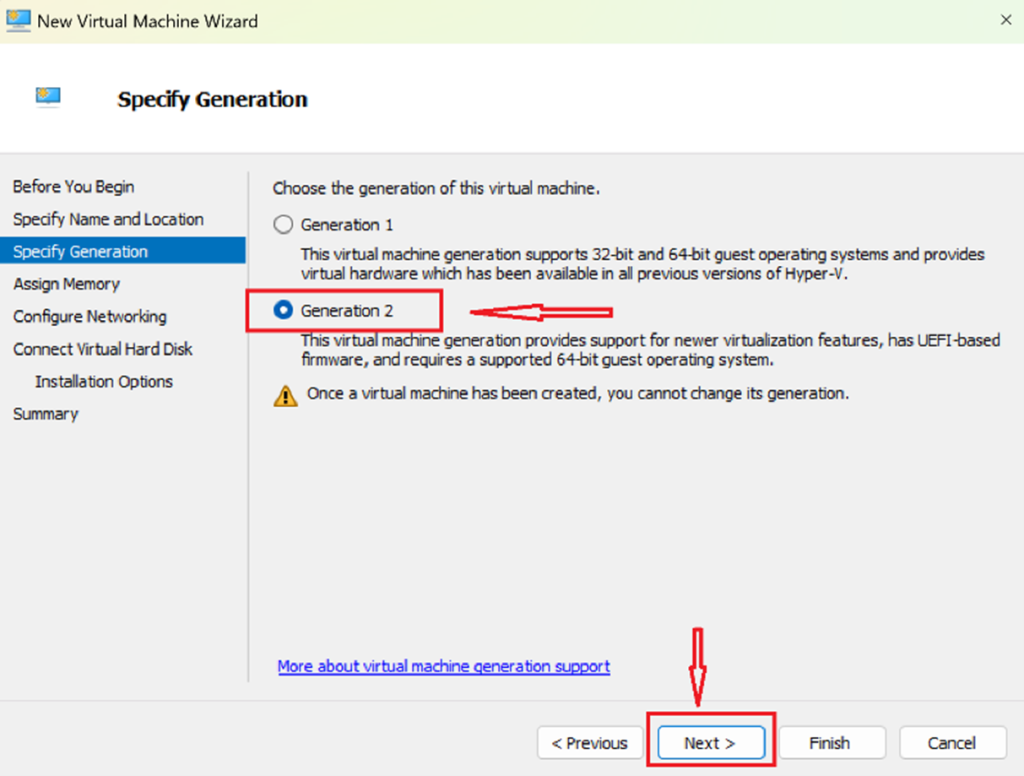
- Assign memory (2–4 GB minimum depending on your host)

- Select the virtual switch you created

- Create a new virtual hard disk (40 GB or more)
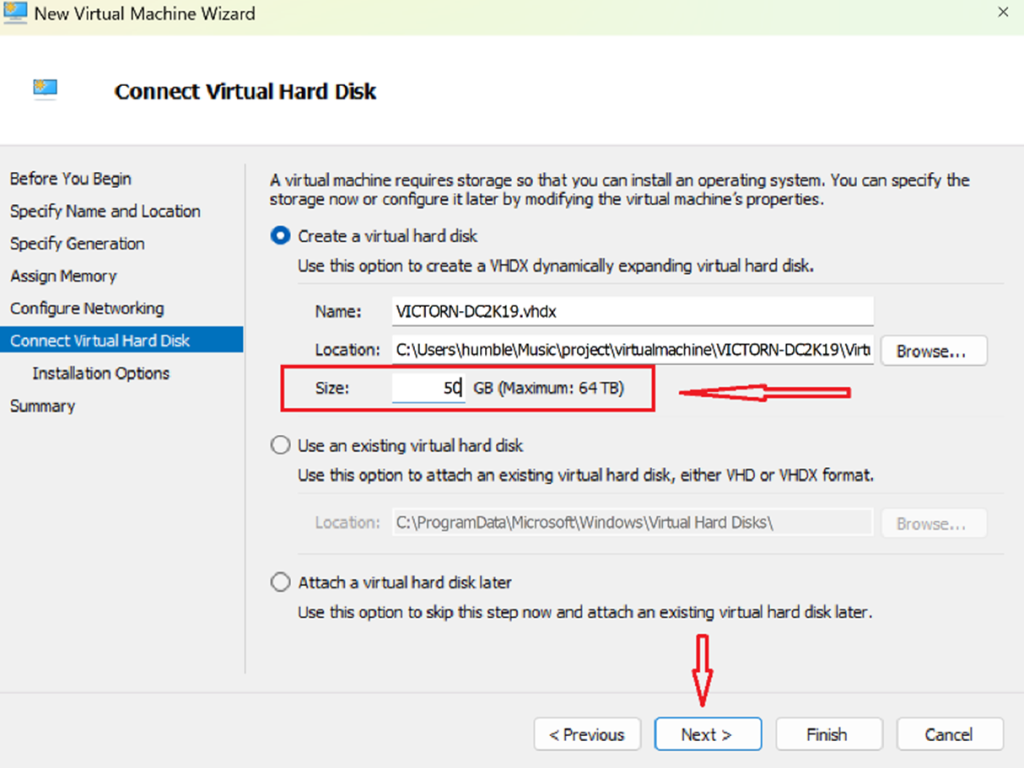
- Mount the Windows Server ISO


-
Install Windows Server
Start the VM → Open the console → Follow the installation wizard:
- Choose edition
- Set administrator password
- Complete setup


-
Configure Initial Network Settings
Inside the VM:
- Open Network & Sharing Center
- Disable IPv6 (optional for lab environments)
- Open IPv4 settings → Assign a static IP address
- Rename the server


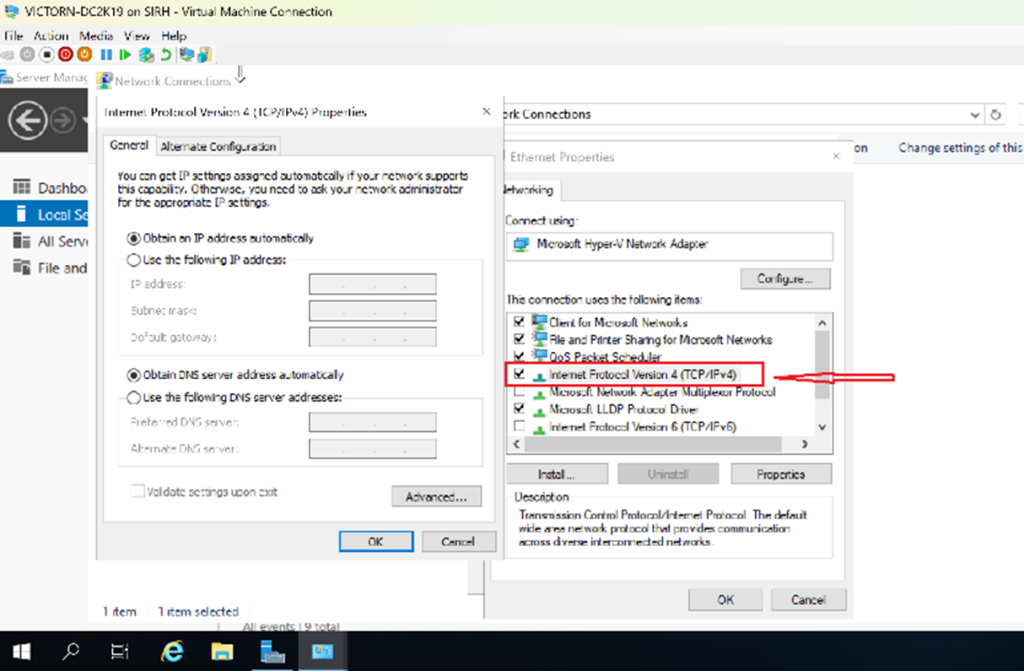
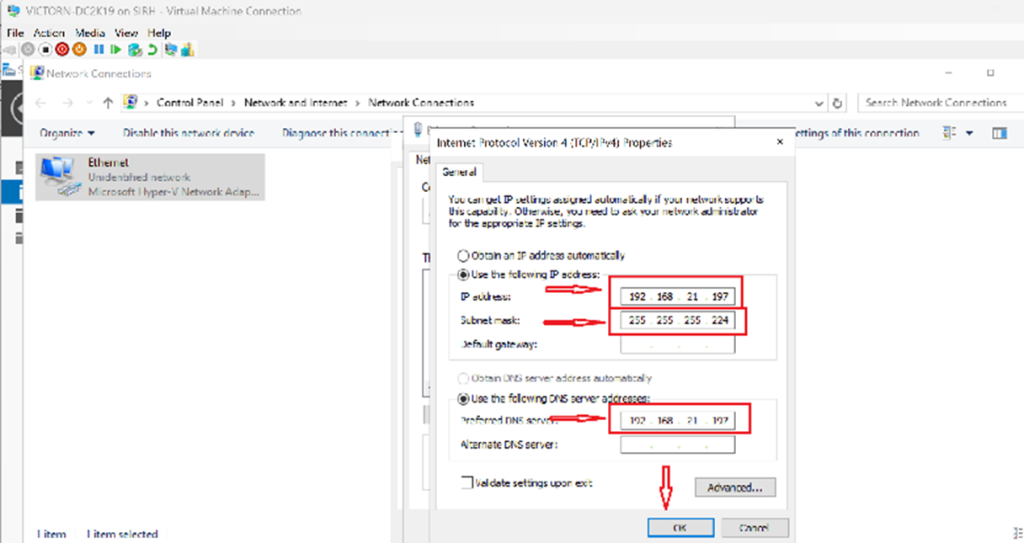

Understanding the IP Address Used
I assigned the network 192.168.21.0/24.
Breakdown
- IP Address Range: 192.168.21.0/24
- Subnet Mask: 255.255.255.0
- Network Address: 192.168.21.0
- Usable Host Range: 192.168.21.1 – 192.168.21.254
- Total Usable Hosts: 254
The /24 prefix means the first 24 bits define the network portion, leaving 8 bits for host addresses.
Key Takeaway
Deploying Windows Server on Hyper‑V with a properly planned static IP configuration is a foundational skill for any cloud or systems engineer.
By mastering VM deployment, virtual networking, and subnet planning, you build the groundwork for advanced services like Active Directory, DNS, DHCP, Group Policy, and hybrid cloud integrations.
This is the kind of core knowledge that scales from home labs to enterprise production environments.